


A client asks you for a specific promotional product. They know the color, budget, deadline, and maybe even the decoration method they want.
You open SAGE Workplace, run a product search, and suddenly you’re faced with hundreds or even thousands of results.
The right product is likely in the list. The real challenge is finding it fast.
Here are some advanced search tips for the SAGE Workplace Windows app to help you narrow your results and find the right products more quickly.
Start with the right type of search.
Before adding filters, think about what you already know.
If your client asks for something general, like “I need ideas for drinkware,” start with a broad search and narrow it down. If you already know details like the brand or price point, enter those right away.
The more details your client shares, the easier it is to use SAGE Workplace to filter out products that don’t fit.
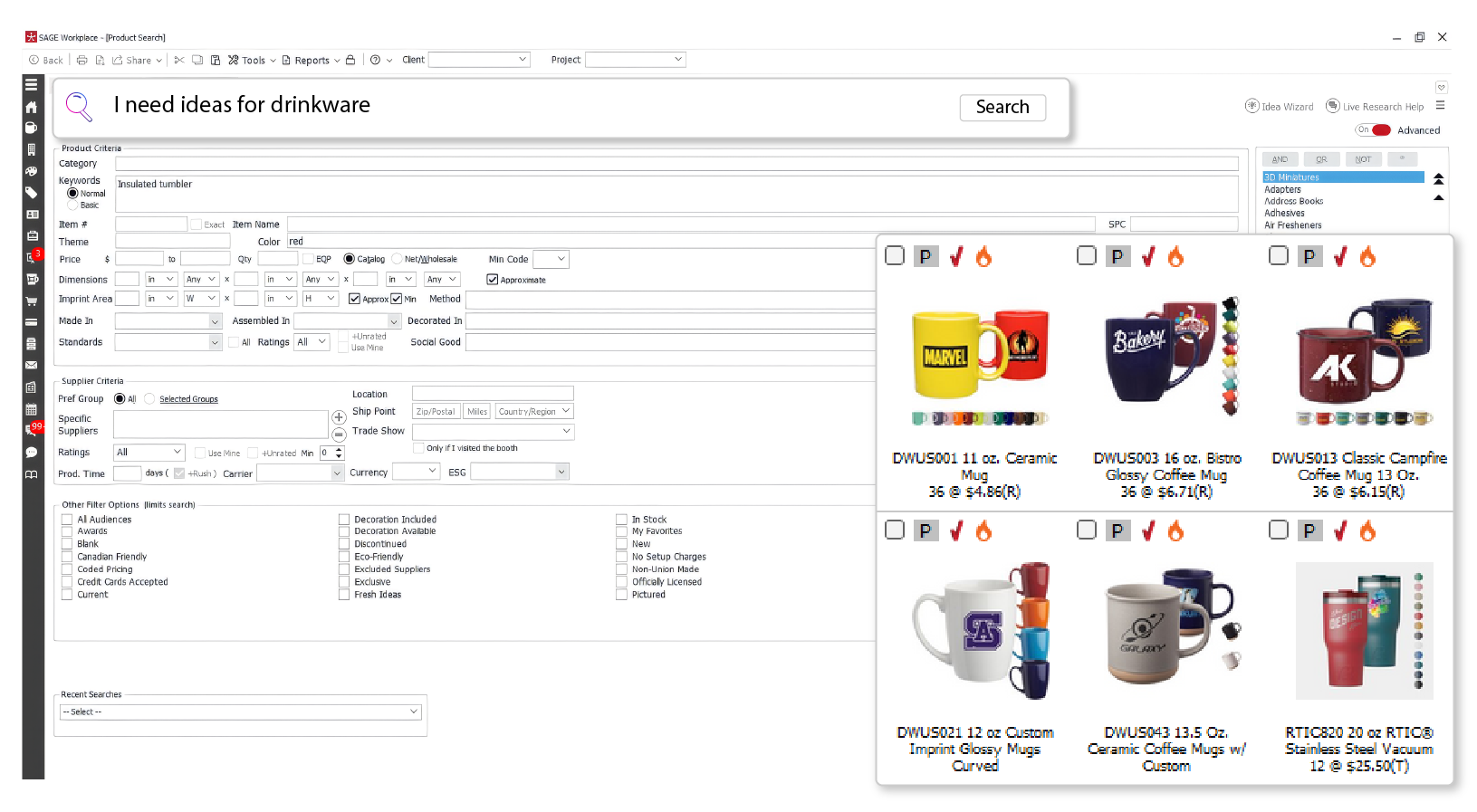
Use advanced search criteria.
A keyword is a good place to start, but it doesn’t need to do everything.
If your client wants a blue insulated tumbler within a certain price range, searching for “tumbler” alone will likely bring up too many options. Instead, search for the product and use advanced criteria like color, supplier, and price to narrow it down.
Start with what your client absolutely needs. If the product must be blue and within budget, focus on those first. Save less important preferences for later.
A simple rule:
Too many results? Add an important criterion.
Too few results? Remove a less important one.
Get more precise with keywords.
Sometimes the issue isn’t with your filters, but with the words you’re using to search.
Suppliers often use different terms for similar products. For example, your client might say “travel mug,” but a supplier could call it a “vacuum-insulated tumbler.”
Begin with a clear and simple description. For example, instead of:
“Blue stainless steel insulated travel tumbler with lid”
try:
“Insulated tumbler”
Then use other search options to narrow your results by color, price, or any other requirements.
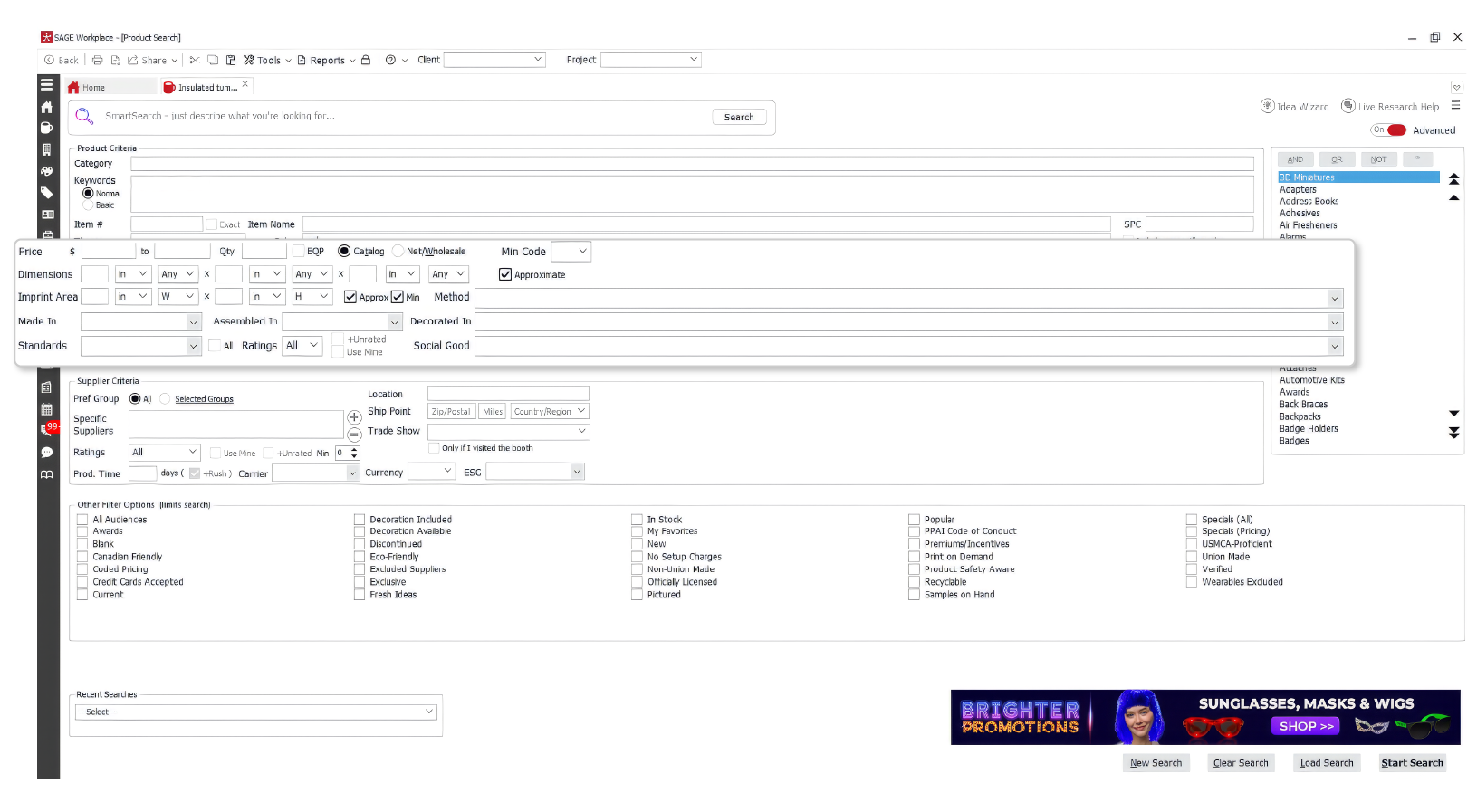
If one term doesn’t work, try a common alternative or make your wording simpler. Your first search doesn’t have to be perfect.
Use filters strategically
Once you have your first set of results, use filters to quickly remove products that don’t fit your needs.
You don’t need to use every filter. Start with the ones that matter most, like a strict budget or a required feature.
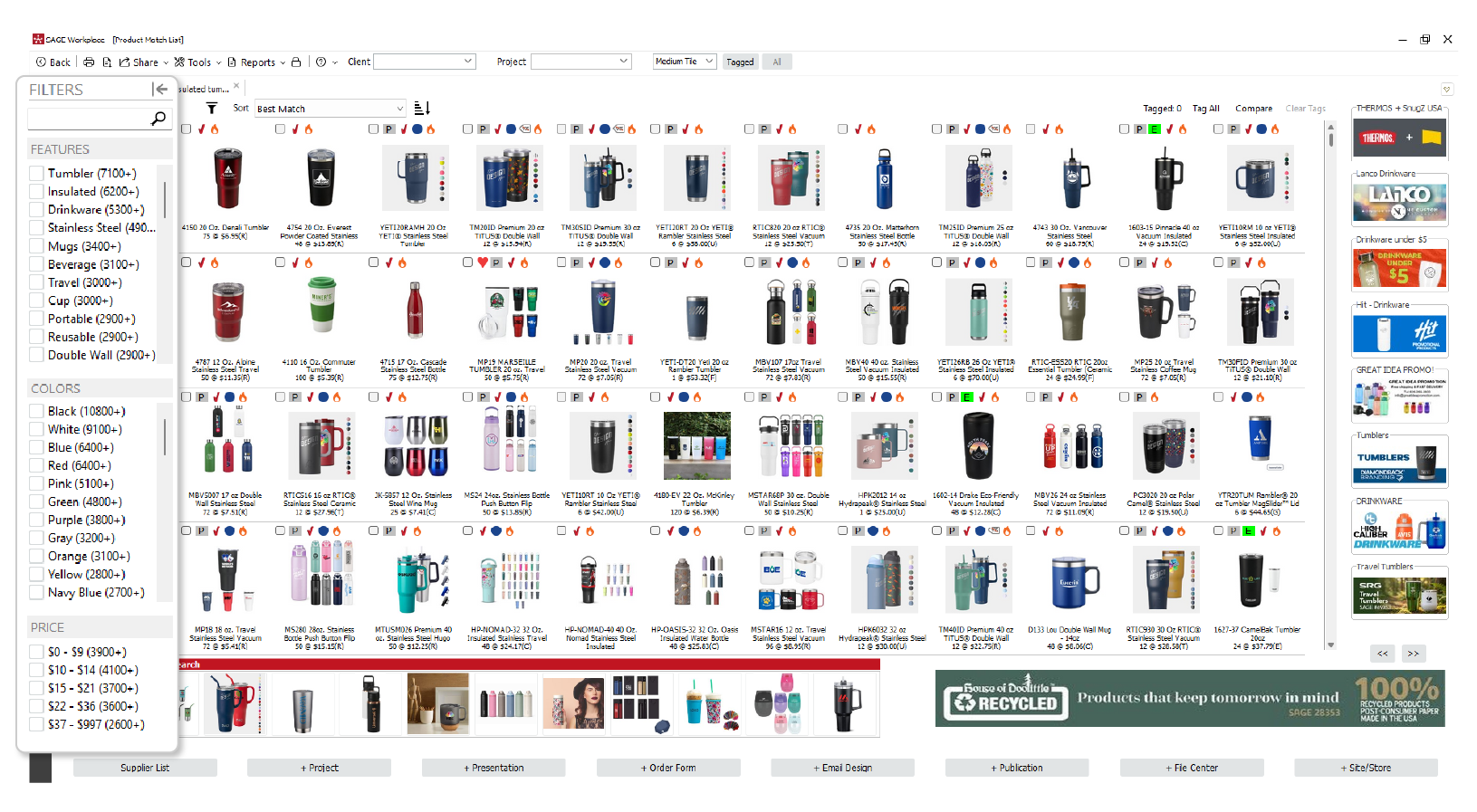
Add filters one at a time so you can see how each one changes your results.
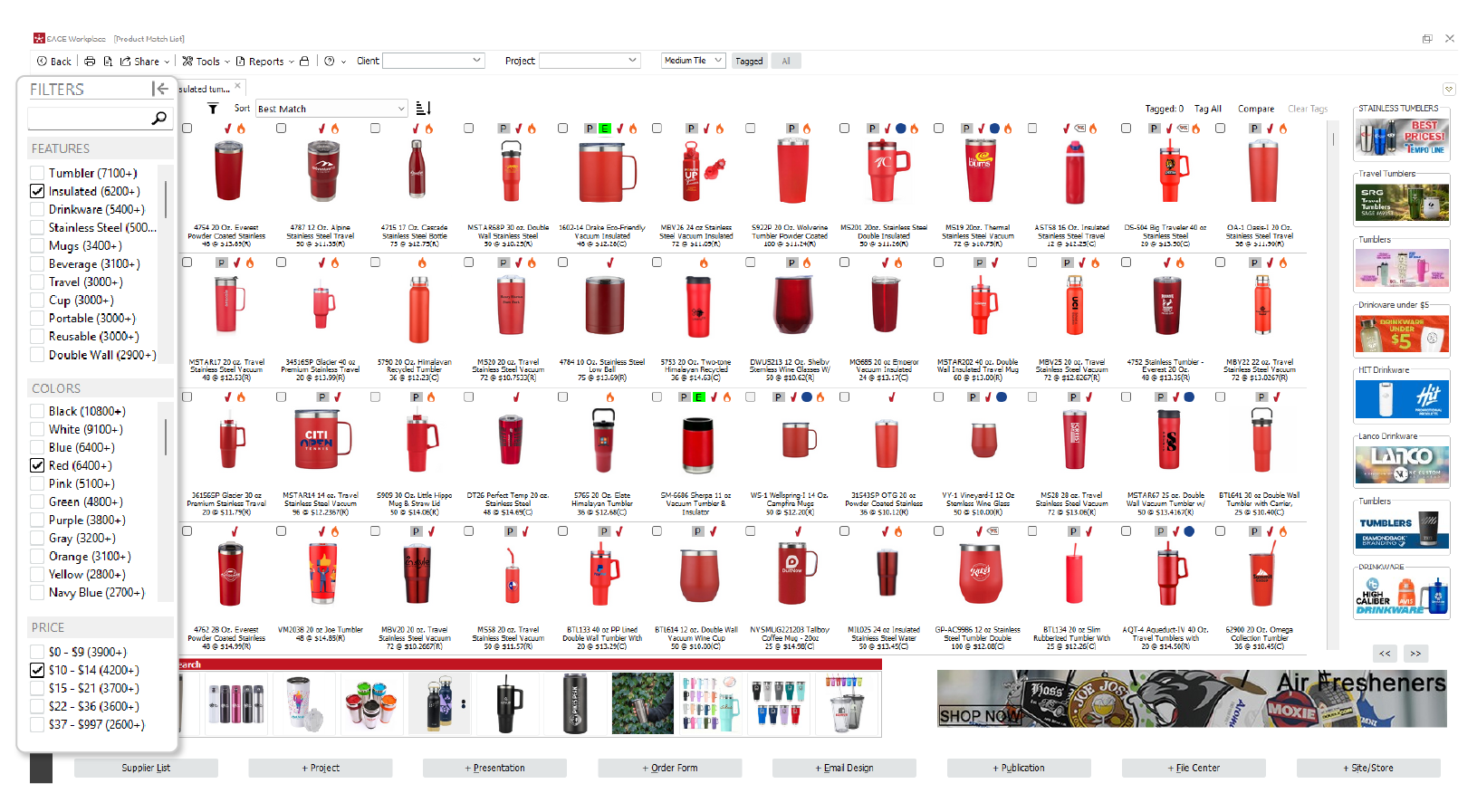
Remember this simple framework:
Must-have → filter it.
Nice-to-have → consider it.
Doesn’t matter → leave it alone.
Search by supplier and other criteria
If you already know which supplier you want to use, include that information in your search.
Maybe you have a preferred supplier, your client wants a specific brand, or you’re looking for alternatives to a product you’ve used before. Instead of checking each result, use supplier filters to focus your search.
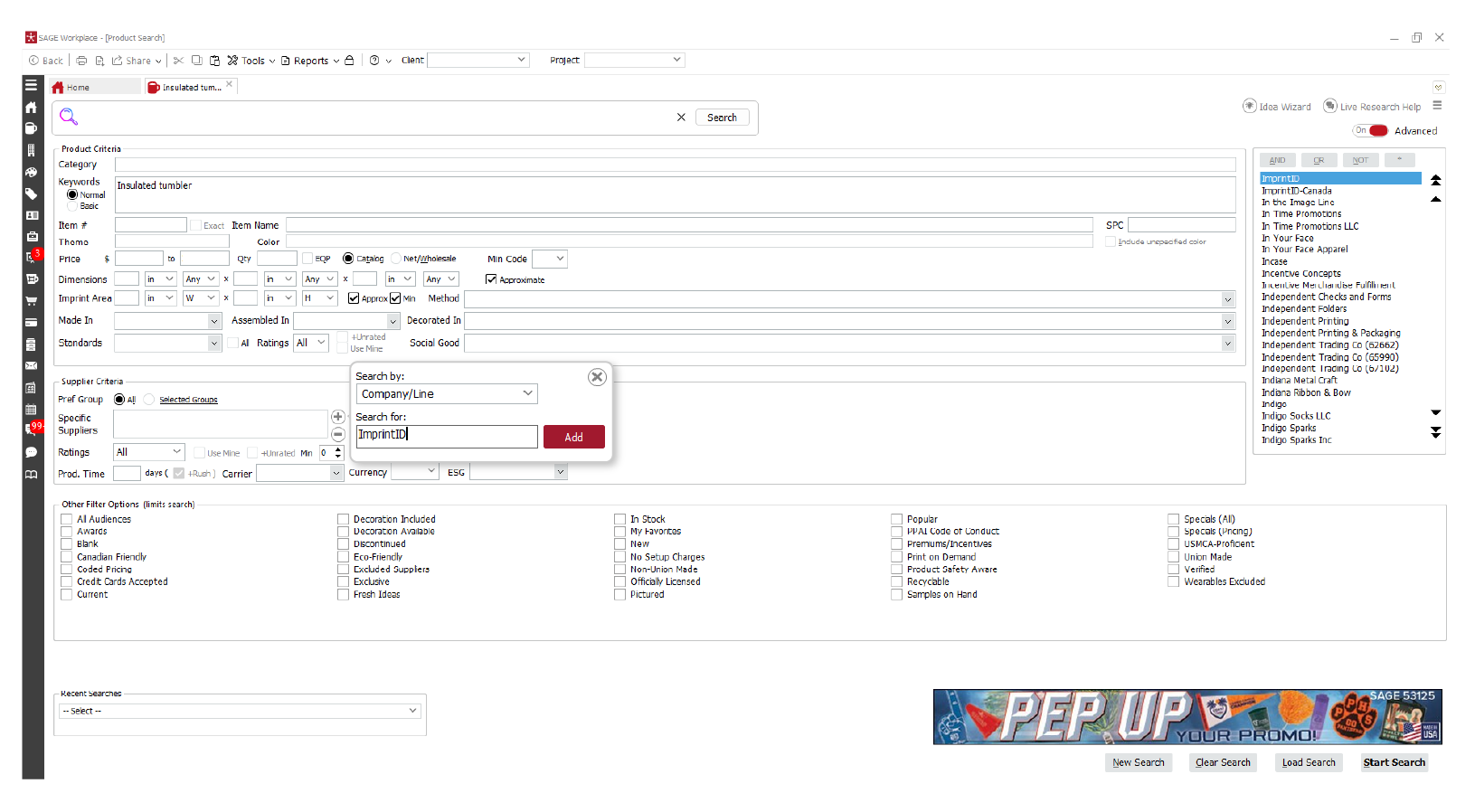
You can also combine supplier information with other details from your client’s request.
For example:
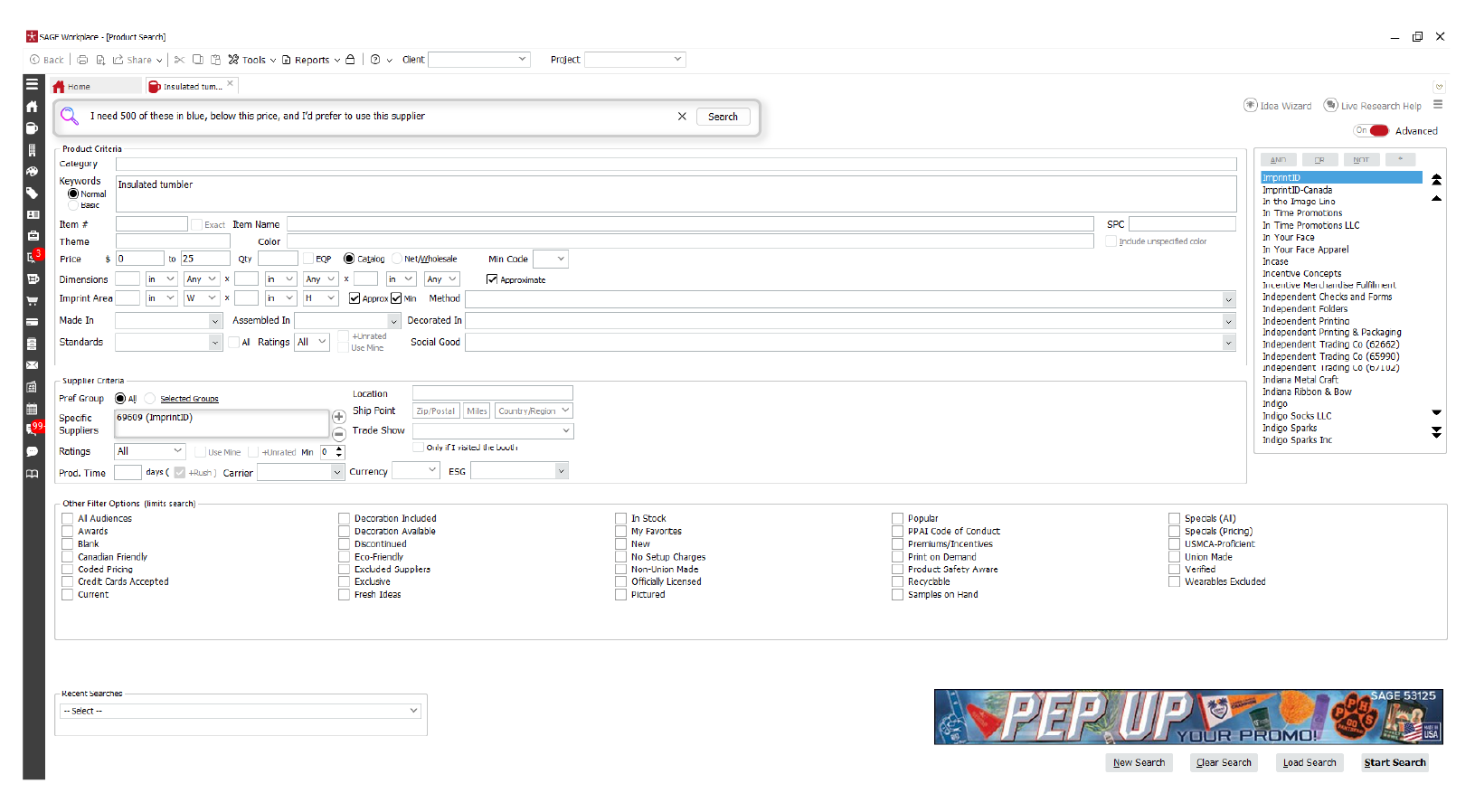
“I need 500 of these in blue, below this price, and I’d prefer to use this supplier.”
Begin with the requirements that are non-negotiable. If you still have too many results, add another filter.
Combine criteria for specific requests.
Advanced search is especially helpful when your client gives you a detailed brief.
Suppose a client says:
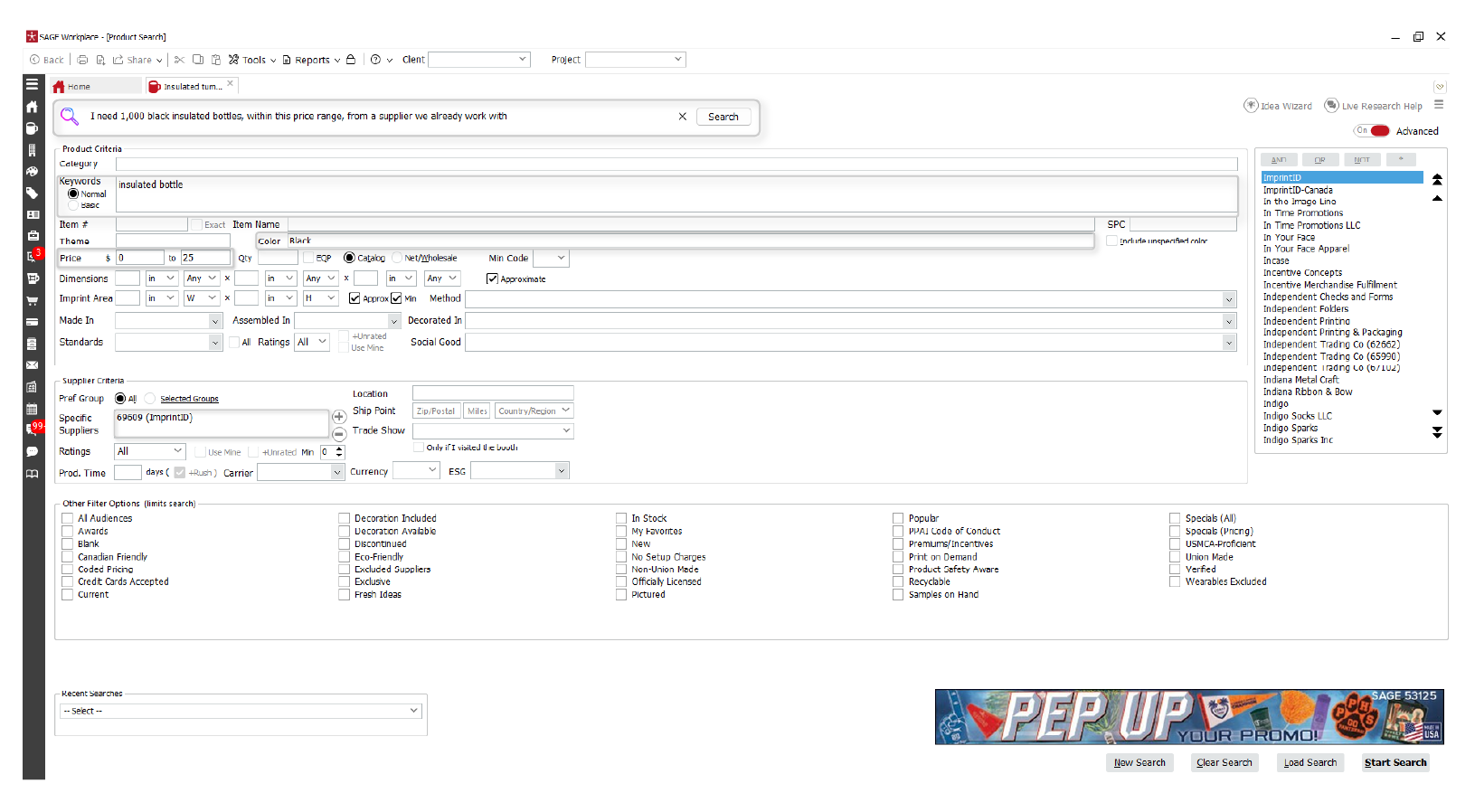
“I need 1,000 black insulated bottles, within this price range, from a supplier we already work with.”
Break that brief into searchable pieces:
- Product: insulated bottle
- Color: black
- Price: client’s budget
- Supplier: preferred supplier
Then enter those details into SAGE Workplace and combine them in your search.
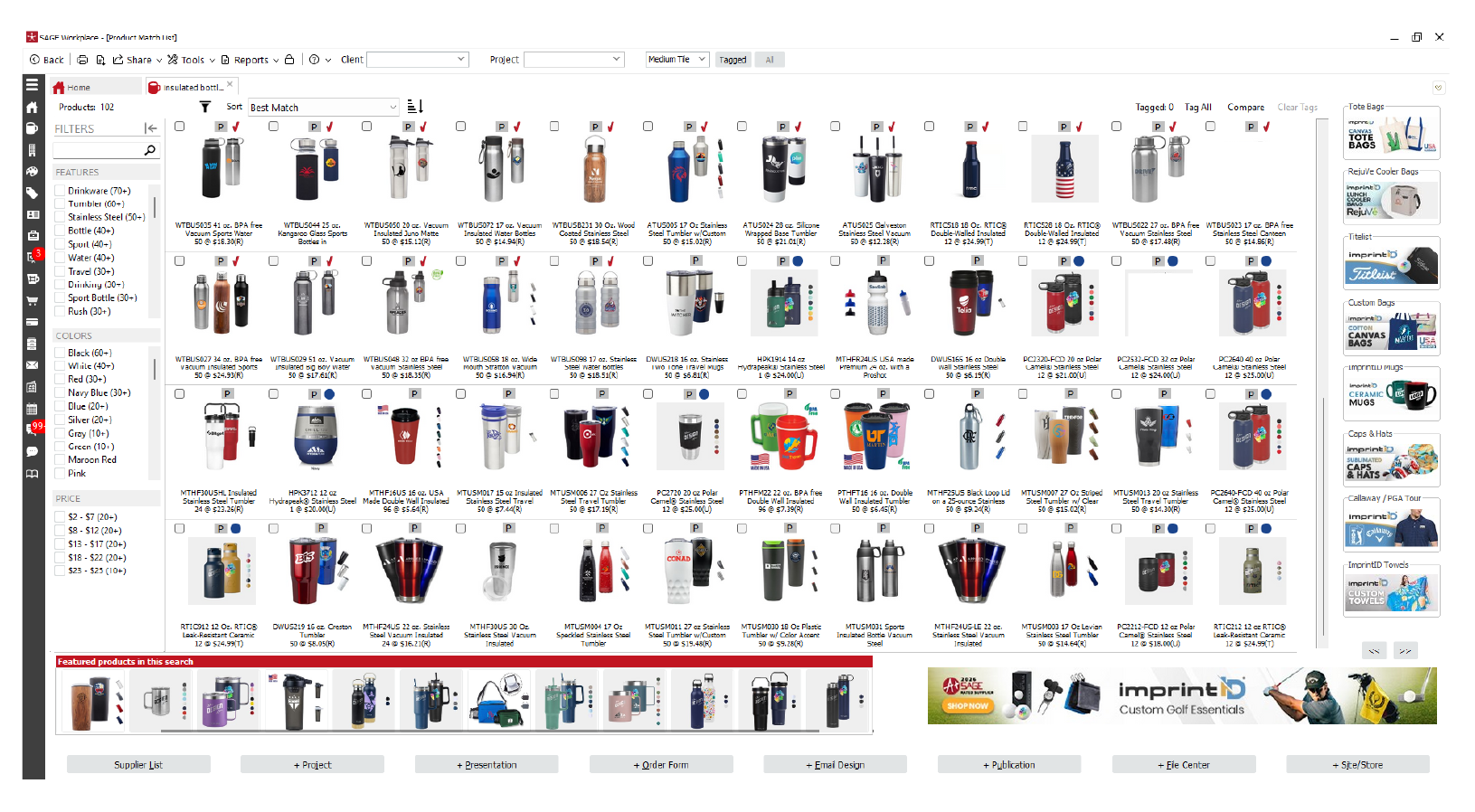
Be specific, but don’t make your search too restrictive. If black is required, include it. If it’s just a preference, you might leave color out at first.
Remember, you can adjust your search as you go along.
Save searches you’ll use again.
If you often use the same suppliers, research products for a client over several days, or find a helpful set of criteria, save your search.
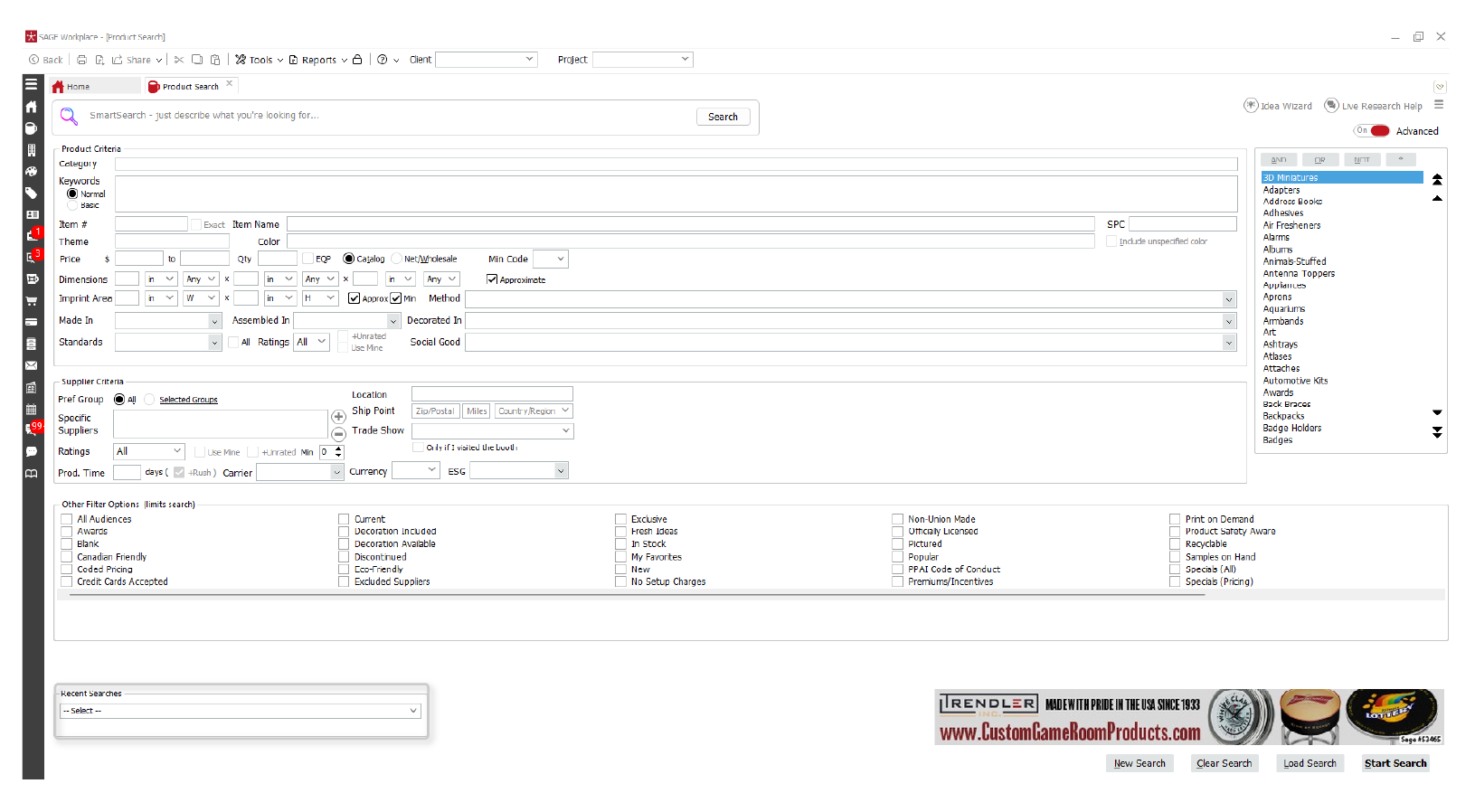
A saved search gives you a quick starting point if a client asks for more options later. You can reopen your criteria and adjust them based on their feedback.
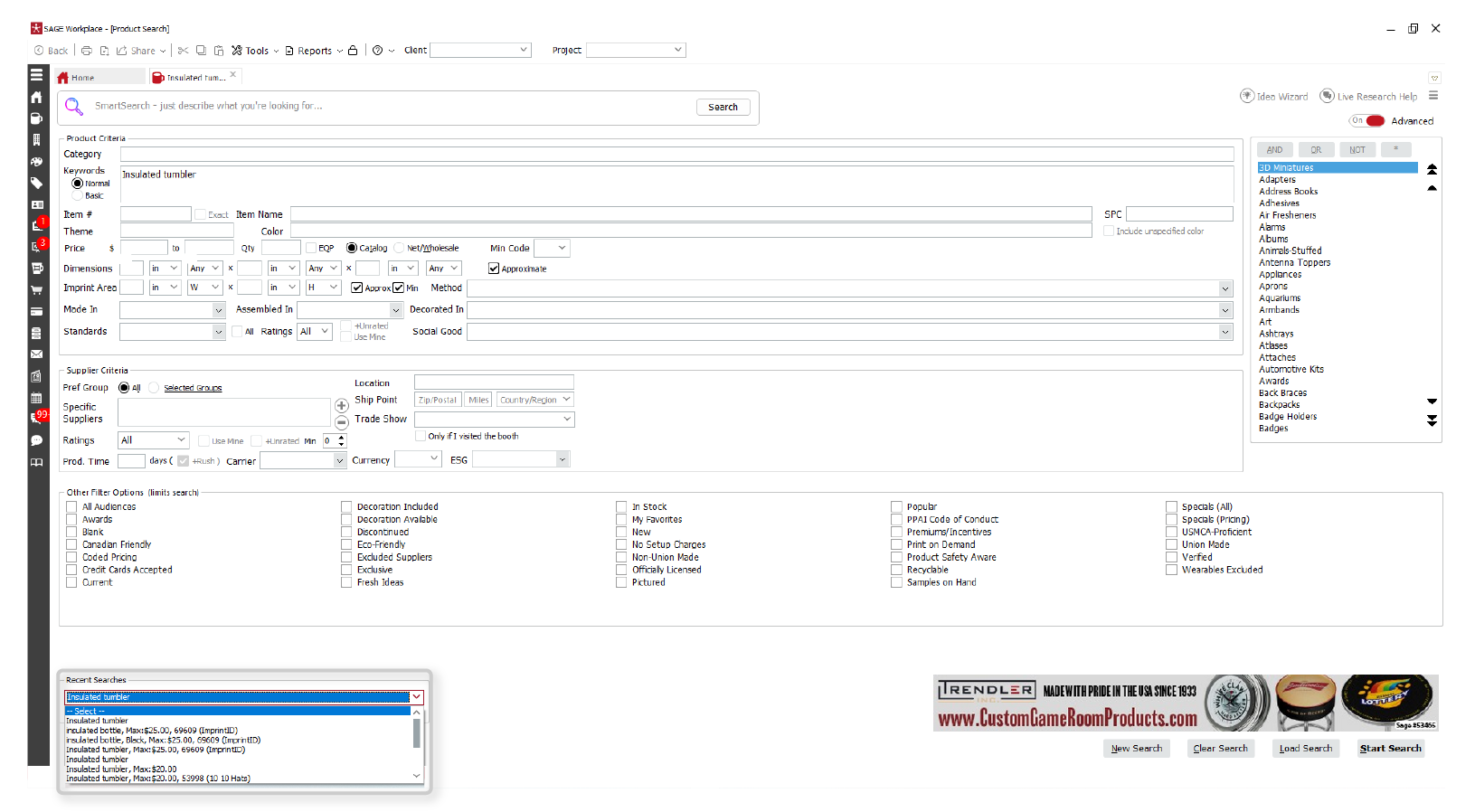
Only save searches that will likely save you time in the future, instead of saving every search.
Know when to broaden your search.
Advanced searching isn’t always about narrowing results.
If you get very few or no results, one of your criteria might be excluding products that would otherwise work.
Ask which requirements are flexible. Could your client consider a different color or supplier? Is the budget a target or a firm limit?
Take out the least important criterion and try searching again.
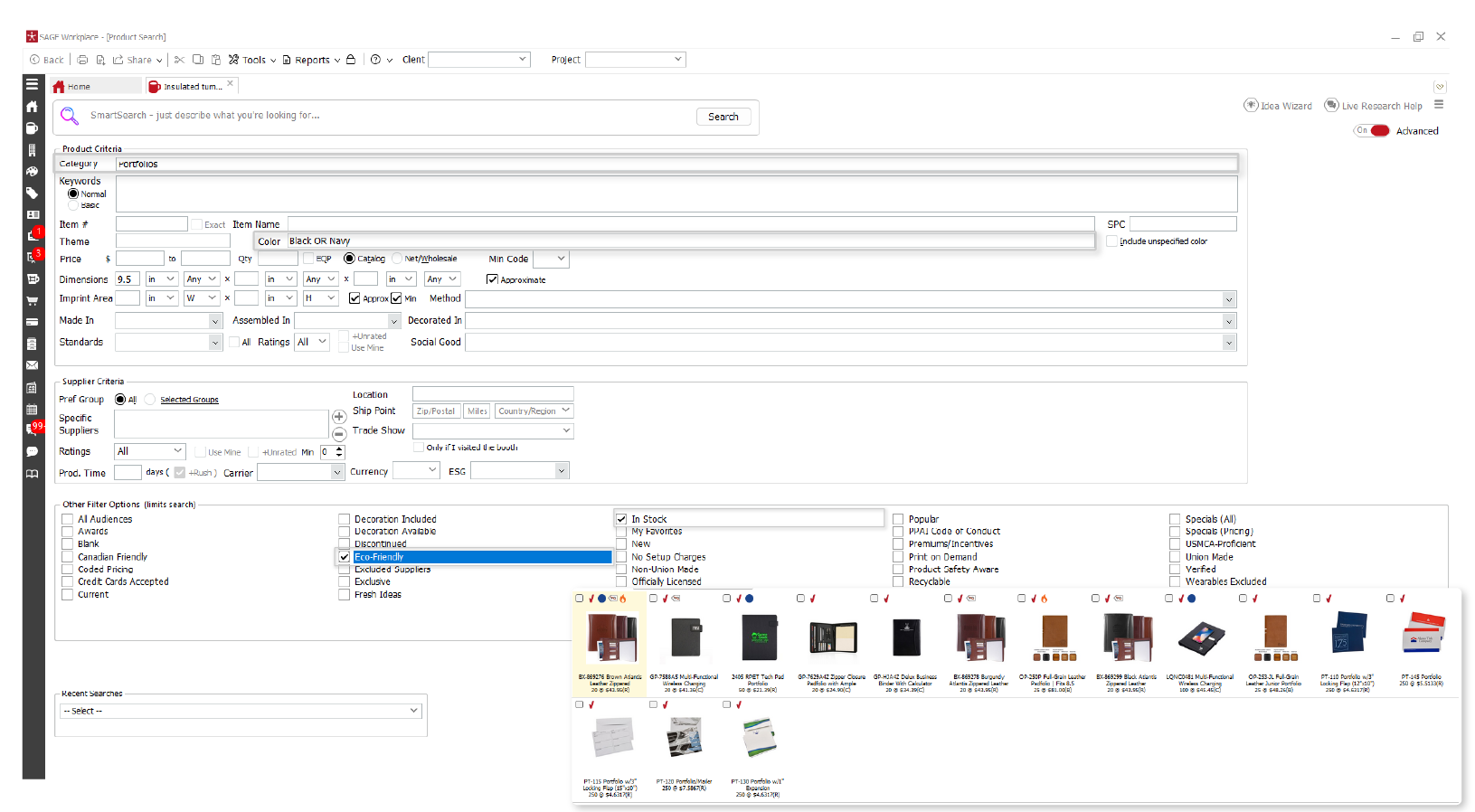
You can also try different words. If “backpack” doesn’t give you good results, try a broader term like “bag” to see more options.
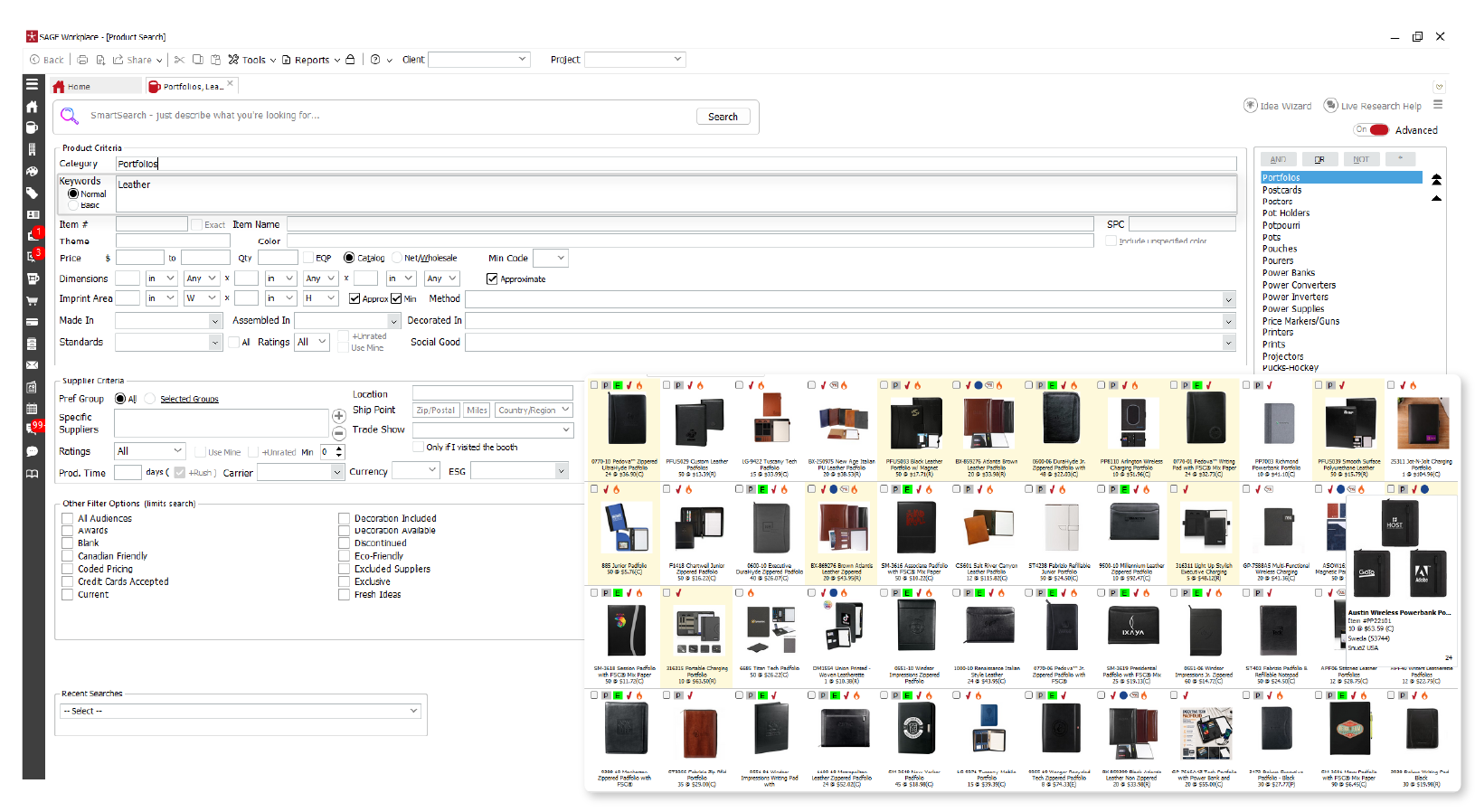
The goal is to find a balance—be specific enough to filter out irrelevant products, but broad enough to keep useful choices.
Can’t find it? Use SAGE Research Assistance
Sometimes, even after adjusting keywords, broadening your criteria, and checking suppliers, you still can’t find the right product.
That’s when SAGE Live Research Assistance can help. Send the research team all the details you have, like product type, quantity, budget, color, deadline, and any other important requirements.
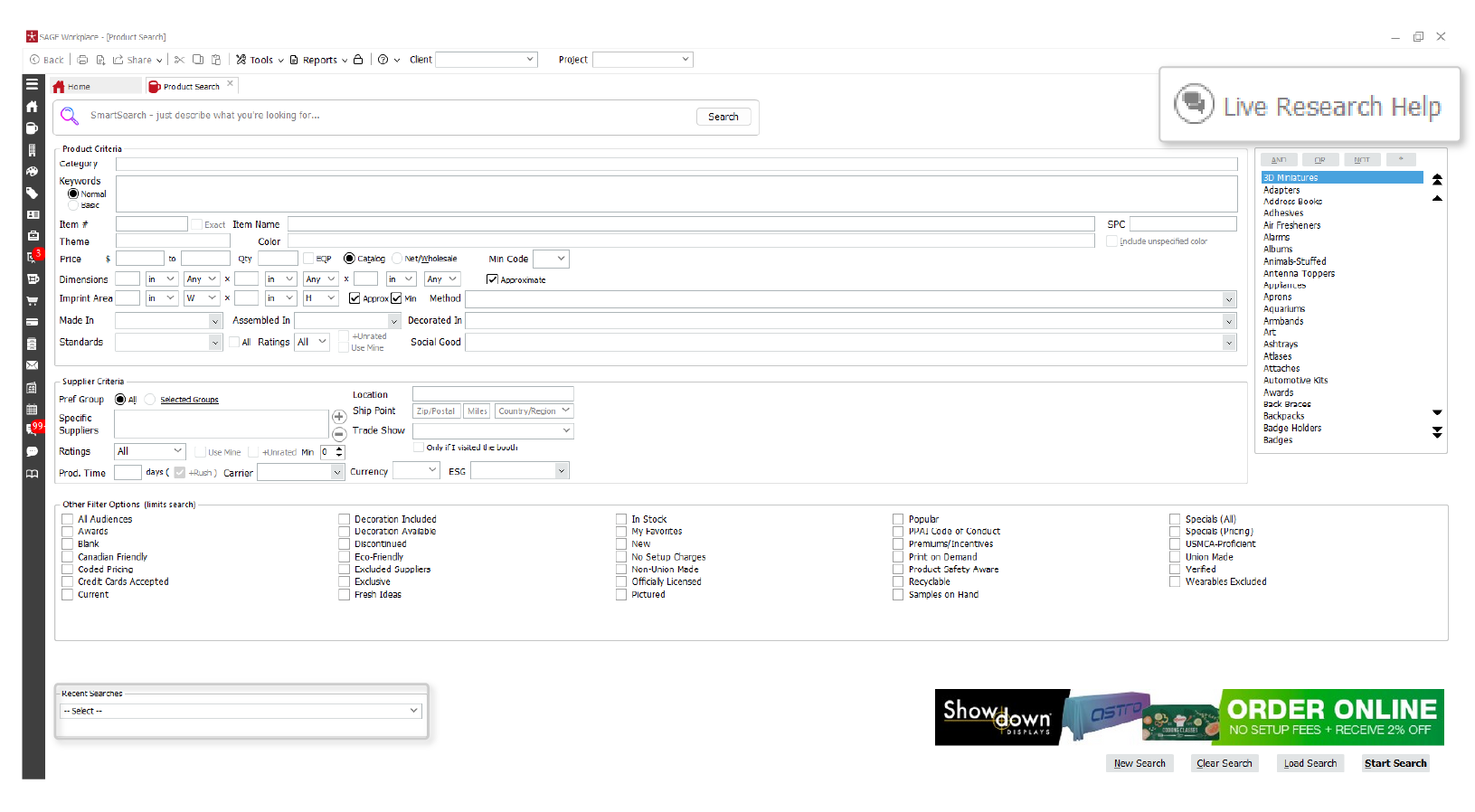
Be clear about what’s required and what’s flexible. For example:
“I need 500 insulated bottles under $15 each. Black is preferred, but other dark colors could work. The client needs them by [date].”
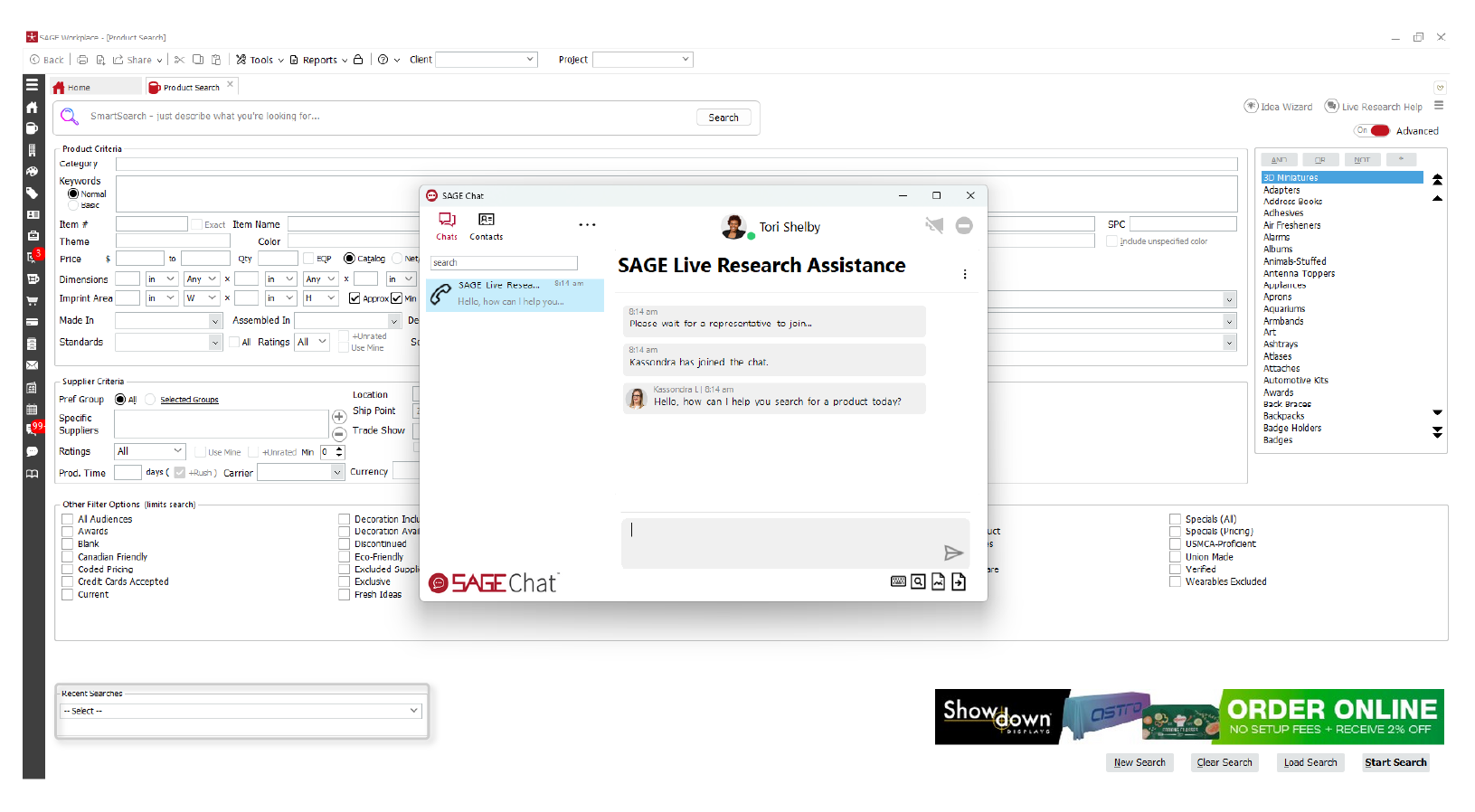
Think of research assistance as another tool in your product search process. Start with advanced search, adjust your criteria as needed, and reach out to the research team if you need extra help.
Better searches mean faster product research.
Finding the right promotional product isn’t about scrolling through endless results. It’s about giving SAGE Workplace the right details so you get better results.
Start with what you know, focus on your client’s must-haves, and adjust your criteria based on the results. Try different search terms if needed, save helpful searches, and broaden your criteria if you’ve narrowed things too much.
Your first search doesn’t have to be perfect. The better you use the search tools, the less time you’ll spend sorting through irrelevant products and the faster you’ll find the right options for your client.
I focused on cutting repeated explanations instead of removing useful tips, so the blog should feel faster to read without losing its instructional flow.
0 Comments