SAGE

The Beginner’s Guide To Sharing on Social Media

In this cheat sheet, we’ll go over how to post products and blogs to your social media from SAGE Workplace and your website. Plus, we’ll show you where you can find premade social images you can download and share, no graphic design skills required!

Here's our step-by-step guide for how to share products and content from your website to your social media.

Social Media

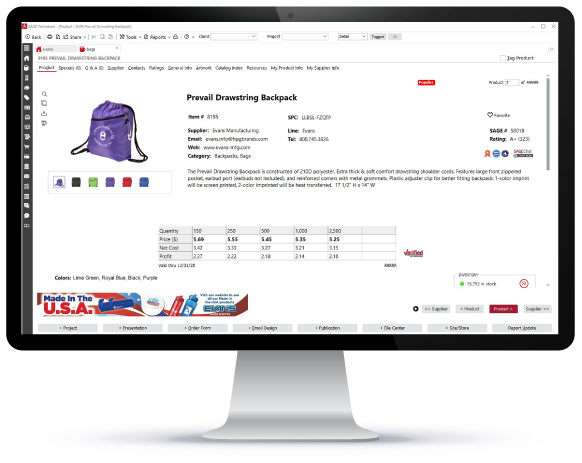
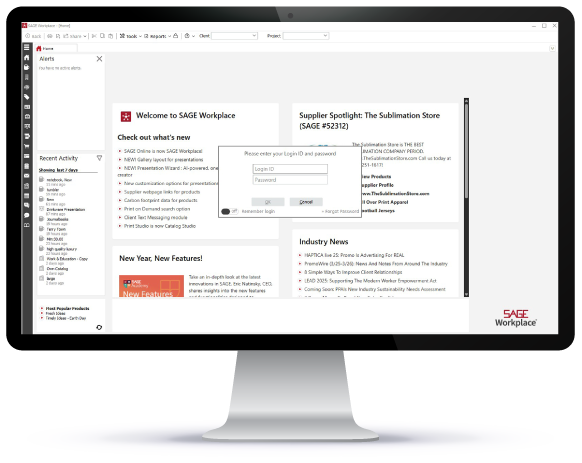
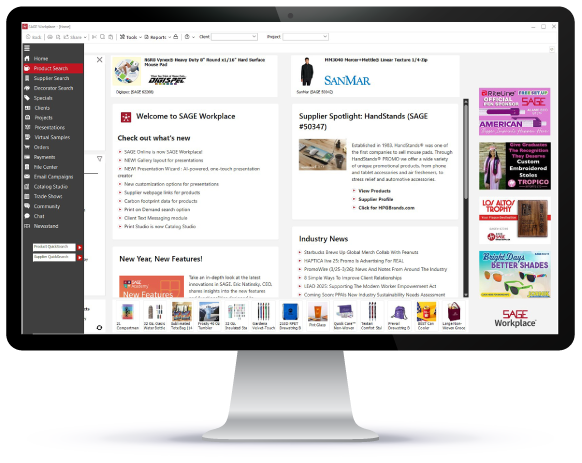
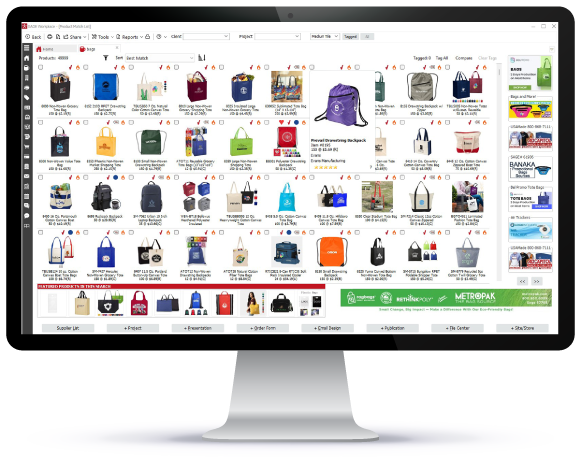
Sharing Products to Social Media From the SAGE Workplace Windows App

  • Log into your SAGE account.
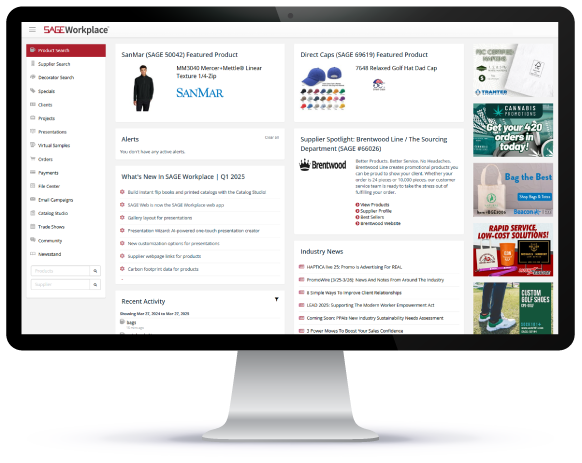
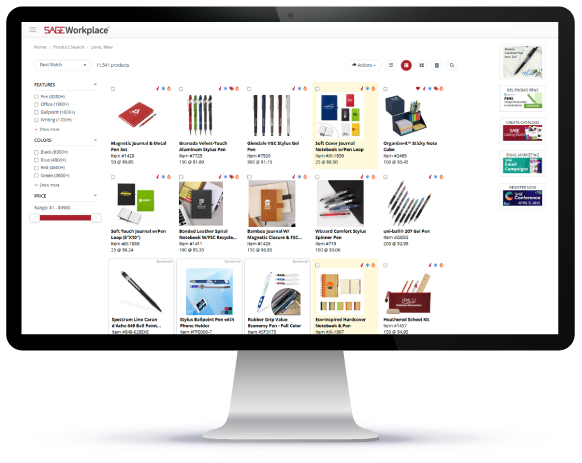
  • Click on Product Search in the left menu.
  • Search for your product, then click into the Product Detail Page.
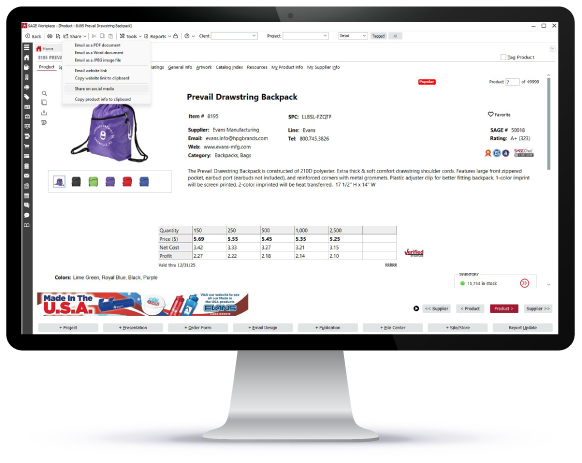
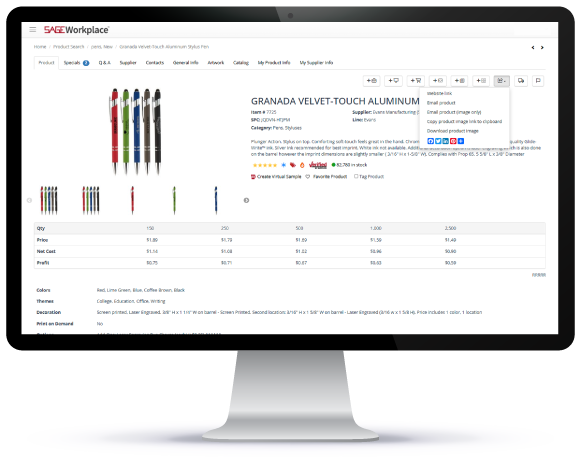
  • At the top of your screen, select the Share drop down menu.
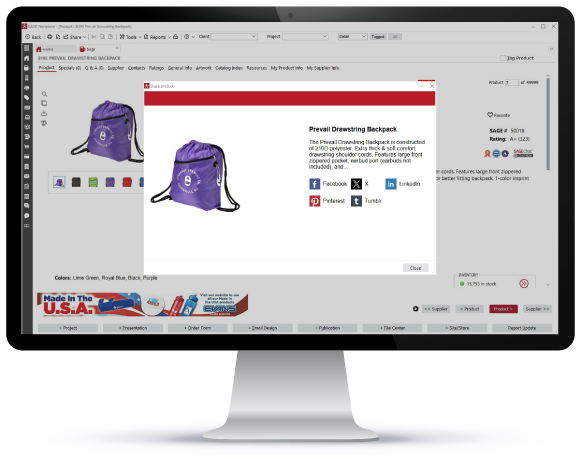
  • Click Share on Social Media.
  • Now you can share the product on social media by clicking a social media icon.
  • Log into your SAGE account.
  • Create Forms
  • Click on Product Search in the left menu.
  • Create Forms
  • Search for your product, then click into the Product Detail Page.
  • Create Forms
  • At the top of your screen, select the Share drop down menu.
  • Create Forms
  • Click Share on Social Media.
  • Create Forms
  • Now you can share the product on social media by clicking a social media icon.
  • Create Forms

Sharing Products to Social Media From the SAGE Workplace Web App

  • Log into SAGE Workplace in your web browser..
  • Click on Product Search in the left menu.
  • Search for your product, then click into the Product Detail Page.
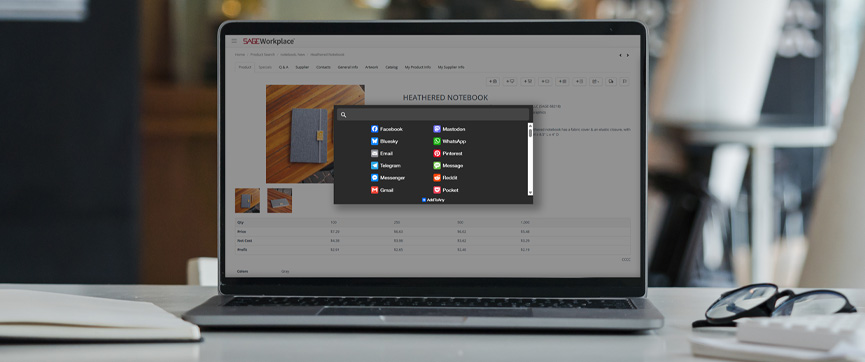
  • On the right of your screen, select the Share Product drop down menu and choose the icon for the social platform where you would like to post your product.
  • Log into SAGE Workplace in your web browser.
  • Create Forms
  • Click on Product Search in the left menu.
  • Create Forms
  • Search for your product, then click into the Product Detail Page.
  • Create Forms
  • On the right of your screen, select the Share Product drop down menu and choose the icon for the social platform where you would like to post your product.
  • Create Forms
things to know

Did You Know?

When sharing a product from SAGE Workplace, if you don’t see the social media icon you are looking for, simply select the plus sign icon to view more options.

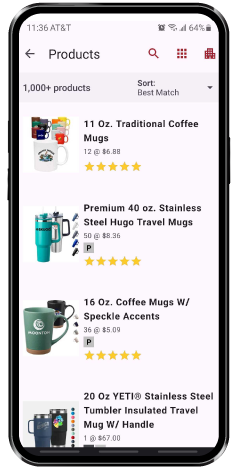
Sharing Products to Social Media From the SAGE Workplace iOS or Android apps

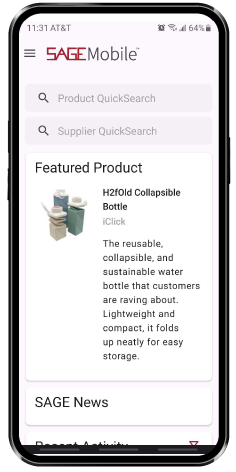
  • Log into your SAGE Workplace iOS or Android app.
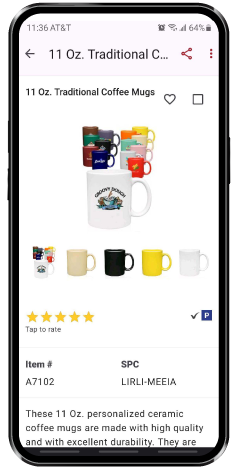
  • Search for your product and tap to view the Product Detail Page.
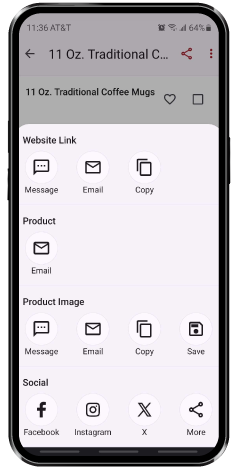
  • Tap the Share icon in the top right of your screen.
  • Tap share on Facebook, Instagram, or Twitter.
  • Log into your SAGE Workplace iOS or Android app.
  • Filter and Export Orders
  • Search for your product and tap to view the Product Detail Page.
  • Filter and Export Orders
  • Tap the Share icon in the top right of your screen.
  • Filter and Export Orders
  • Tap share on Facebook, Instagram, or Twitter.
  • Filter and Export Orders

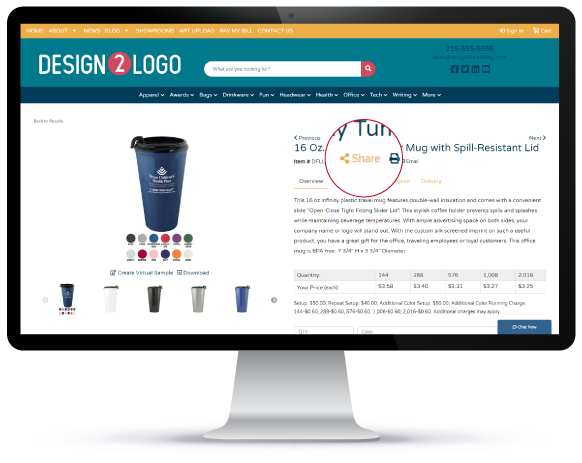
Sharing From Your Website

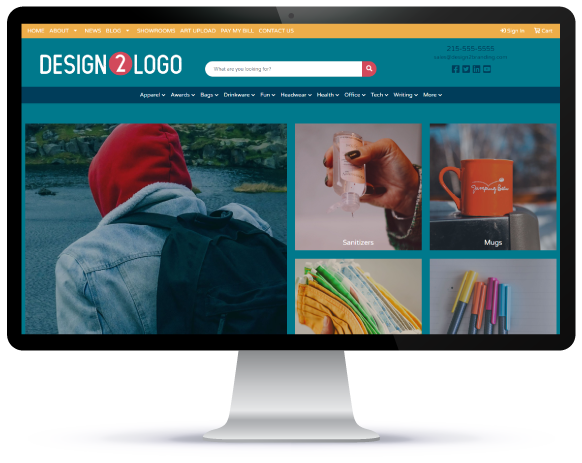
  • Go to your SAGE Website.
  • Search for your product and click into the Product Detail Page.
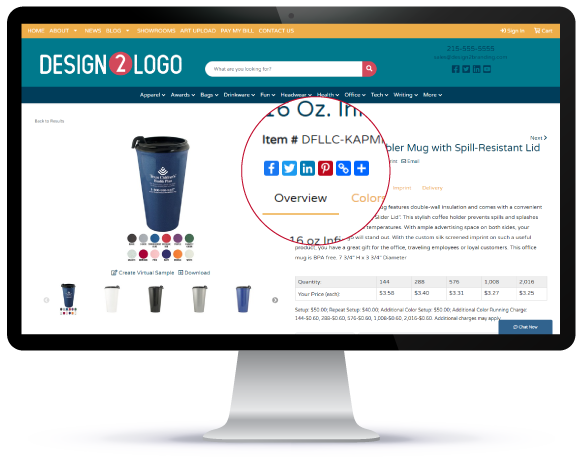
  • Click on the Share button.
  • Now you can share your product on social media by selecting your preferred social media icon.

  • Go to your SAGE Website.
  • Filter and Export Orders
  • Search for your product and click into the Product Detail Page.
  • Filter and Export Orders
  • Click on the Share button.
  • Filter and Export Orders
  • Now you can share your product on social media by selecting your preferred social media icon.

  • Filter and Export Orders
things to know

Did You Know?

You can also share content from your SAGE Professional Plus Website.

Go to your SAGE Professional Plus website and click on Blogs. Under each blog are social media icons to share your content to your social media platforms.

SAGE Social Media Shareables

Did you know that SAGE offers FREE, pre-designed social media shareables for you to download and post on your own social media accounts? There are a ton of categories to choose from like stats and holidays. To download them click here.

Did you know
things to know

Did You Know?

By sharing products and content from your website on your social media, you can improve your SEO and drive more traffic to your website?

For more details on SAGE Workplace, contact your SAGE Account Advisor today!

CONTACT US
Back to Top