SAGE

The Beginner’s Guide to SAGE Email Campaigns

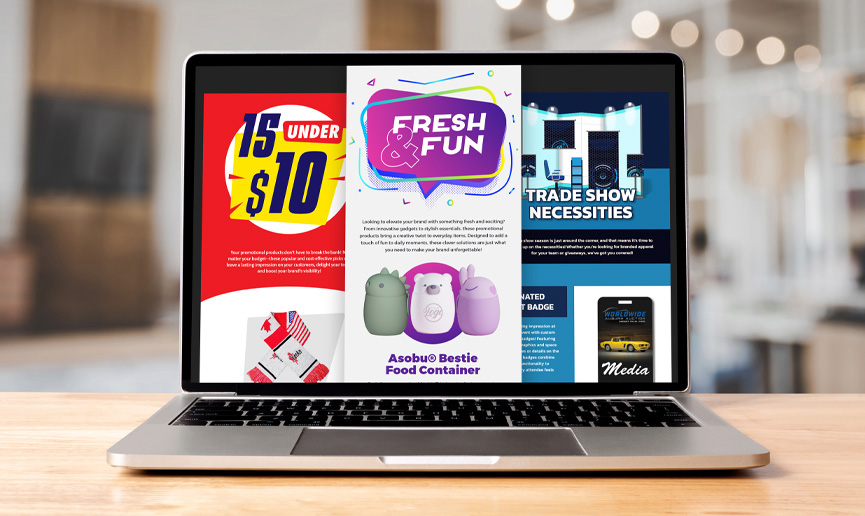
SAGE Email Campaigns are ready-to-send email marketing solutions that are pre-populated with themed promotional products that link to your SAGE Website. Each month, we create two predesigned emails that are filled with timely promotional products where all you have to do is add your contact info and logo, and hit send, keeping your business top of mind with customers. Got the urge to design your own email campaign? You can do that too! Use one of our predesigned templates, or drop in the code, choose your products, and boom! Your custom-designed email campaign is ready to send.

Here is our step-by-step guide for how to use SAGE Email Campaigns in the SAGE Workplace Windows application to boost your email marketing and grow your business:

Update Your Catalog

How to Create Your Own Email Design

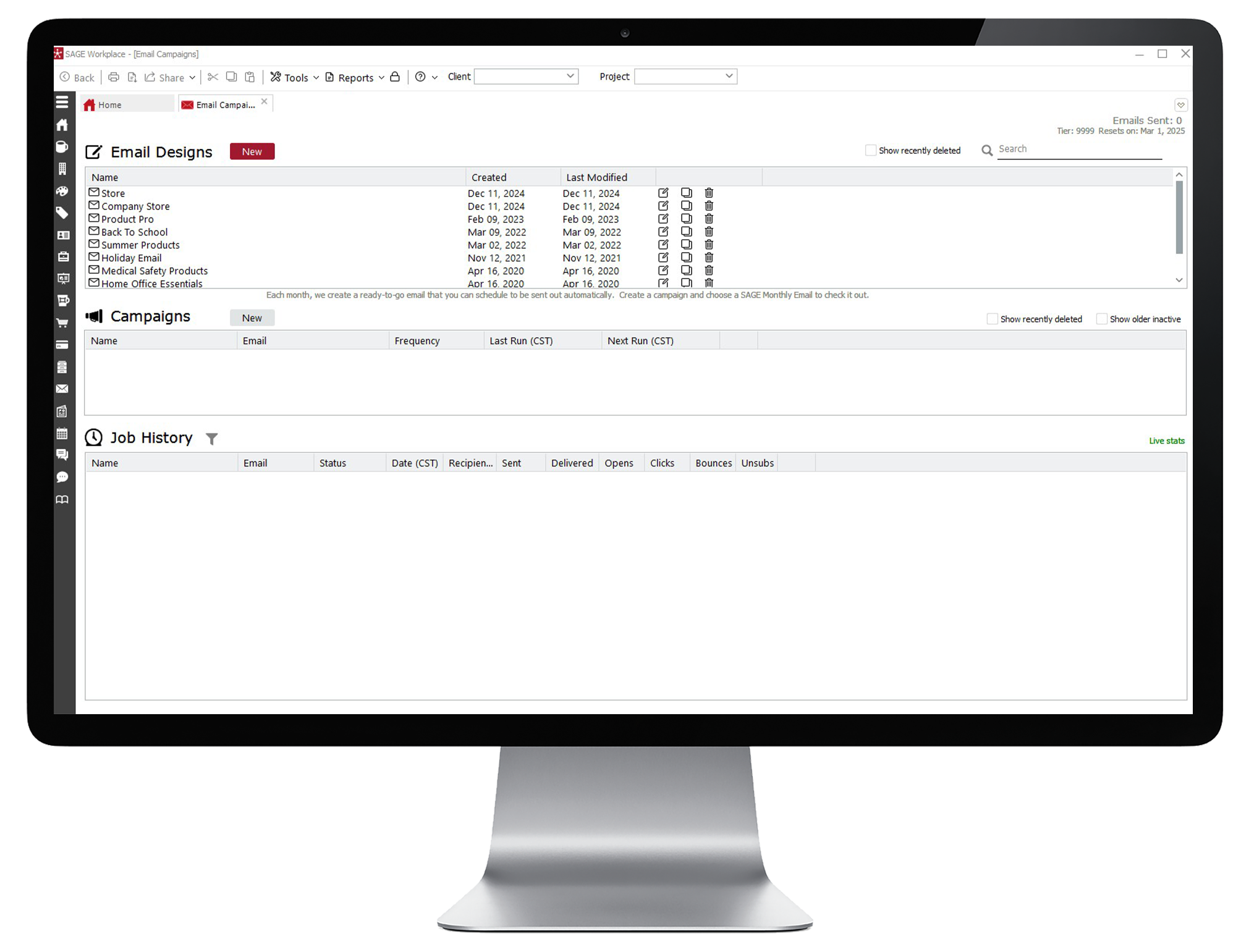
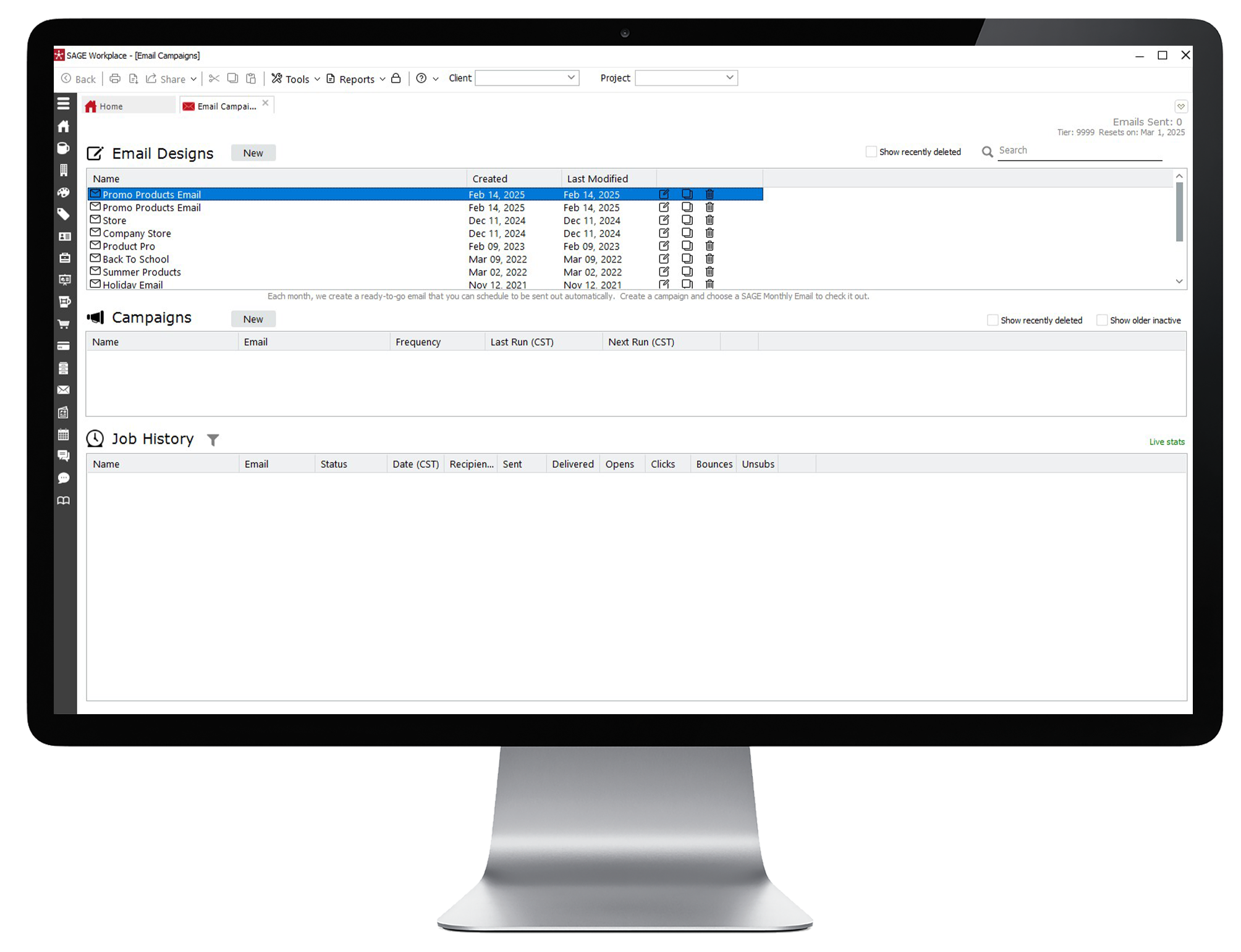
  • Log into the SAGE Workplace Windows app and click on Email Campaigns on the left-hand navigation. Next, click on "New" next to Email Designs.
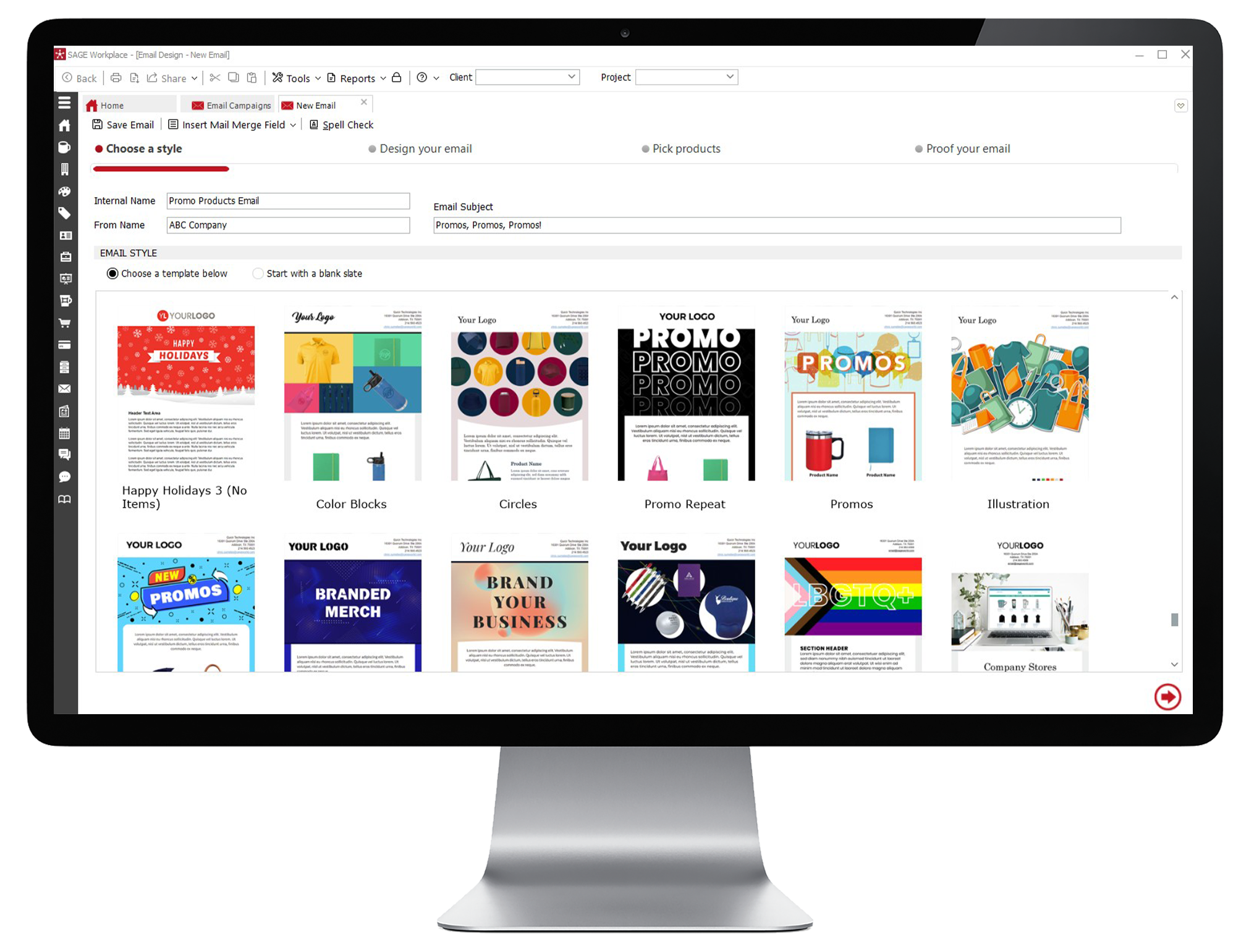
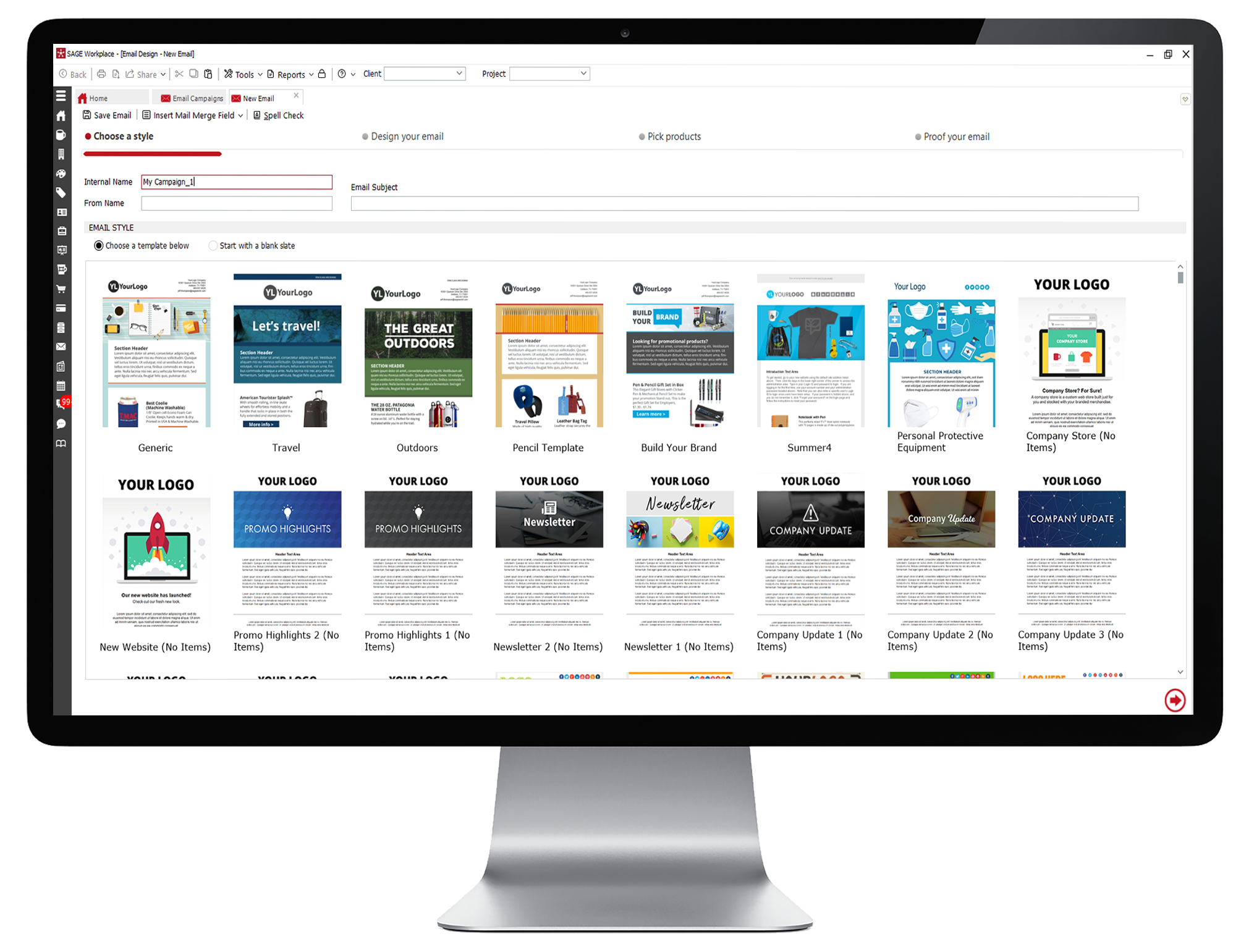
  • Give your email an internal name, from name, and subject line. Choose a style for your email from our selection of pre-designed templates, including newsletter, themed product emails, and more, then click the Next arrow at the bottom of the page.
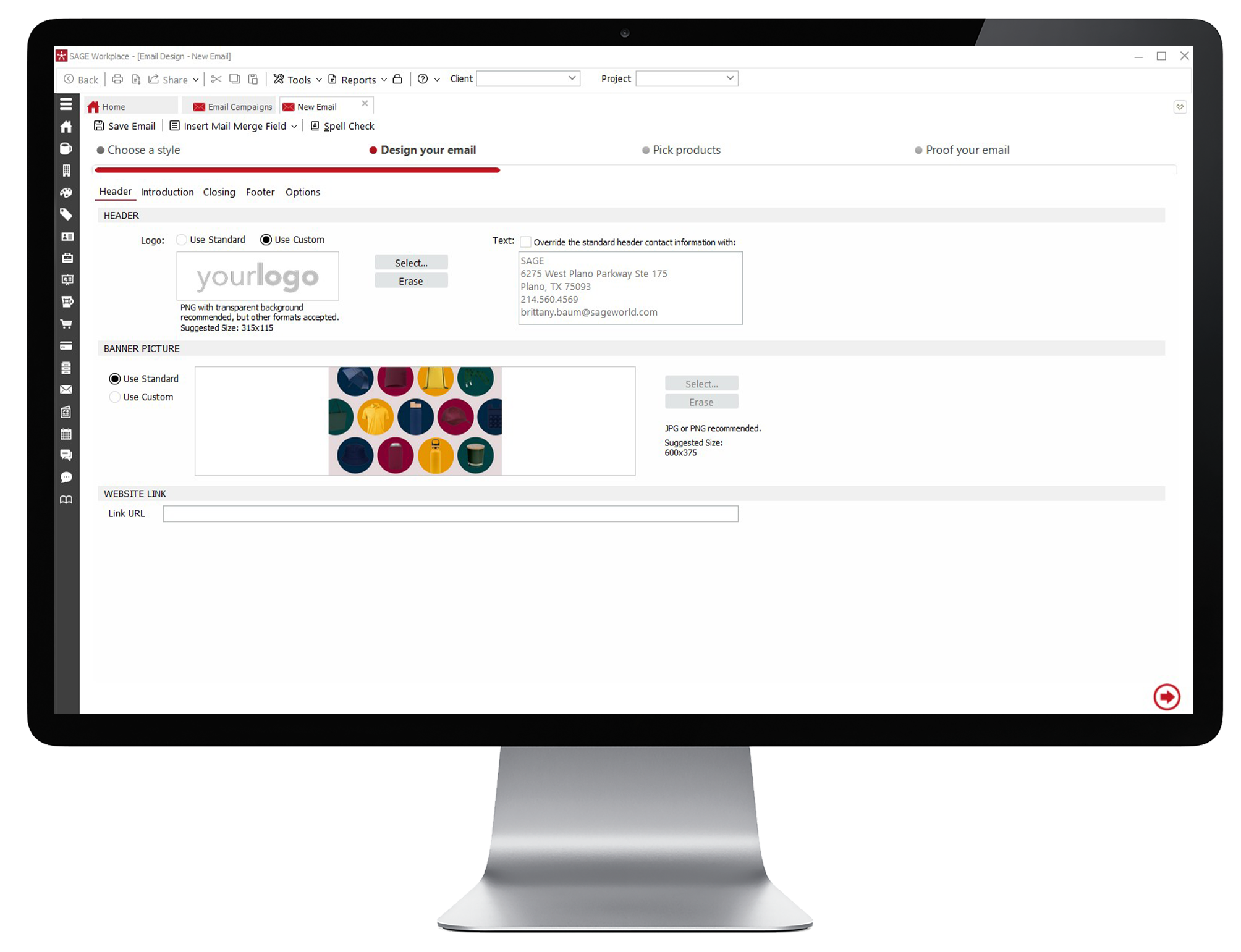
  • Set up your email’s header. If your logo is already added in SAGE, it will automatically populate on your email, or you can select another logo in the box. If you would like to swap out the template’s banner image, select the Use Custom radio button and upload your own header.
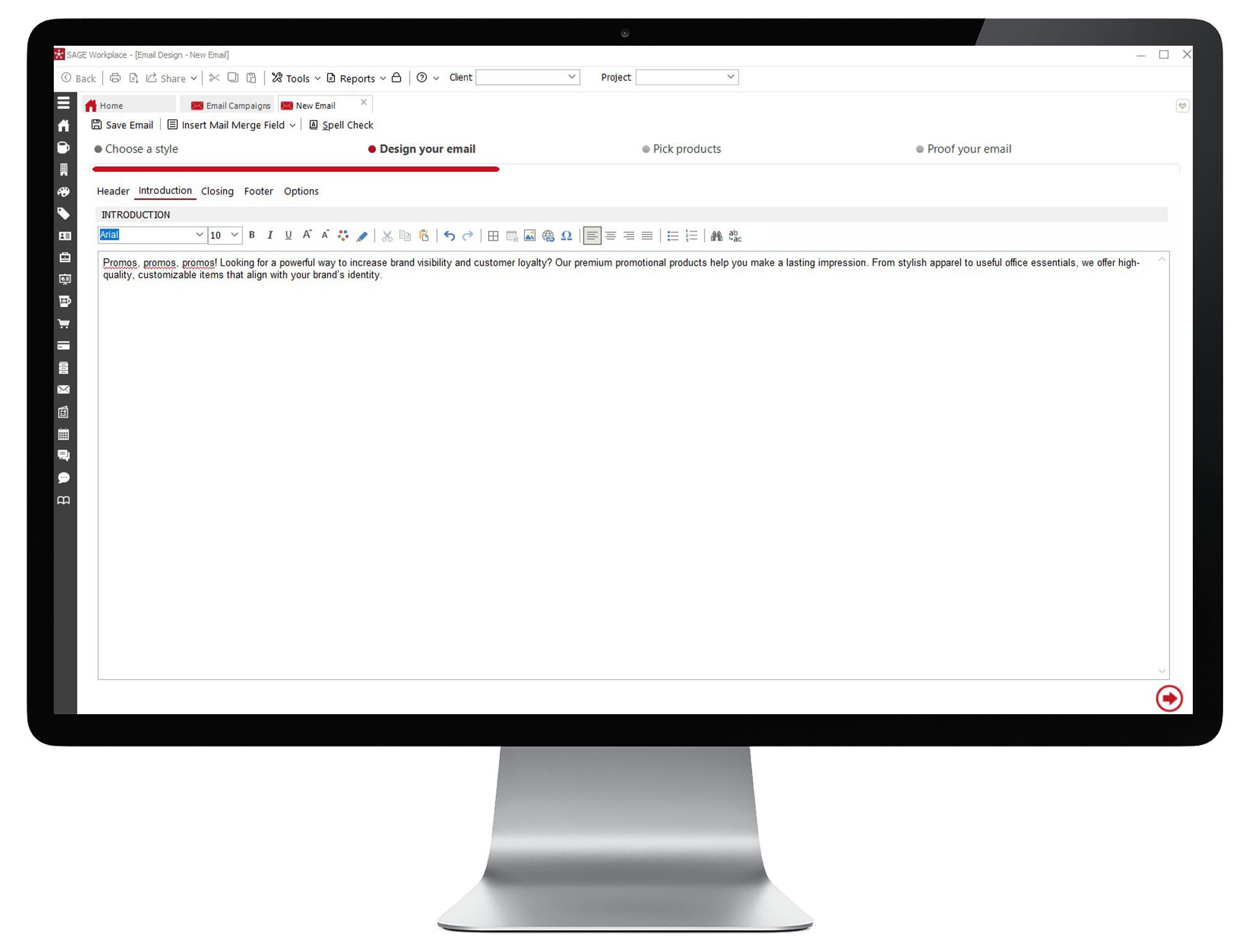
  • Click the Introduction tab to add your intro text using the text editor, then do the same for the Closing tab. On the Footer tab, you can add additional footer text.
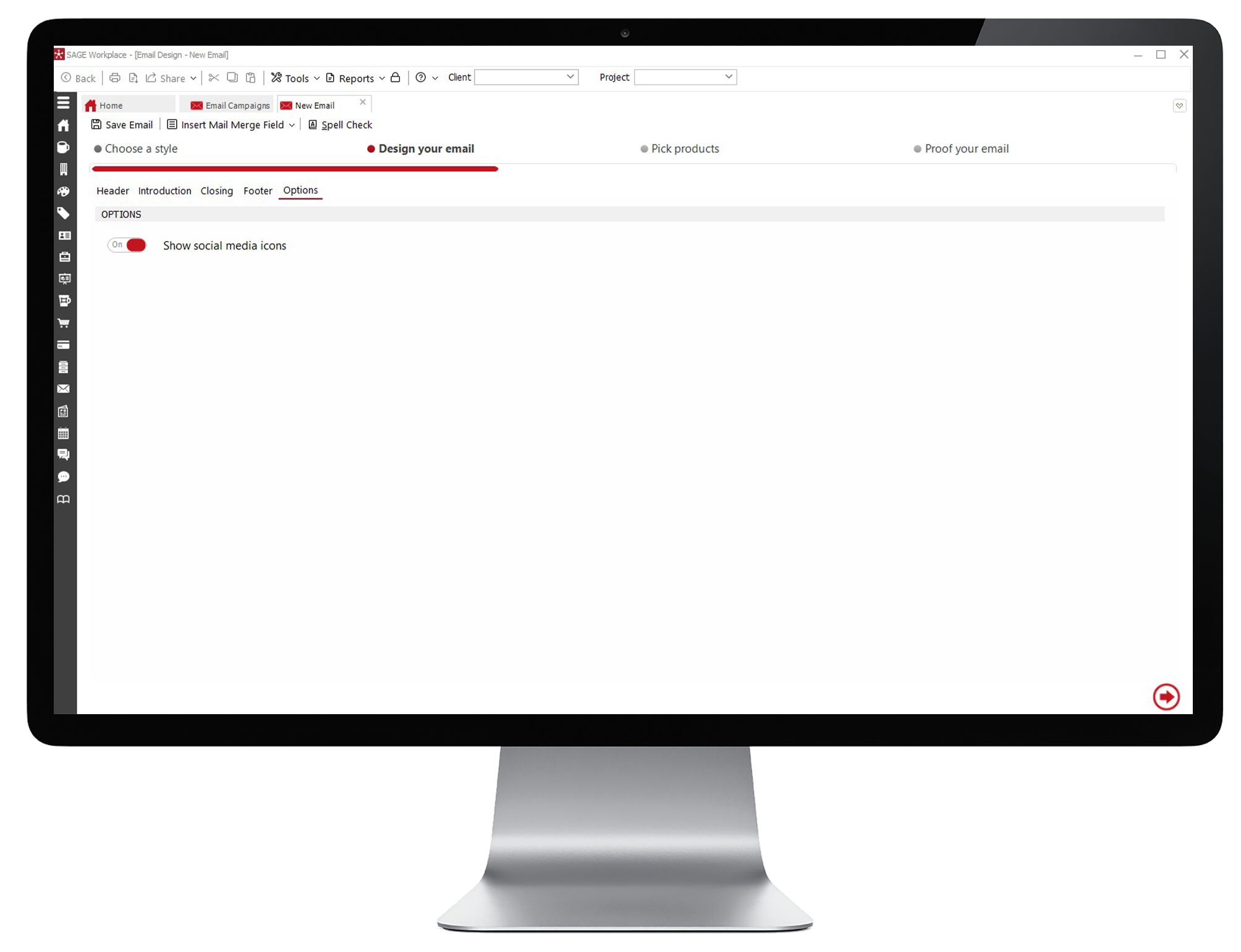
  • Use the toggle on the Options tab to select whether you’d like to show social media icons on your email. Then click the arrow at the bottom of the page to move on to choosing products.
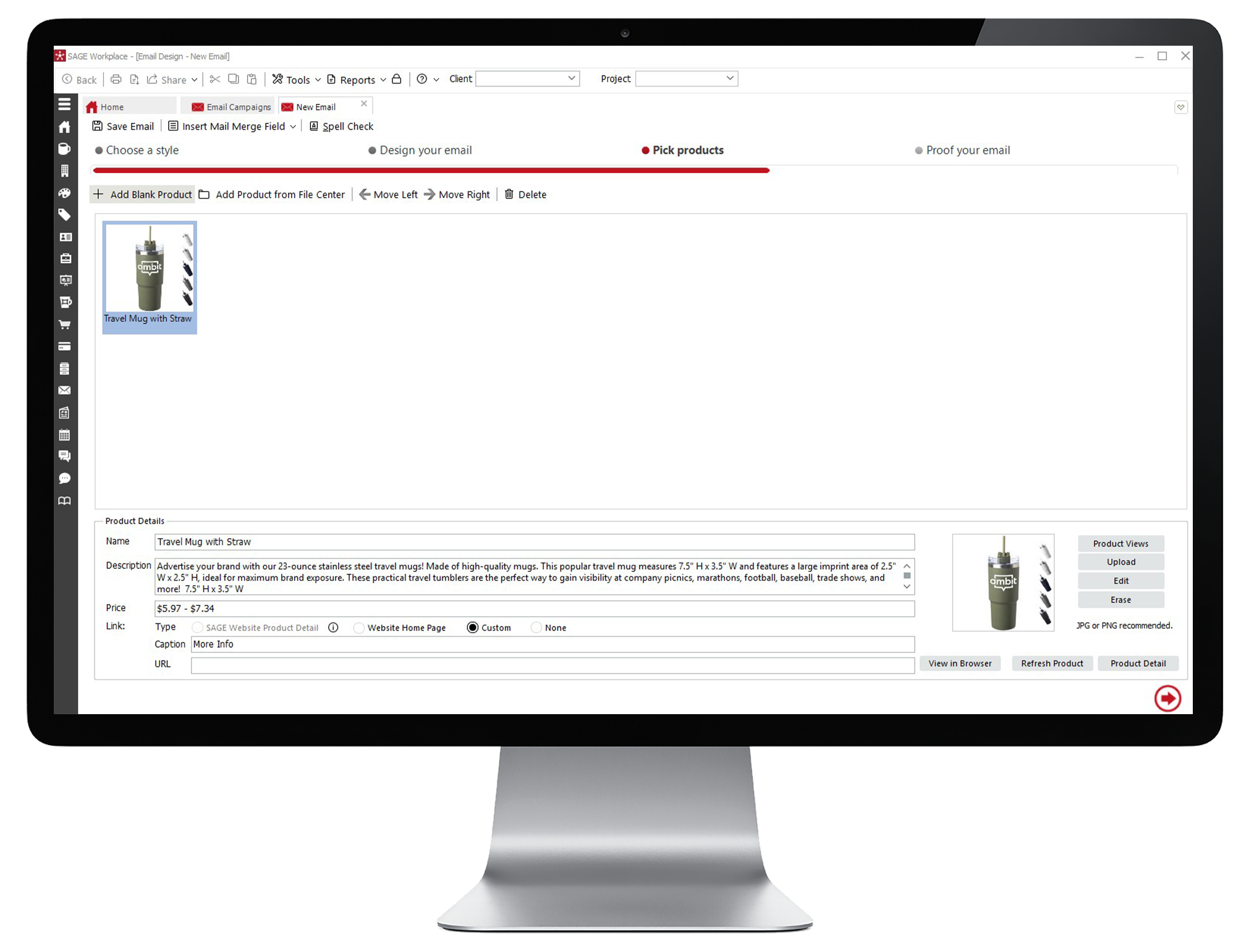
  • You can add products to your email from scratch or from the File Center. To add a product from scratch, click on + Add Blank Product. Enter a name, description, and price for your product and upload an image by clicking Upload.
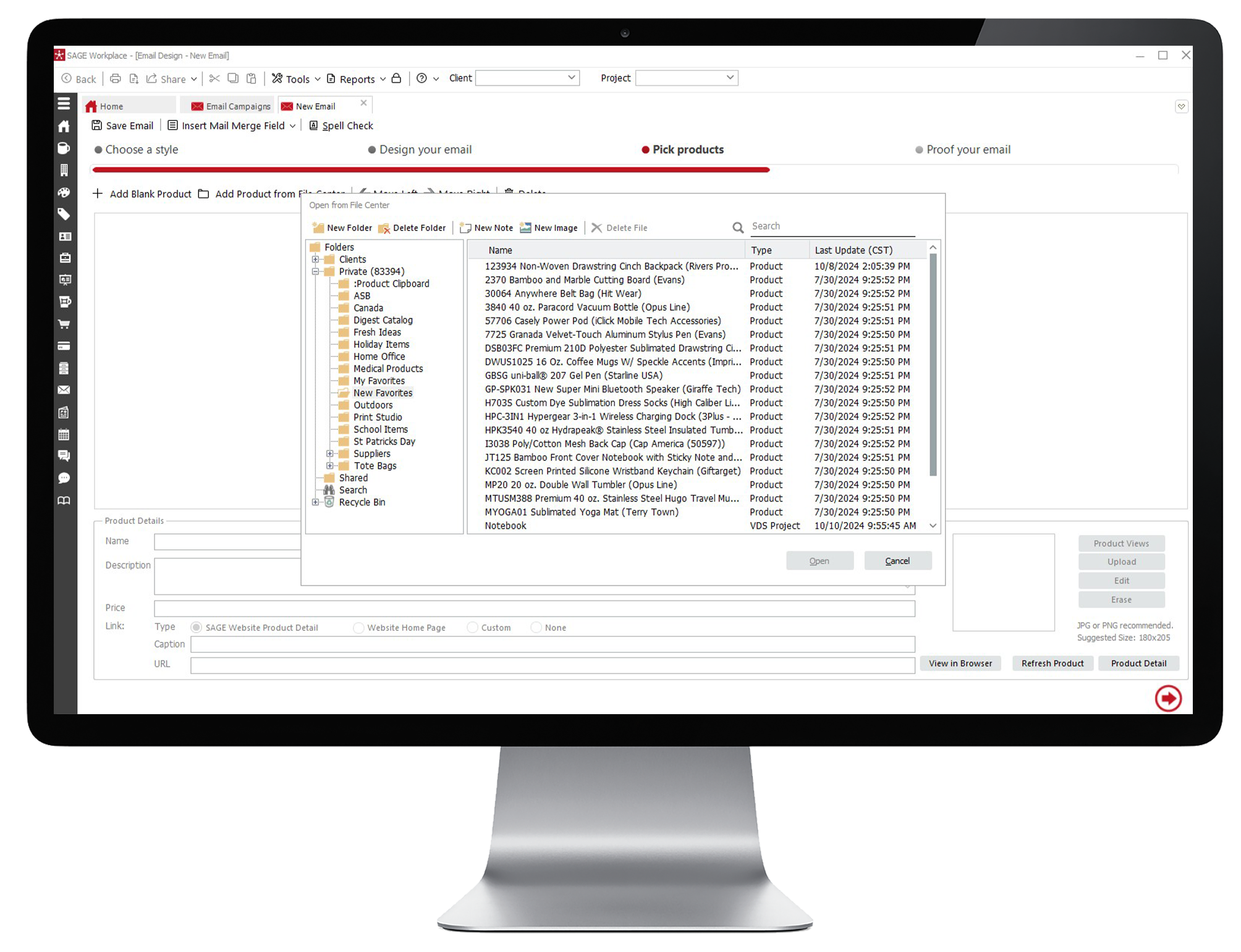
  • To add a product from the File Center, click Add Product from File Center and select your products from the menu. You can also add products right from your search! To add an individual product, you can either open the product page and then select + Email Campaign, or you can select the small checkbox, right click on the product, and then select Add to email design. If you’d like to add multiple products to your email campaign from a single search, select each product by clicking on the small checkbox, then select + Email Campaign at the bottom of the screen. You can also drag and drop products from a product search in another tab onto your email campaign. Simply click and drag the product from the search tab to your email campaign.
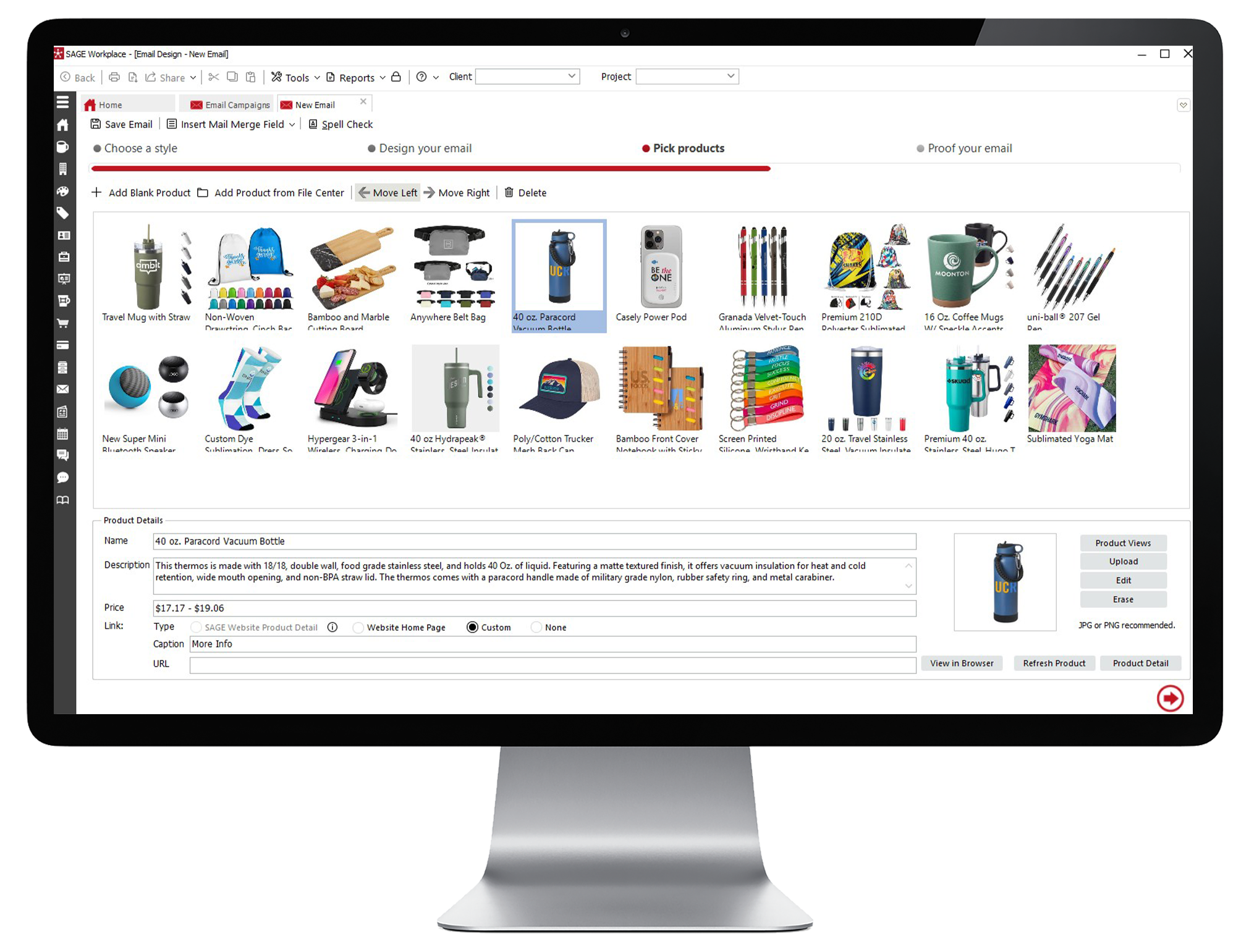
  • Arrange the order of products by clicking Move Left or Move Right at the top of the page, or by dragging and dropping the product to the desired location. You also have the ability to change the product image, and you can also remove a product by clicking Delete Product. Once all your products are added, click the arrow to move to the next step.
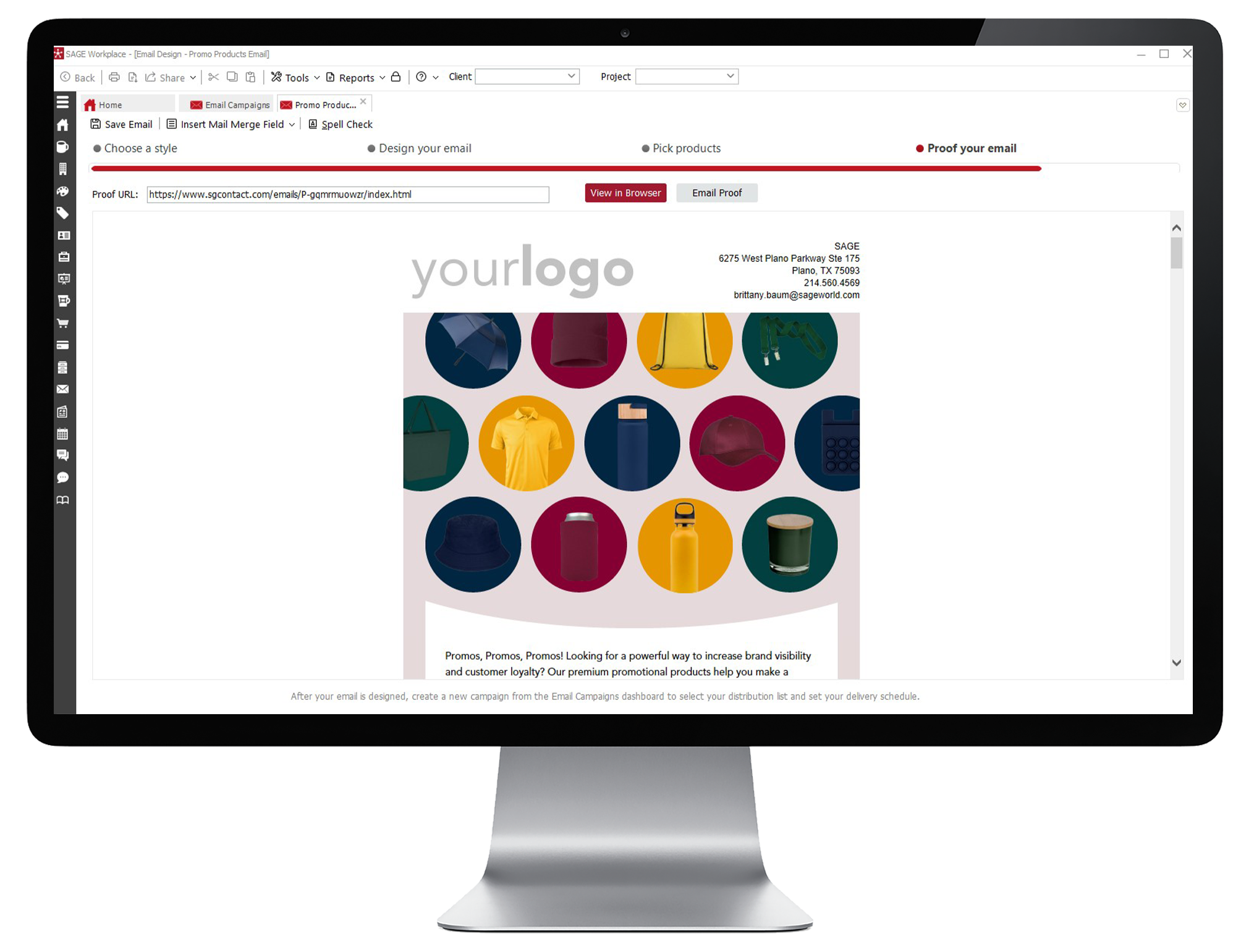
  • Check over your email to ensure all the information is correct. You can also click View in Browser or Email Proof to view a proof in your browser or email. After your email is designed, return to the main Email Campaigns page. Don’t forget to save!
  • Click New next to Campaigns and select your design from the drop-down menu, under “Your Email Designs”. Follow the same steps you would for a pre-designed email campaign to add your recipients and schedule your email.
  • Log into the SAGE Workplace Windows app and click on Email Campaigns on the left-hand navigation. Next, click on "New" next to Email Designs.
  • Filter and Export Orders
  • Give your email an internal name, from name, and subject line. Choose a style for your email from our selection of pre-designed templates, including newsletter, themed product emails, and more, then click the Next arrow at the bottom of the page.
  • Filter and Export Orders
  • Set up your email’s header. If your logo is already added in SAGE, it will automatically populate on your email, or you can select another logo in the box. If you would like to swap out the template’s banner image, select the Use Custom radio button and upload your own header.
  • Filter and Export Orders
  • Click the Introduction tab to add your intro text using the text editor, then do the same for the Closing tab. On the Footer tab, you can add additional footer text.
  • Filter and Export Orders
  • Use the toggle on the Options tab to select whether you’d like to show social media icons on your email. Then click the arrow at the bottom of the page to move on to choosing products.
  • Filter and Export Orders
  • You can add products to your email from scratch or from the File Center. To add a product from scratch, click on + Add Blank Product. Enter a name, description, and price for your product and upload an image by clicking Upload.
  • Filter and Export Orders
  • To add a product from the File Center, click Add Product from File Center and select your products from the menu. You can also add products right from your search! To add an individual product, you can either open the product page and then select + Email Campaign, or you can select the small checkbox, right click on the product, and then select Add to email design. If you’d like to add multiple products to your email campaign from a single search, select each product by clicking on the small checkbox, then select + Email Campaign at the bottom of the screen. You can also drag and drop products from a product search in another tab onto your email campaign. Simply click and drag the product from the search tab to your email campaign.
  • Filter and Export Orders
  • Arrange the order of products by clicking Move Left or Move Right at the top of the page, or by dragging and dropping the product to the desired location. You also have the ability to change the product image, and you can also remove a product by clicking Delete Product. Once all your products are added, click the arrow to move to the next step.
  • Filter and Export Orders
  • Check over your email to ensure all the information is correct. You can also click View in Browser or Email Proof to view a proof in your browser or email. After your email is designed, return to the main Email Campaigns page. Don’t forget to save!
  • Filter and Export Orders
  • Click New next to Campaigns and select your design from the drop-down menu, under “Your Email Designs”. Follow the same steps you would for a pre-designed email campaign to add your recipients and schedule your email.
  • Filter and Export Orders

How to Send an Email Campaign

  • Log into the SAGE Workplace Windows App and click on Email Campaigns in the left-hand navigation.
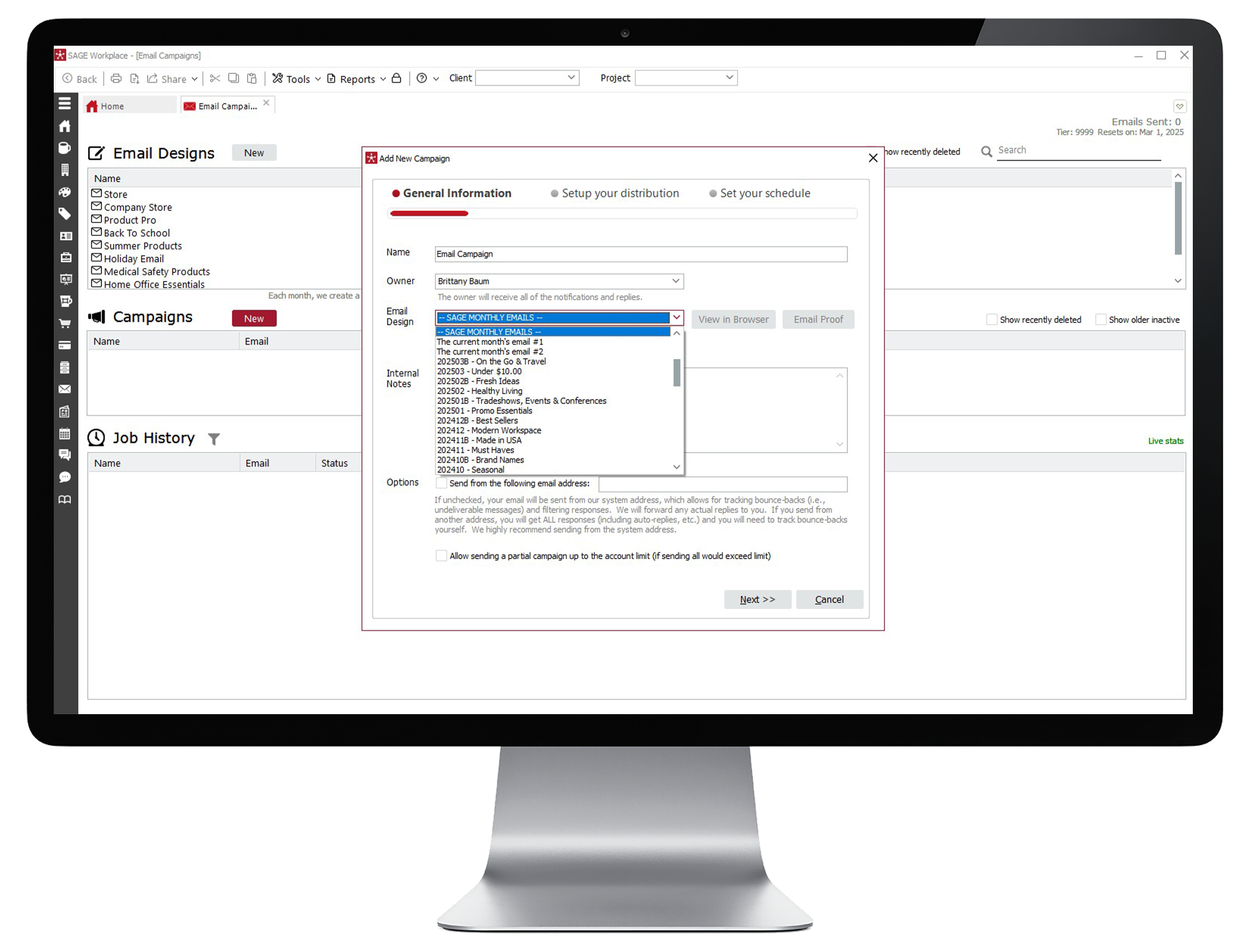
  • Click on New next to Campaigns and give your campaign a name. Then, select an email design from the drop-down menu. This is where you’ll find all of our predesigned Ready-to-Go emails or any email you’ve previously designed.
  • You can click View in Browser to preview the design in your web browser. Add any internal notes and click Next.
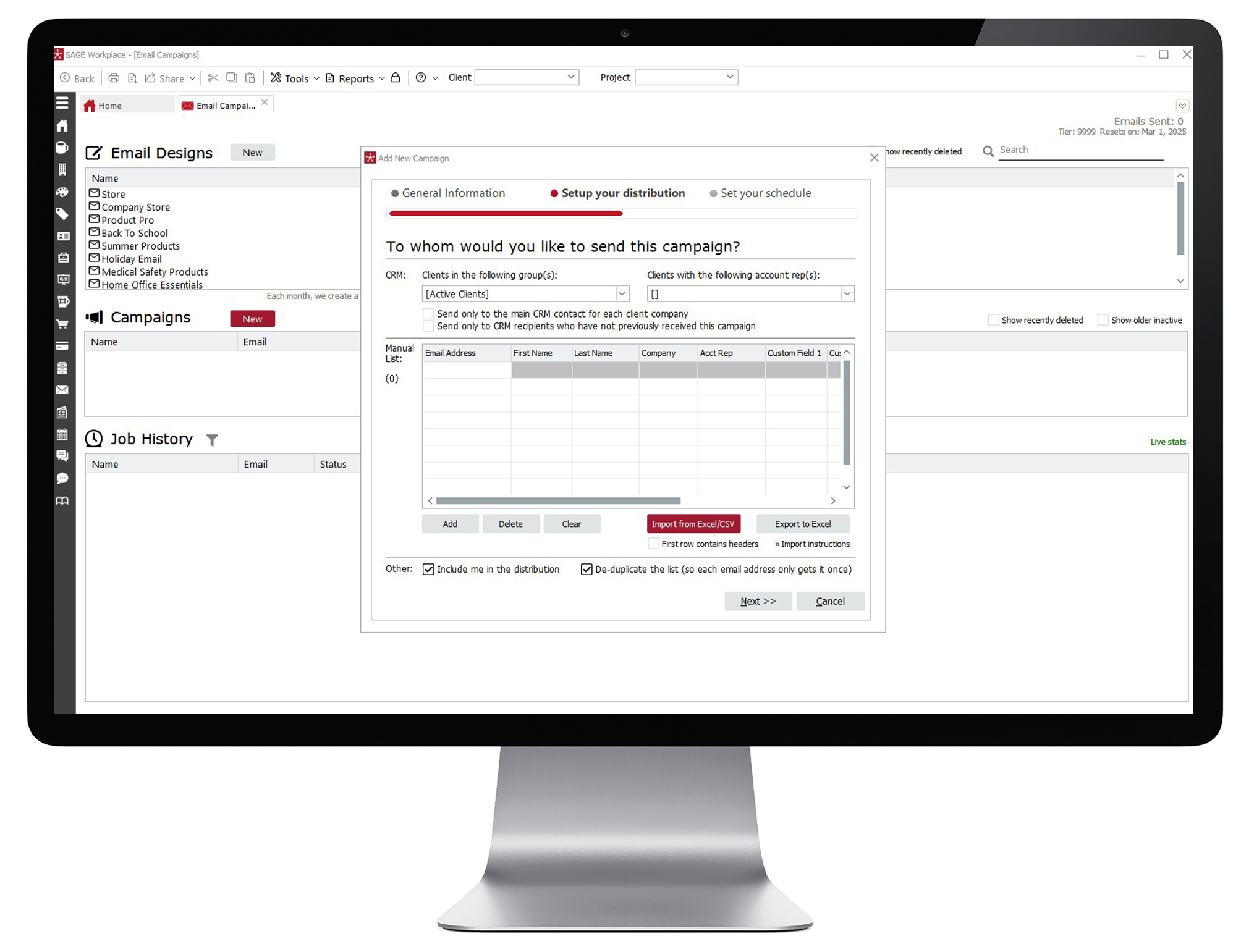
  • Select who you’d like to send this campaign to by using the drop-down menus. You can select from your groups, including active and inactive clients, prospects, or from clients with specific account reps. You can also import a list from an Excel/CSV file by clicking Import from Excel/CSV, or manually add individual contacts in the Manual List area. Once you’ve selected your audience, click Next.
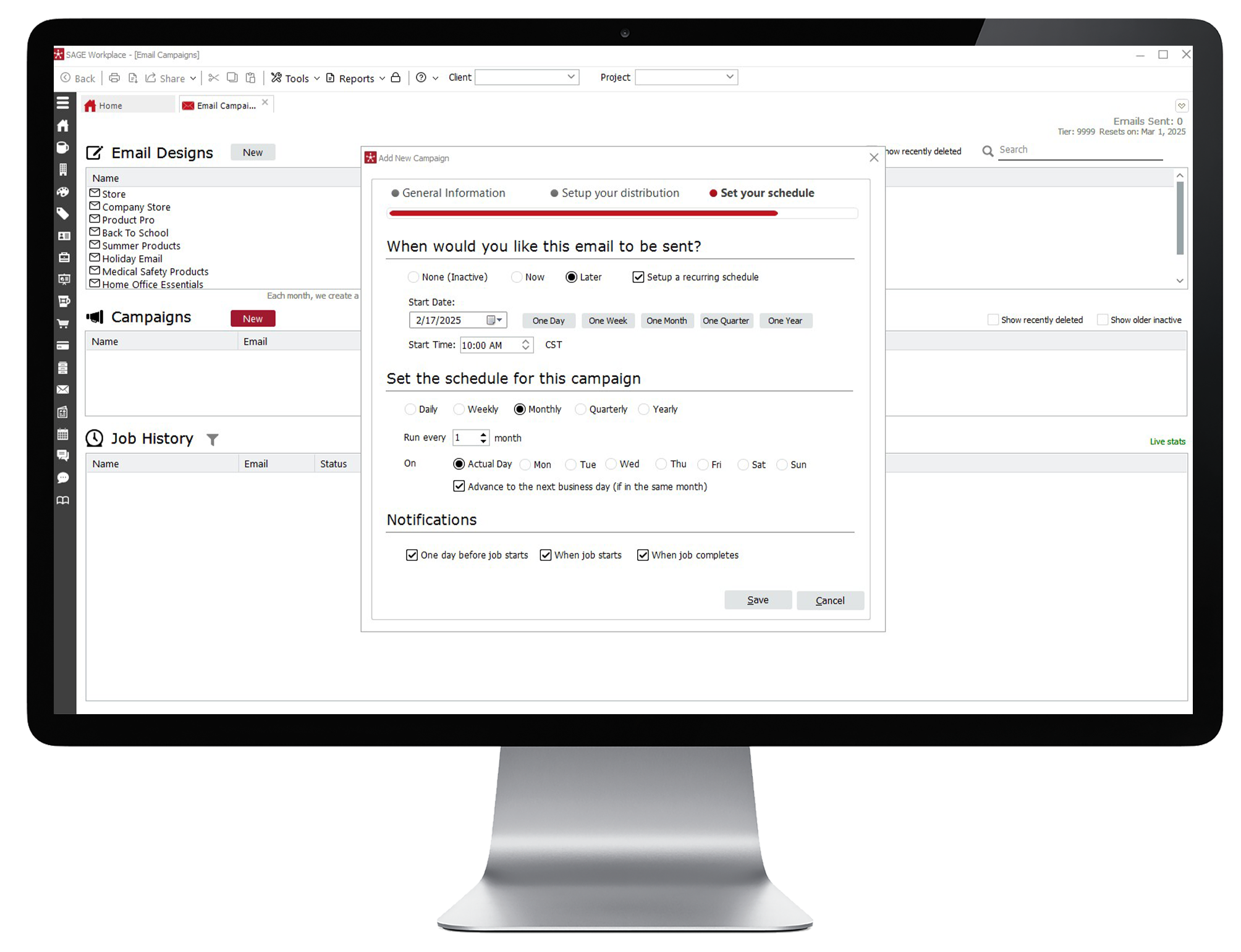
  • Now, choose when you’d like this email to be sent. You have three options: “Later” for a future date, “Now” to send when you’re finished, or “None” if you’d like to hold off on sending it for the time being. Select Later to schedule a future date and time to send your email campaign. You can also adjust your notification settings to receive an email a day before your campaign sends, when it sends, and when it’s completed.
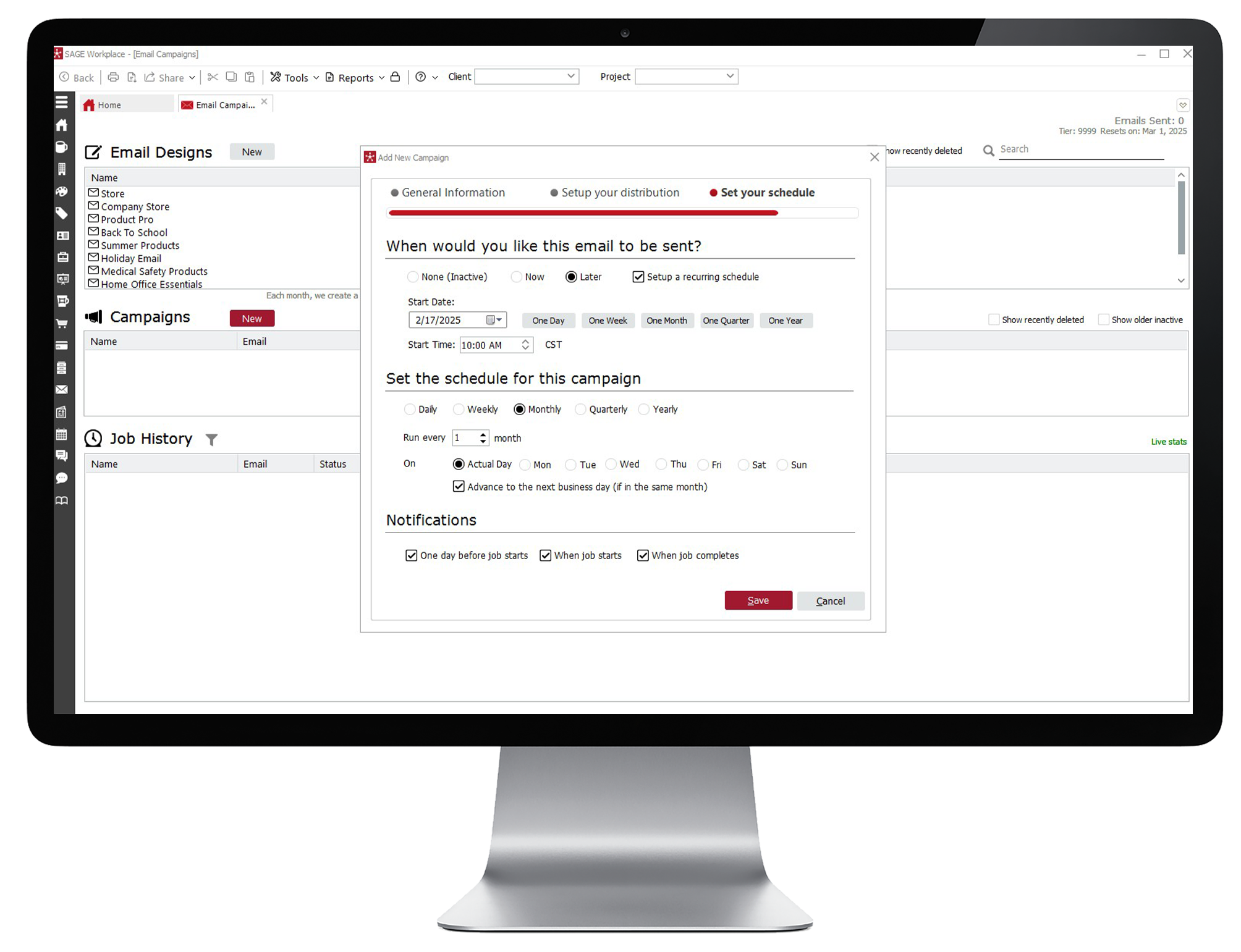
  • Once you’ve scheduled your email, click Save to save your changes and you are ready to go! Your scheduled email campaign will now list under Campaigns. You can edit your campaign at any time by double clicking it in the list.
  • Log into the SAGE Workplace Windows App and click on Email Campaigns in the left-hand navigation.
  • Create Forms
  • Click on New next to Campaigns and give your campaign a name. Then, select an email design from the drop-down menu. This is where you’ll find all of our predesigned Ready-to-Go emails or any email you’ve previously designed.
  • Create Forms
  • You can click View in Browser to preview the design in your web browser. Add any internal notes and click Next.
  • Create Forms
  • Select who you’d like to send this campaign to by using the drop-down menus. You can select from your groups, including active and inactive clients, prospects, or from clients with specific account reps. You can also import a list from an Excel/CSV file by clicking Import from Excel/CSV, or manually add individual contacts in the Manual List area. Once you’ve selected your audience, click Next.
  • Create Forms
  • Now, choose when you’d like this email to be sent. You have three options: “Later” for a future date, “Now” to send when you’re finished, or “None” if you’d like to hold off on sending it for the time being. Select Later to schedule a future date and time to send your email campaign. You can also adjust your notification settings to receive an email a day before your campaign sends, when it sends, and when it’s completed.
  • Create Forms
  • Once you’ve scheduled your email, click Save to save your changes and you are ready to go! Your scheduled email campaign will now list under Campaigns. You can edit your campaign at any time by double clicking it in the list.
  • Create Forms
things to know

Did You Know?

SAGE Email Campaigns are sent from our system address by default, which allows for tracking bounce-backs (i.e., undeliverable messages) and filtering responses and we will forward any actual replies to you. You have the option to send from another address, however, you will get ALL responses including auto-replied and you will need to track bounce-backs yourself. It is highly recommended that you send from the system address.

Things to Know:

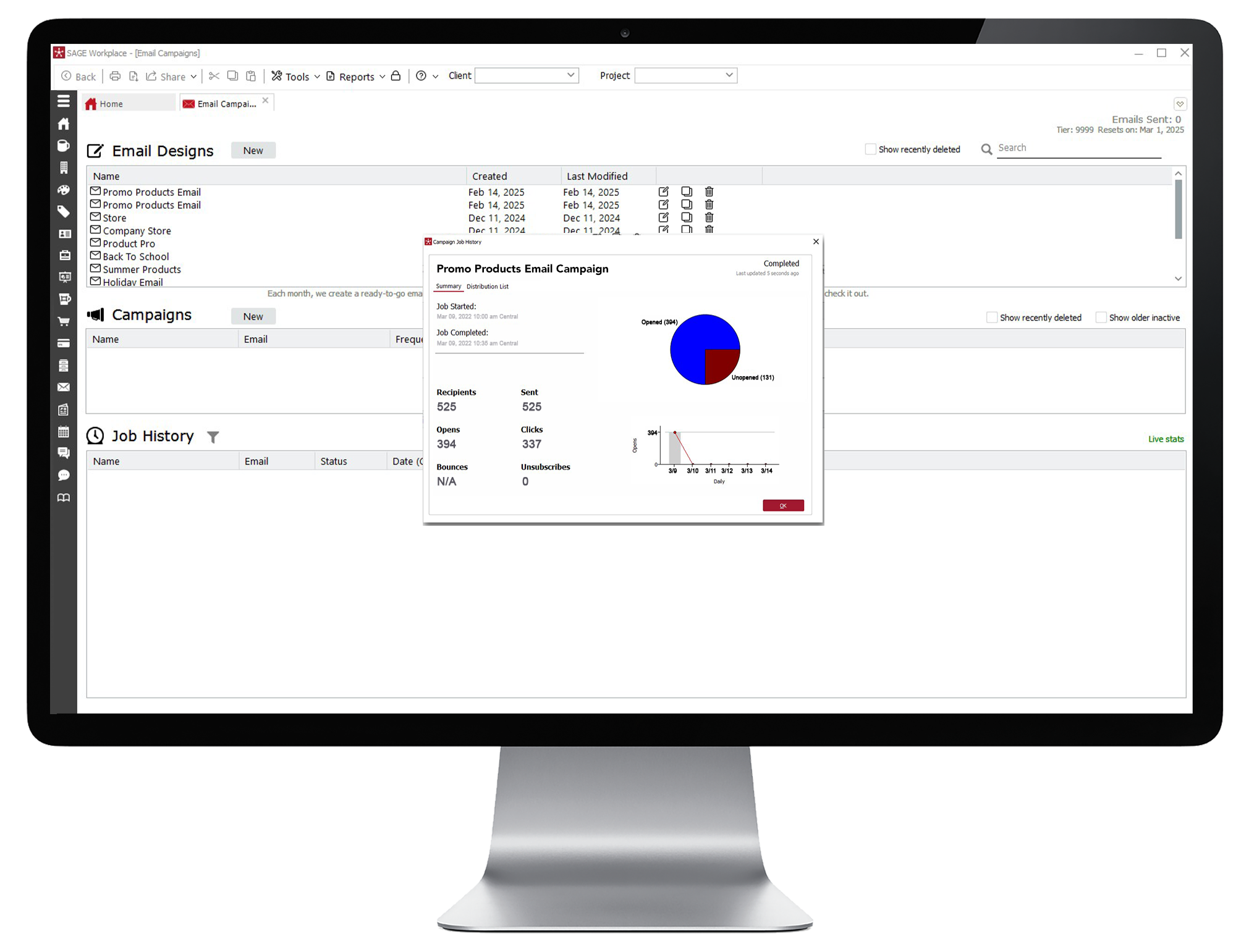
You can track the success of your email campaigns with real-time reports on the number of opens, bounces, and unsubscribes. Look under the Job History area in the Email Campaigns to view statistics on all of your sent Email Campaigns. You can even see details like what time the recipient opened the email and which products they clicked on!

Did you know
things to know

Things to Know:

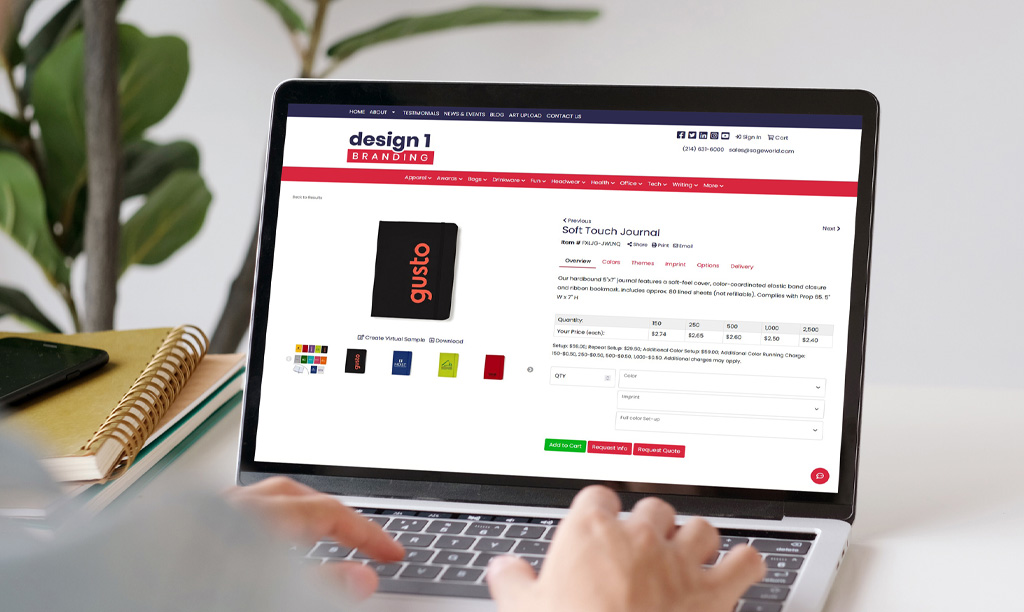
Products in your SAGE Email Campaigns link back to your SAGE Website, so whenever your customers click on a product they’ll be directed to your website for more information and to place an order!

From keeping your business top of mind with your clients to sharing timely product ideas and more, SAGE Email Campaigns are the perfect email marketing solution for the promotional products industry. Questions? Reach out to your Account Advisor today!

WATCH LIVE DEMO
Back to Top