SAGE

The Beginner’s Guide to the SAGE Design Studio

With the SAGE Design Studio in SAGE Workplace™, you can create your own virtual samples to add to presentations or send to clients in seconds. Email, print, or save your virtual samples to use for projects, sales presentations, and more!

Here is a step-by-step guide for how to use the SAGE Design Studio to mock up virtual proofs for your clients.

Virtual Design Studio

How To Add a Logo to a Product

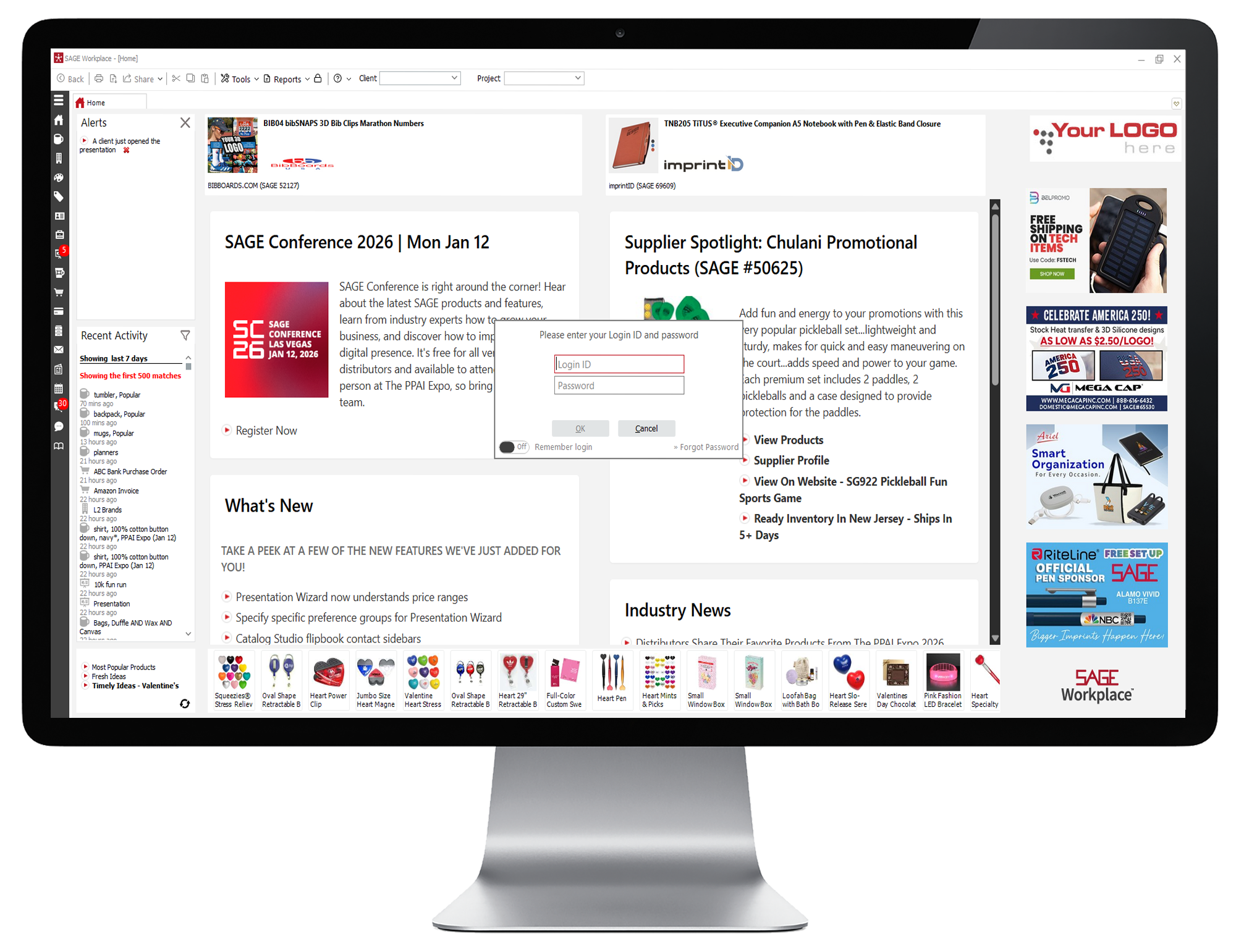
  • Log into SAGE Workplace.
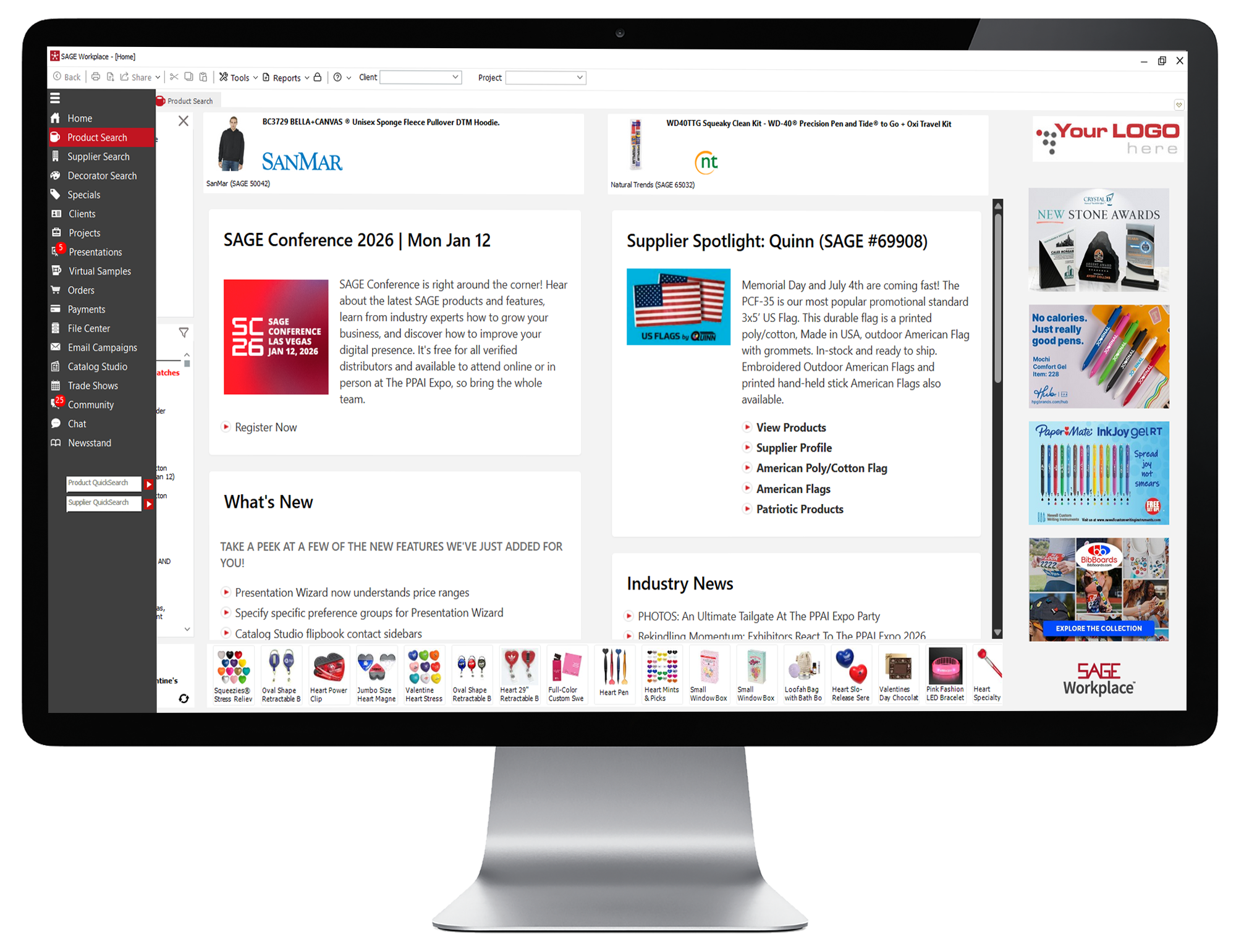
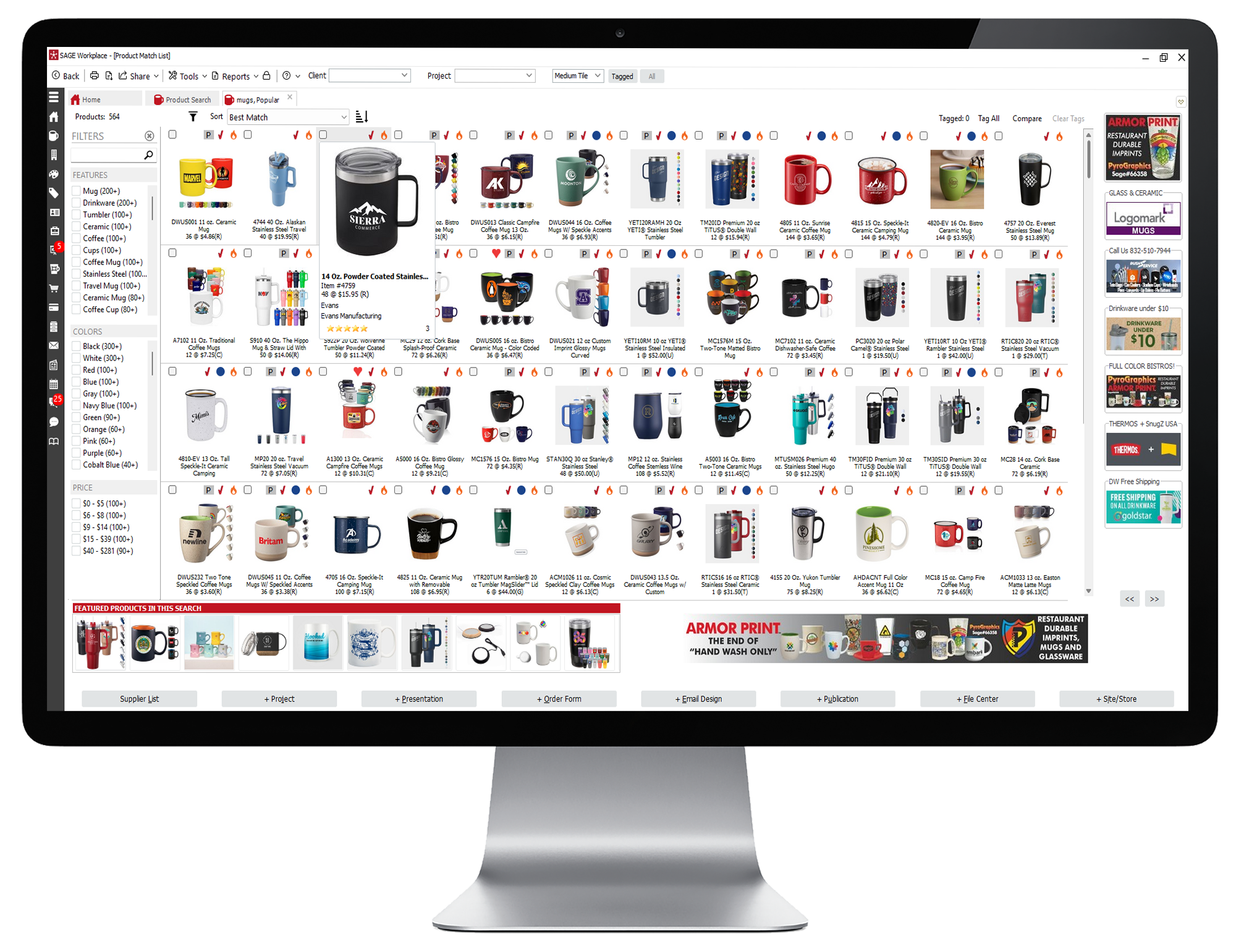
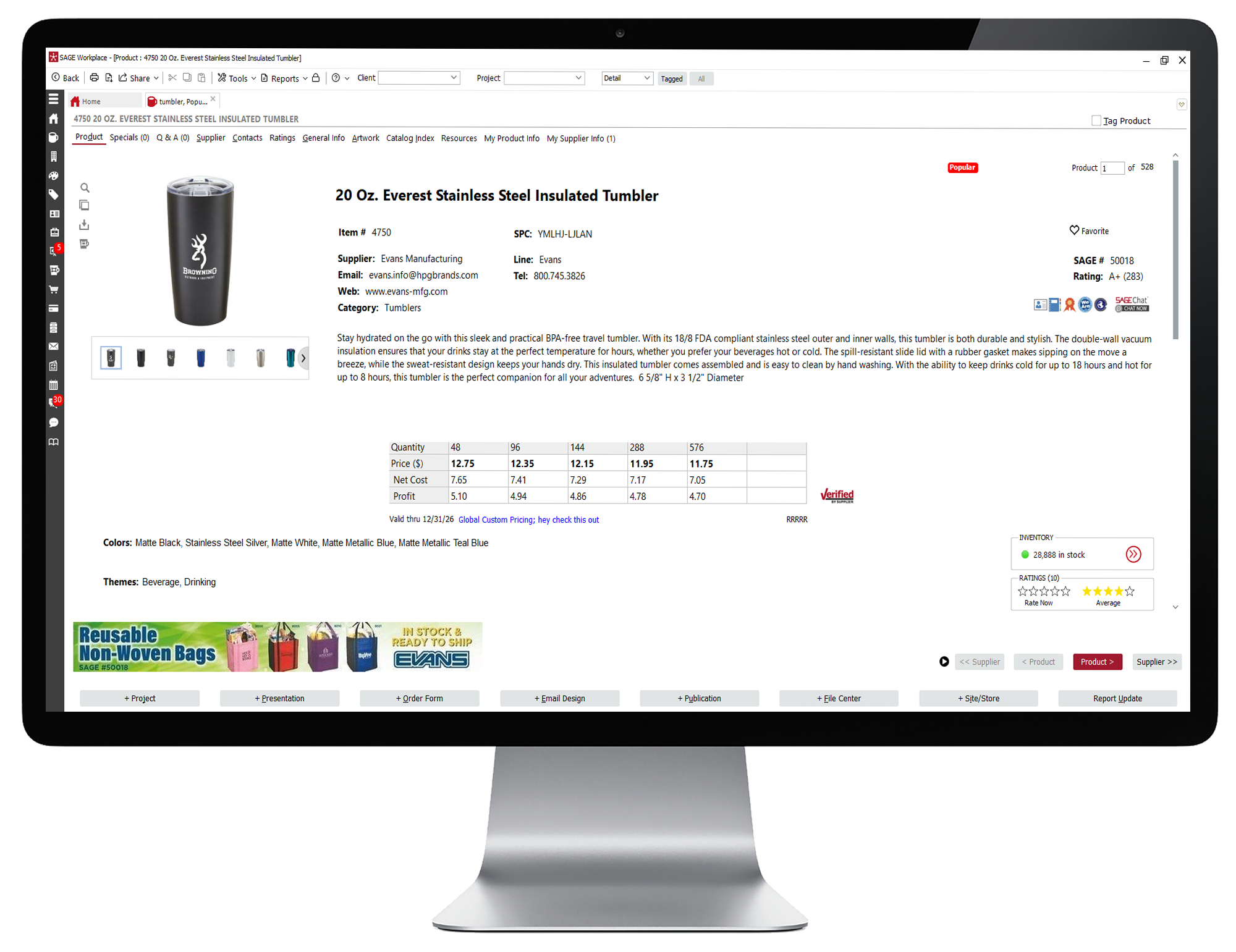
  • Click on the Product Search in the left menu. Perform a product search and locate the product of your choice.
  • Once you've located a product, double-click the product to open the product detail page.
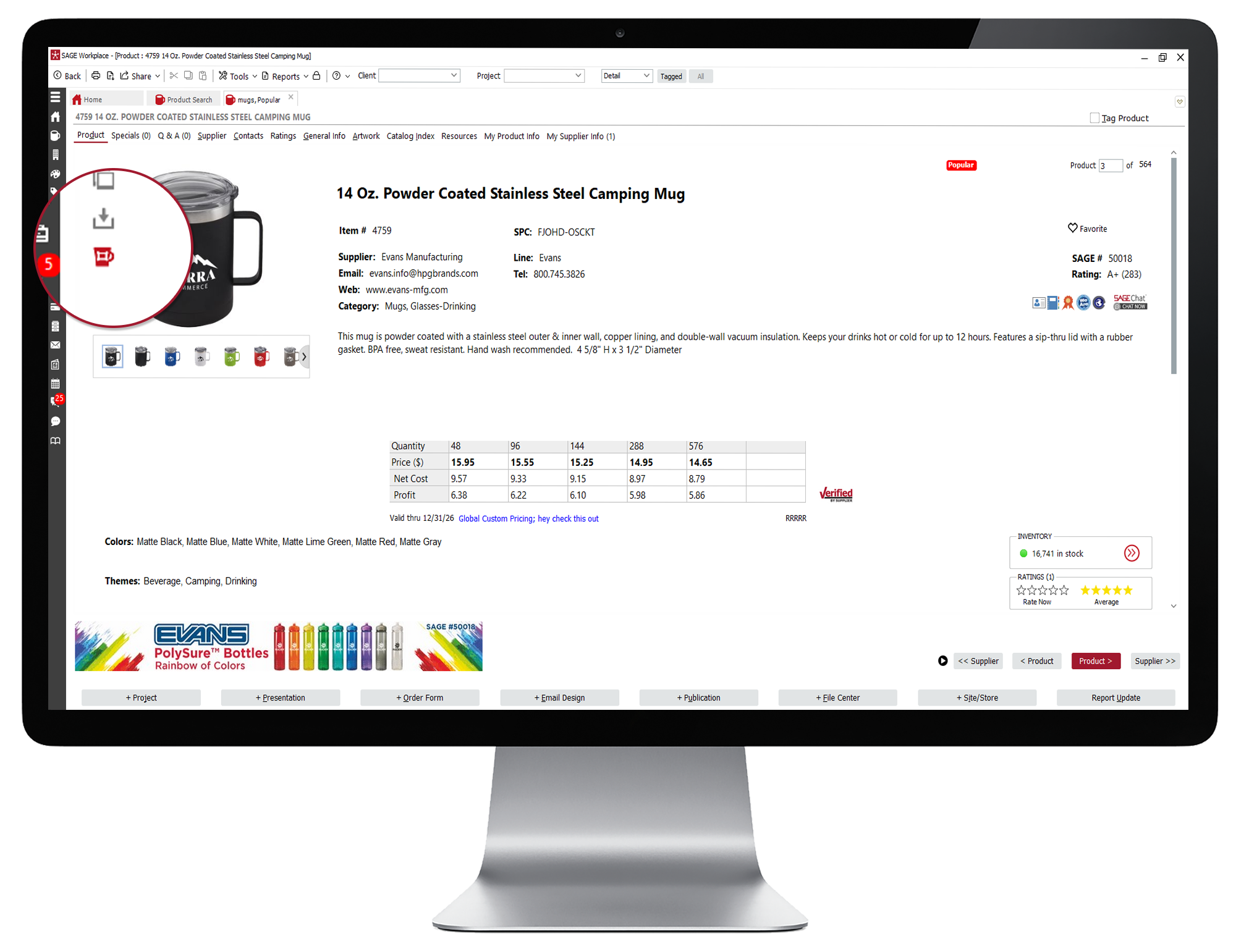
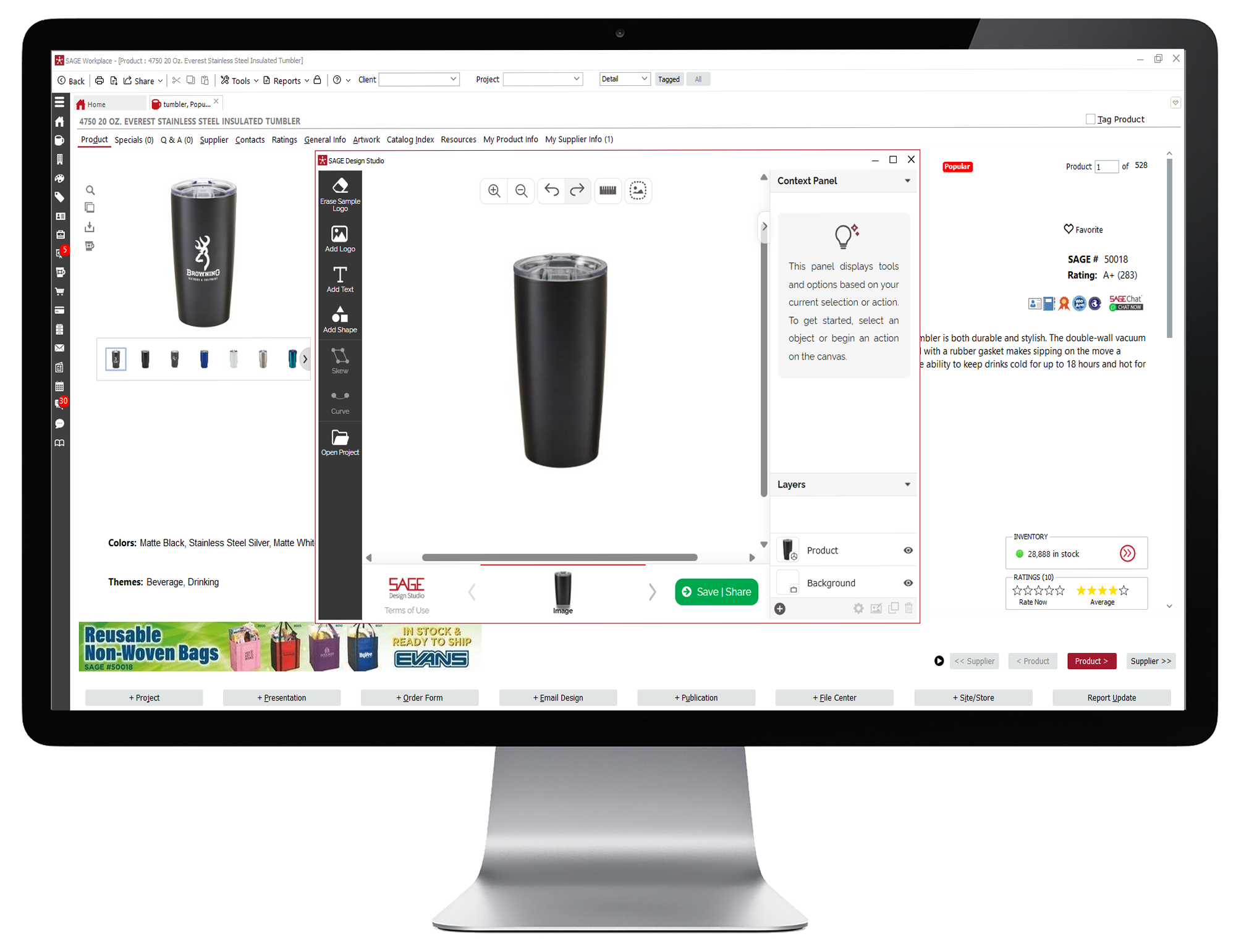
  • Click on the mug icon to open the SAGE Design Studio.
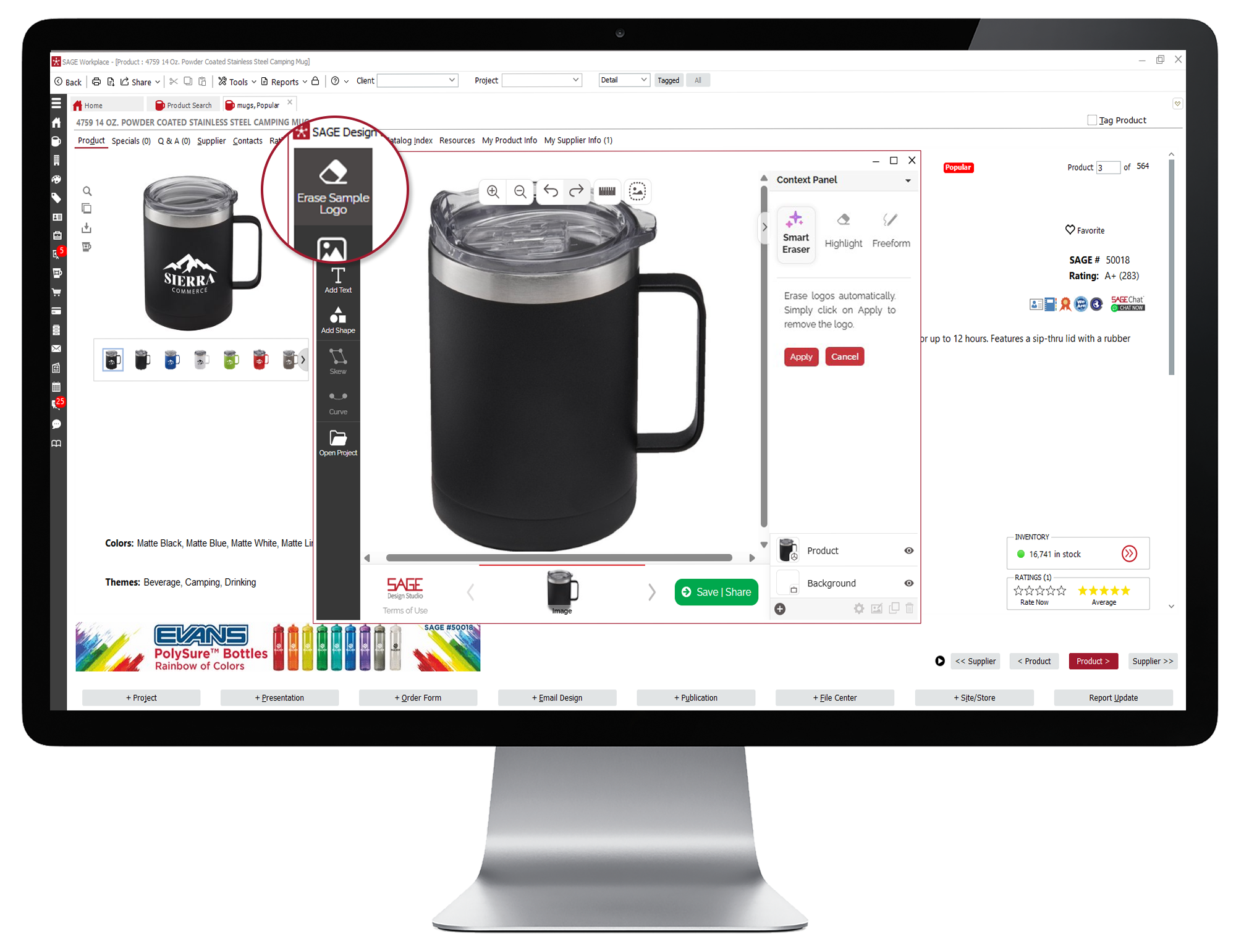
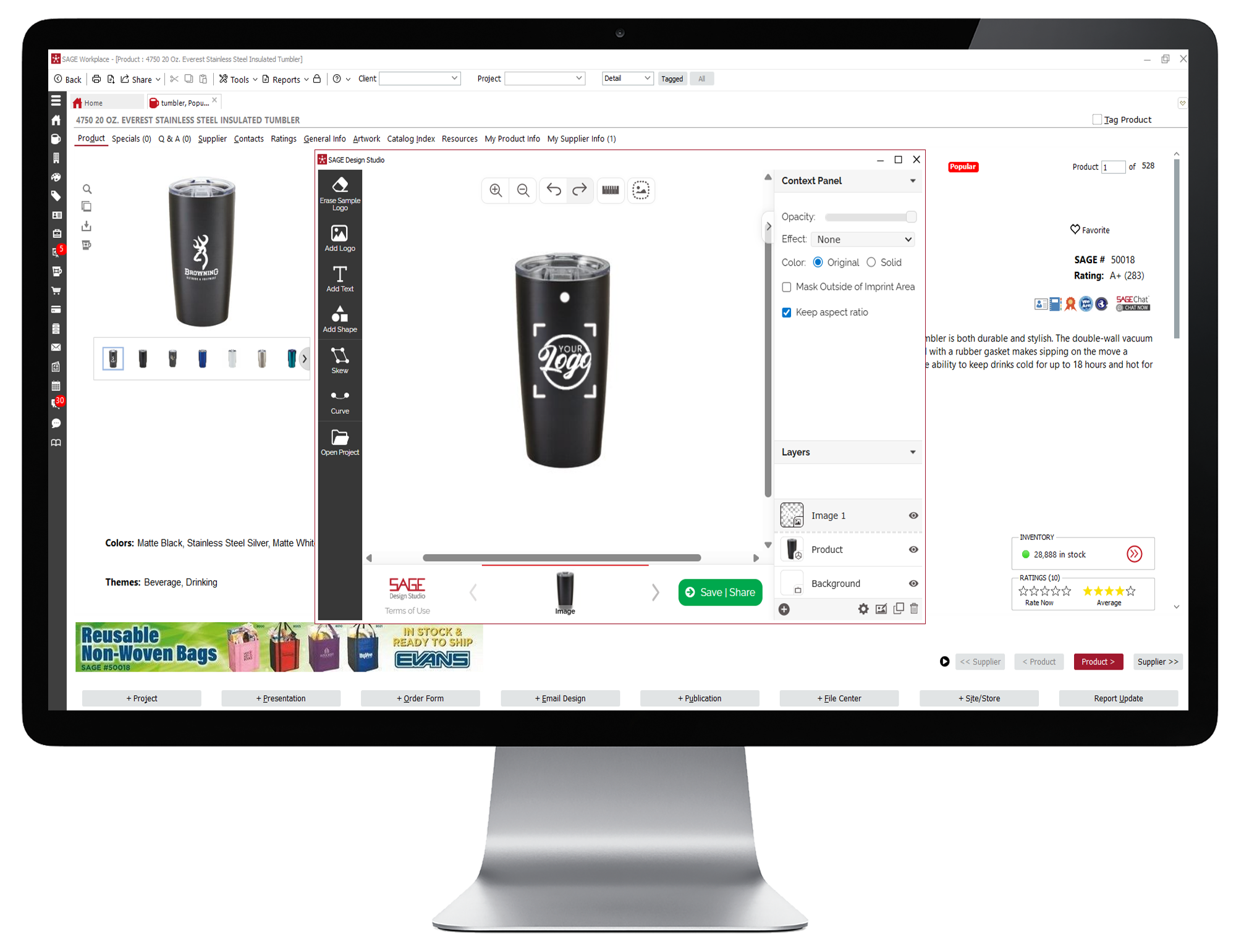
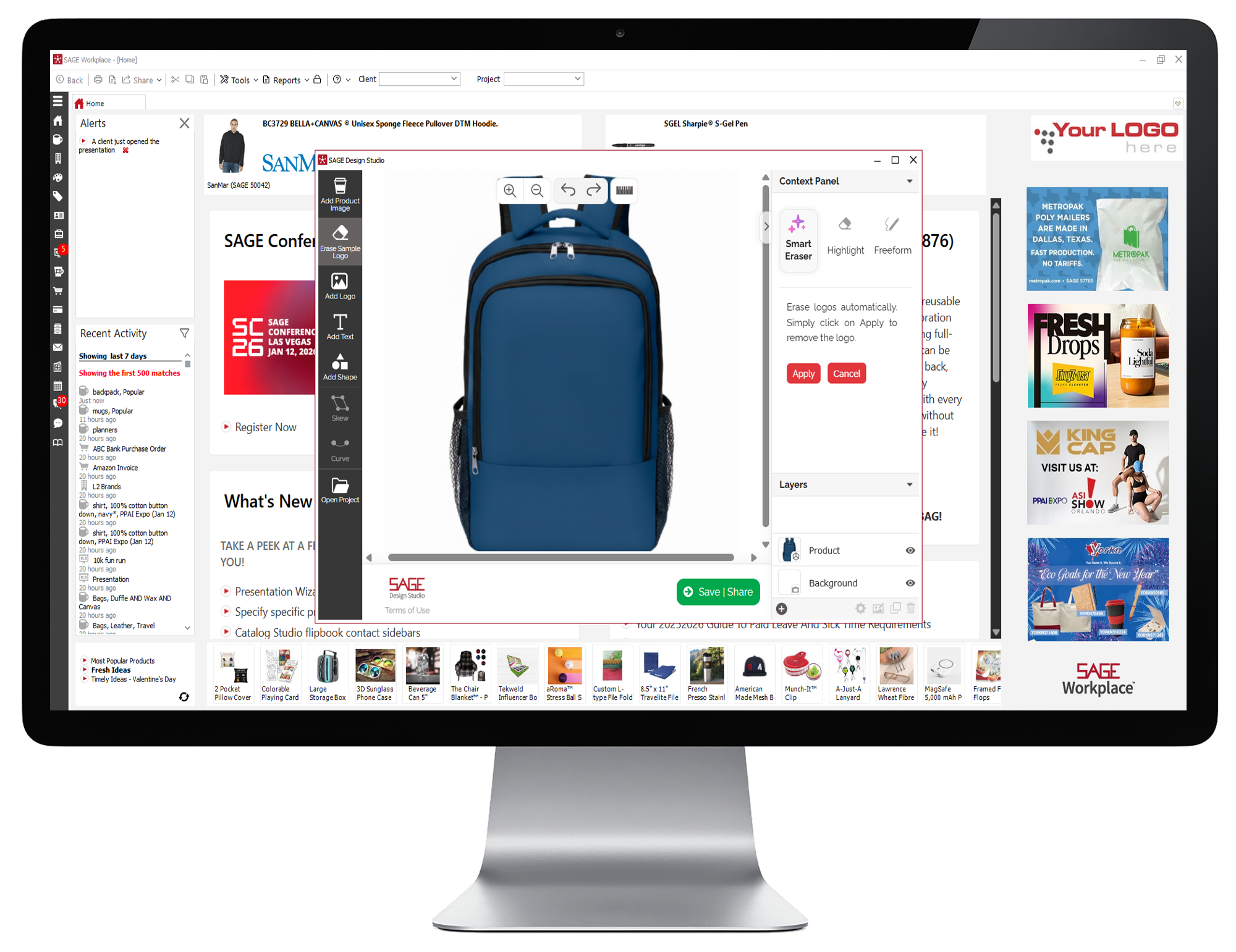
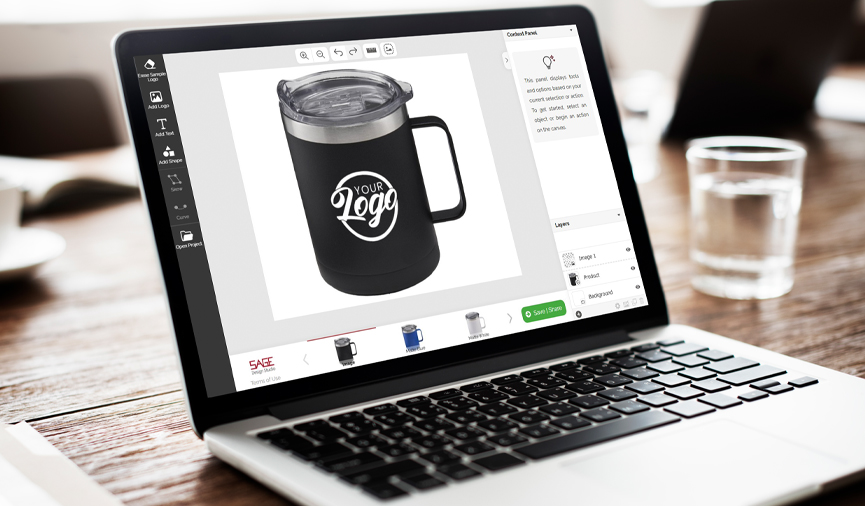
  • From here, if your sample image includes a logo or decoration, you can remove it by clicking the Erase Sample Logo option at the top of the menu on the left side of the screen. The fastest way to delete a logo is to simply click “Apply”. This activates the Smart Eraser and removes the logo automatically. You can opt to use the Highlight or Freeform method, before clicking “Apply” if you’d prefer.
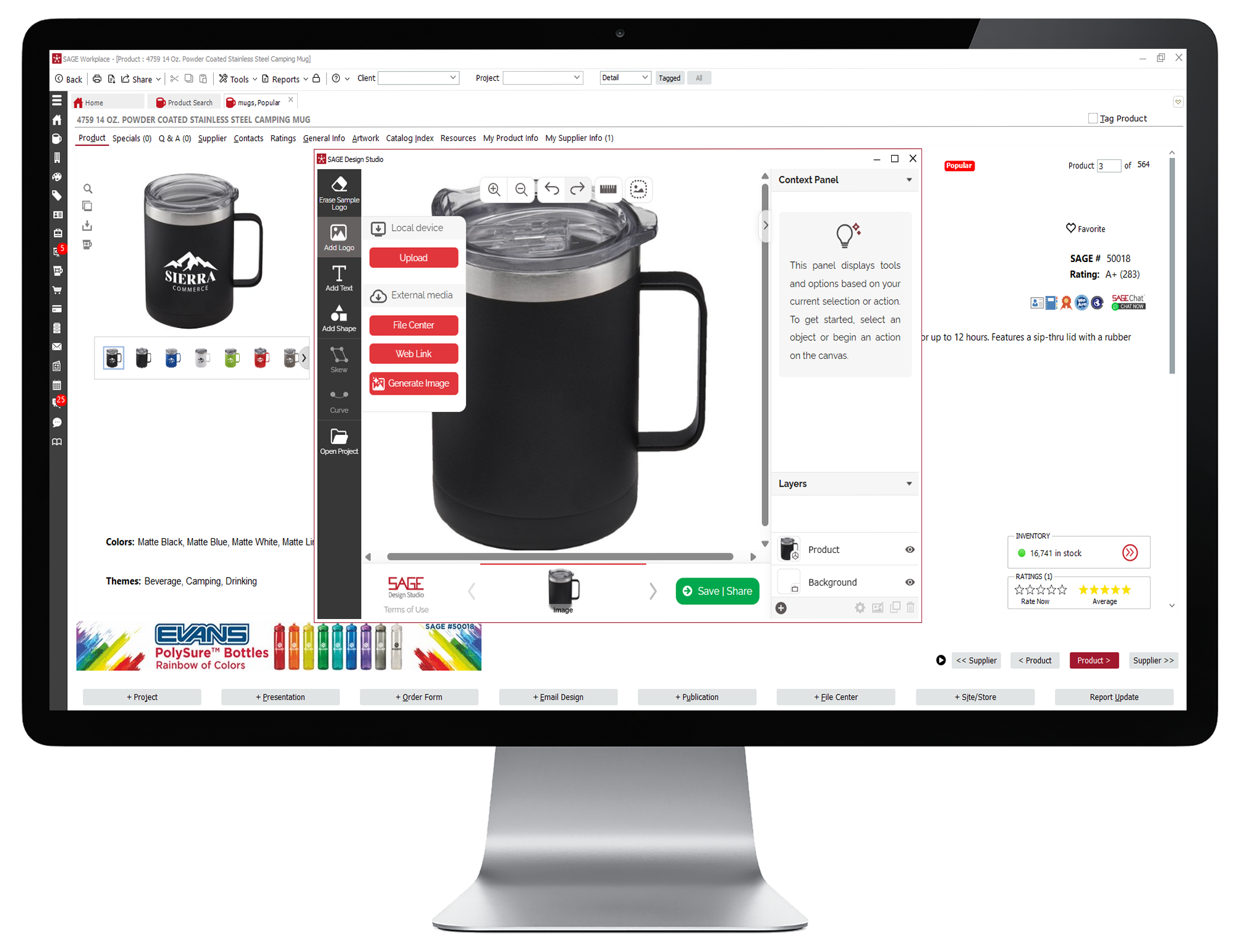
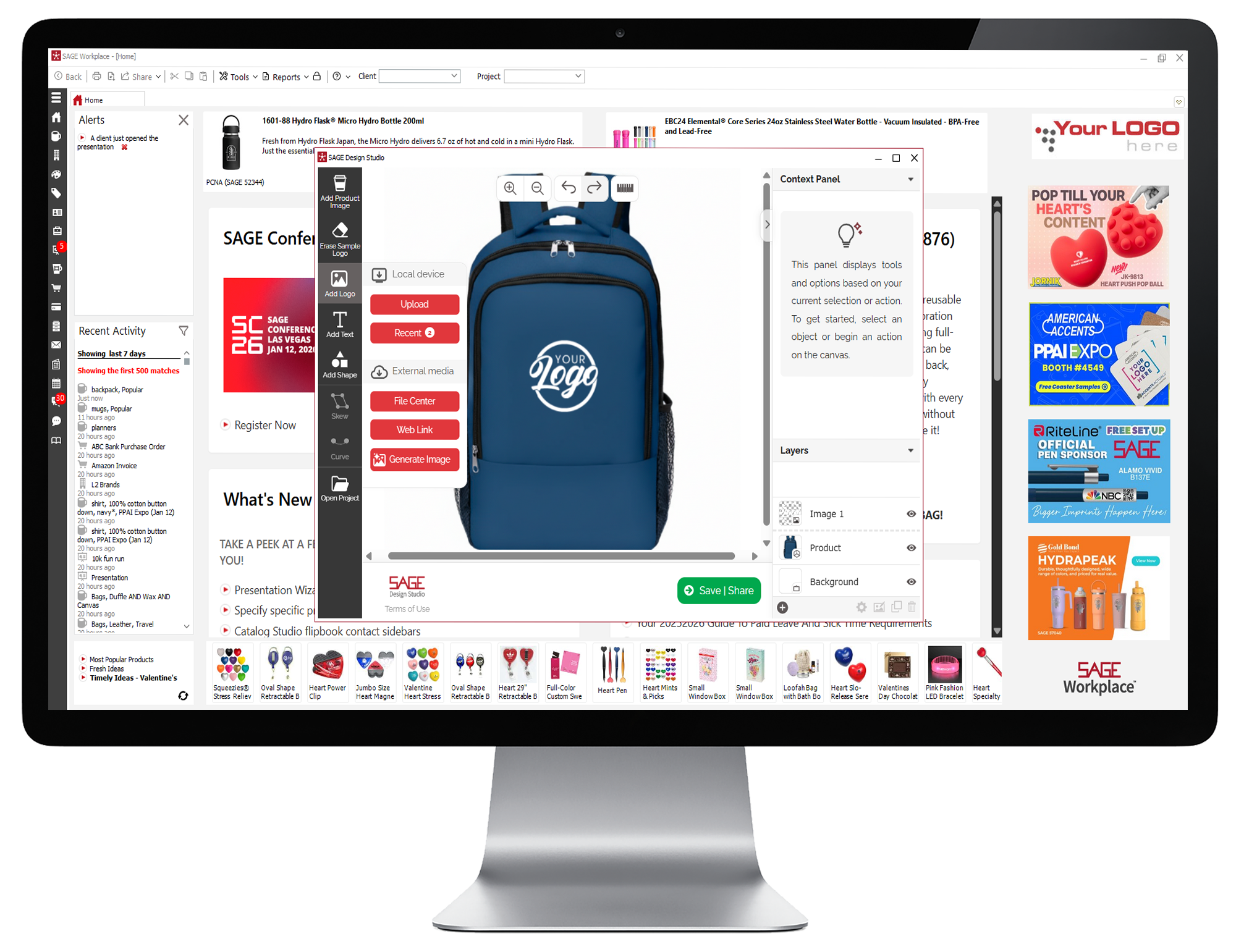
  • To add your own logo, click Add Logo in the menu on the left. You can upload a new logo from your computer, access a logo saved in the File Center, upload directly from a web link, select one of the saved logos that appear at the bottom from your recently used logos, or click Generate Image to have SAGE AI create a logo.
  • Use your mouse to move, resize, or rotate your logo as needed to fit the product. If you make a mistake, use the Undo option in the controls at the top.
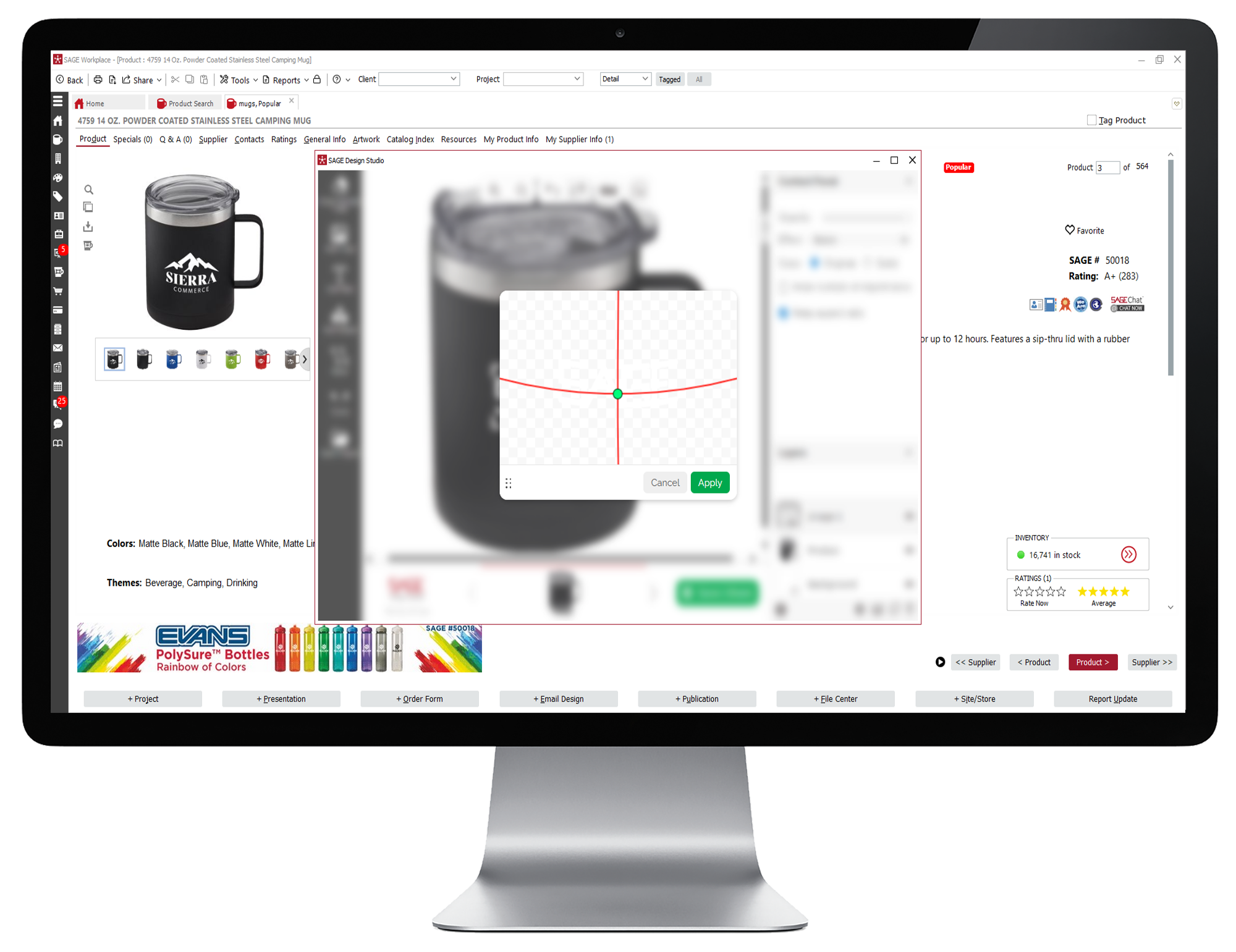
  • You can also skew or curve your logo using the controls on the left to better fit the product. For example, if you are adding a logo to a mug, you would want to use the Curve function to curve the logo around the mug. Changing the perspective of your logo to fit the shape of the product you are adding the logo to creates a more realistic looking mockup.
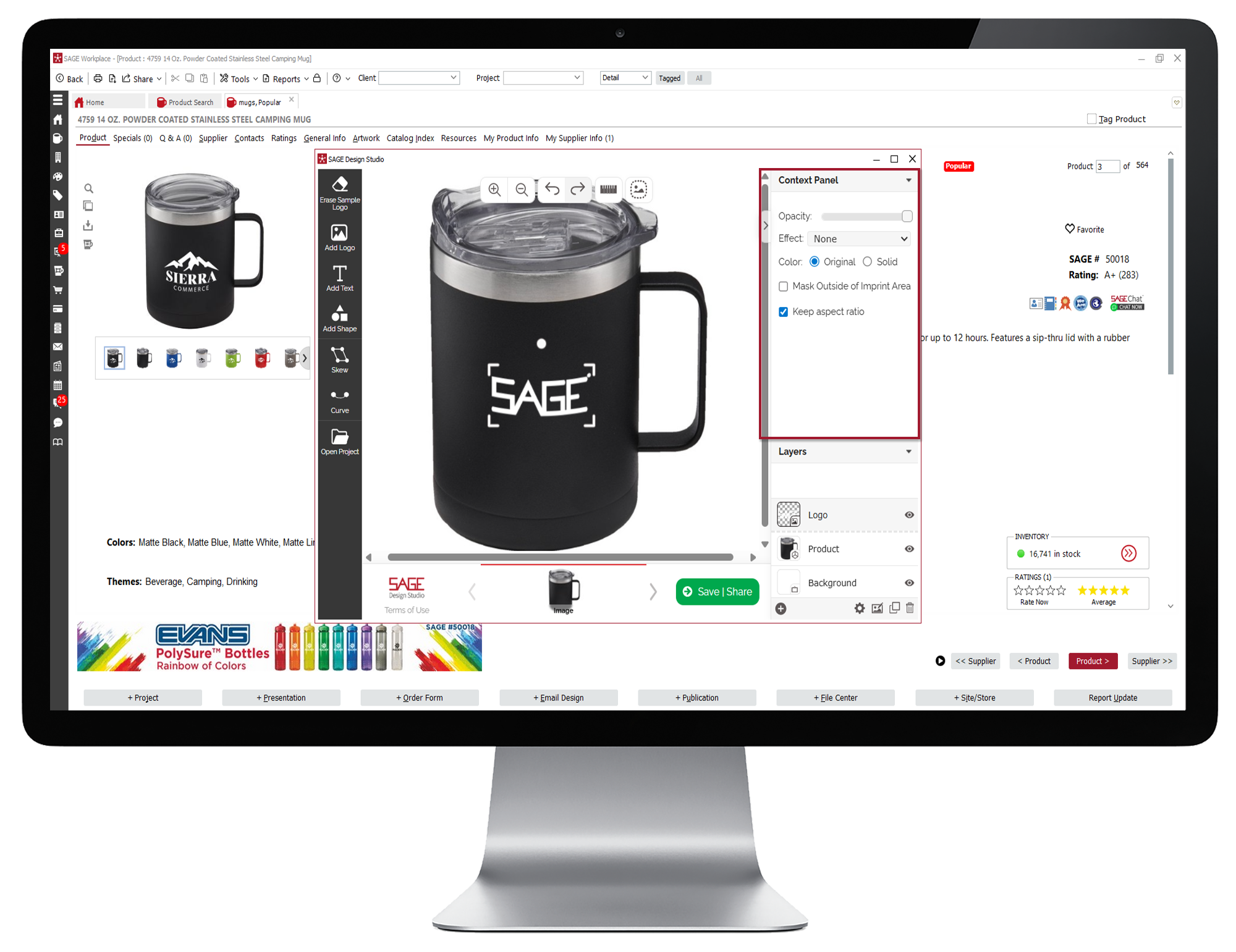
  • To edit your logo, select the appropriate image in the Layers section of the panel on the right of the product image you’re working on. This will allow you to crop your logo, use the paint option to add to your logo, or the fill option to change the background color.
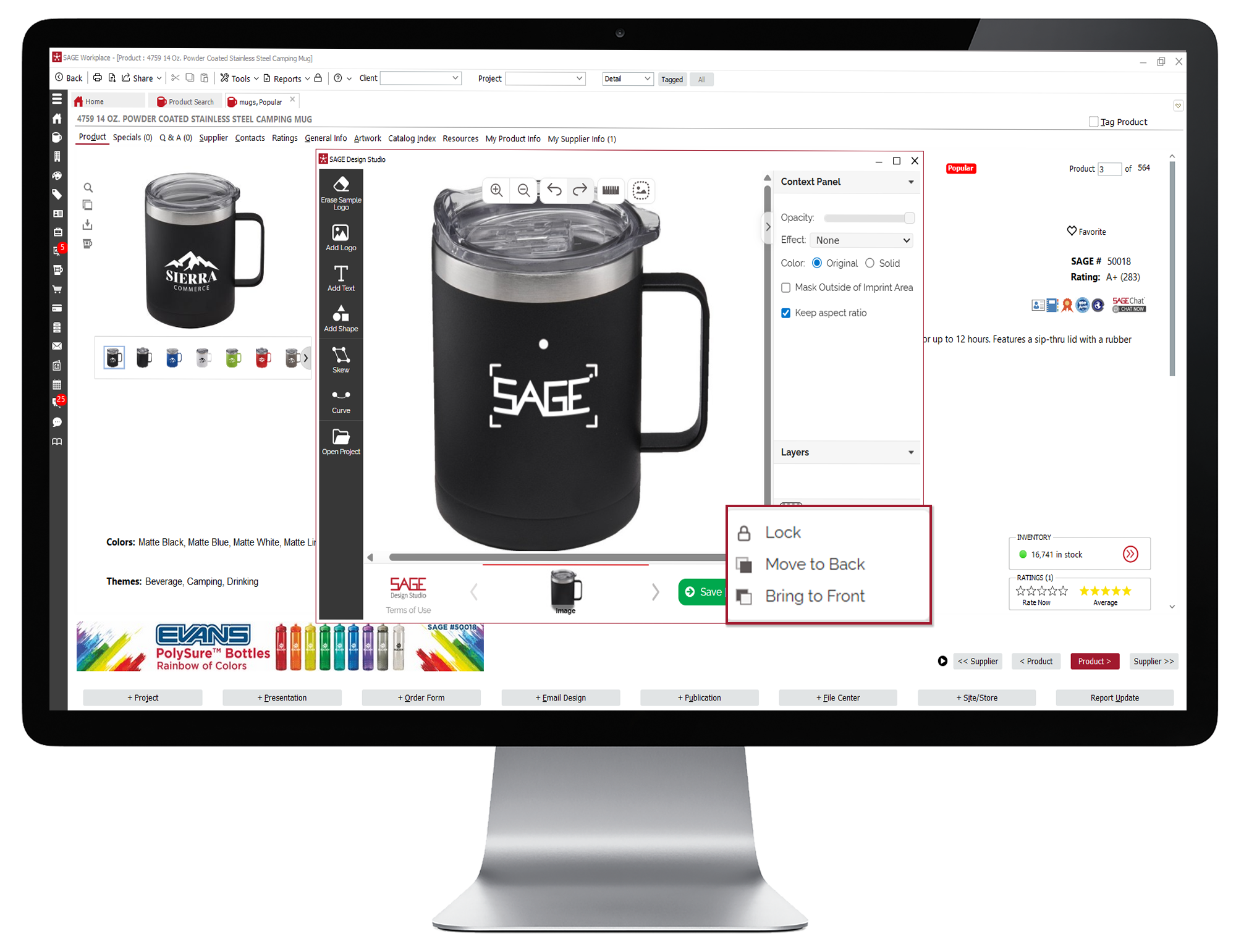
  • If you have uploaded multiple images to imprint and need one image to appear in front of the other, select the image you want to appear in front or back. Then click the gear icon at the bottom of the panel on the right and choose Bring to Front or Move to Back.
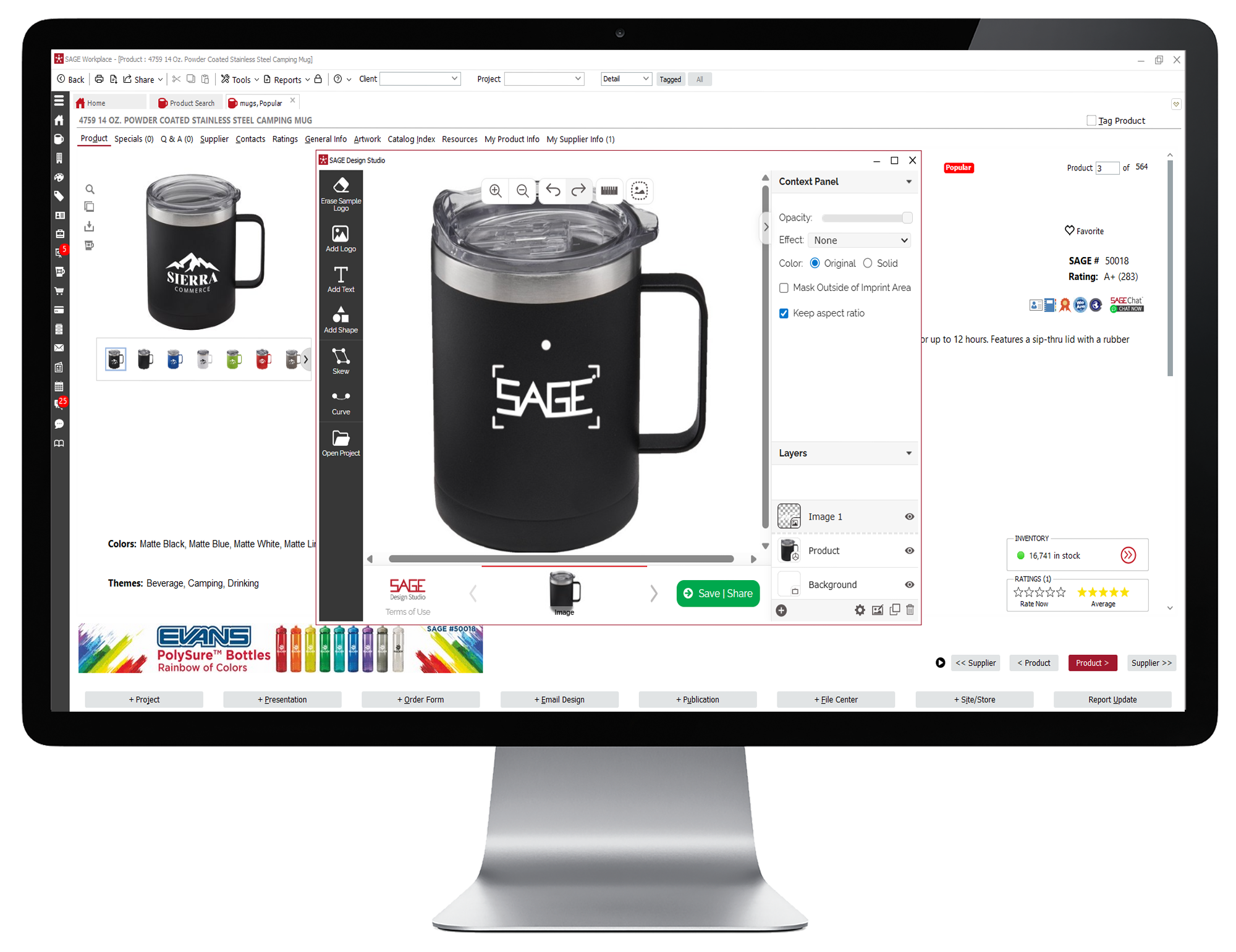
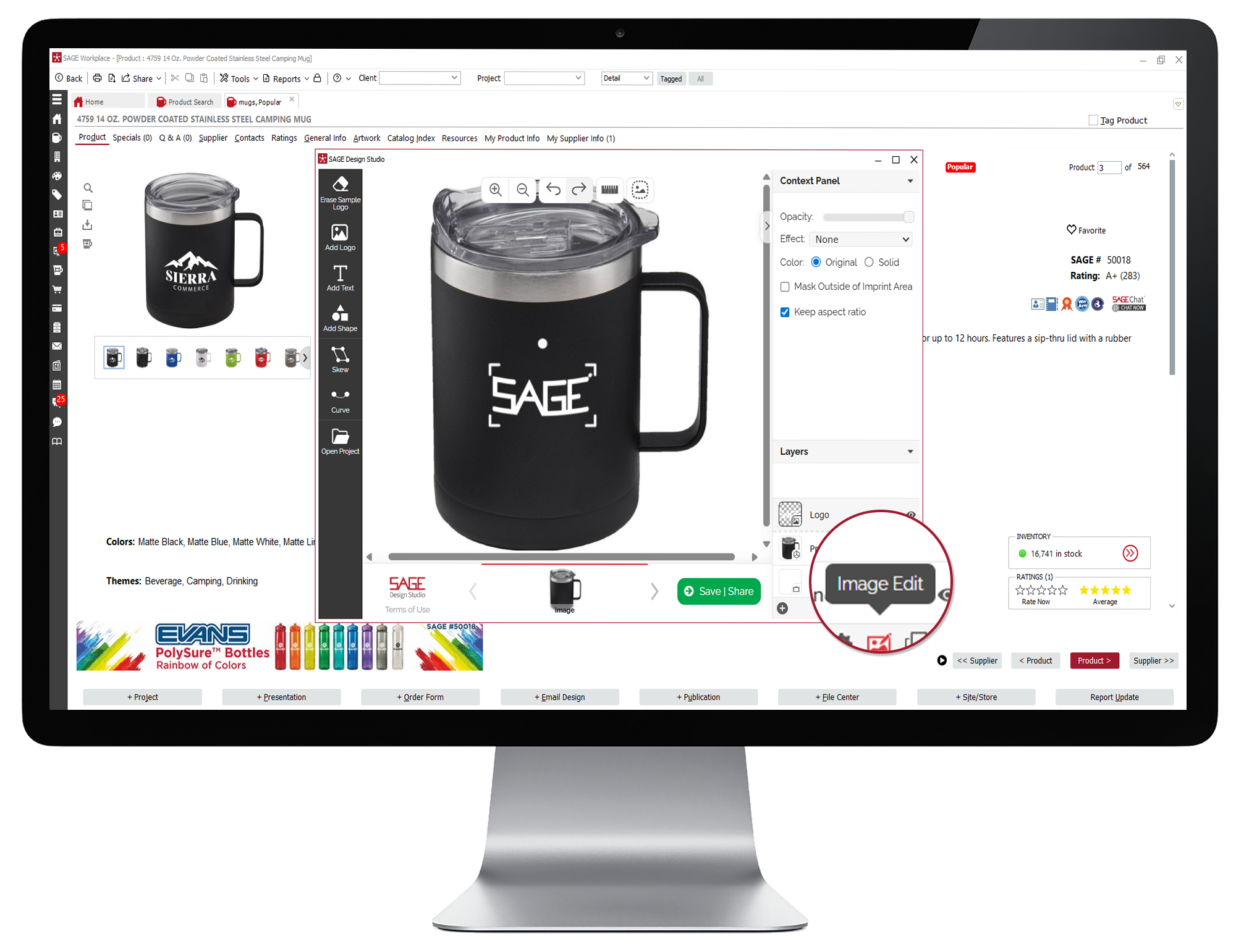
  • You can also use the settings in the Context Panel to adjust the opacity of your logo or pick the imprint effect. To pick the imprint effect, select your preferred imprint method from the drop down menu. You can select emboss, deboss, embroidery, laser engraving, or gold or silver foil stamping. This allows you to see a better representation of what your logo will look like with different imprinting methods.
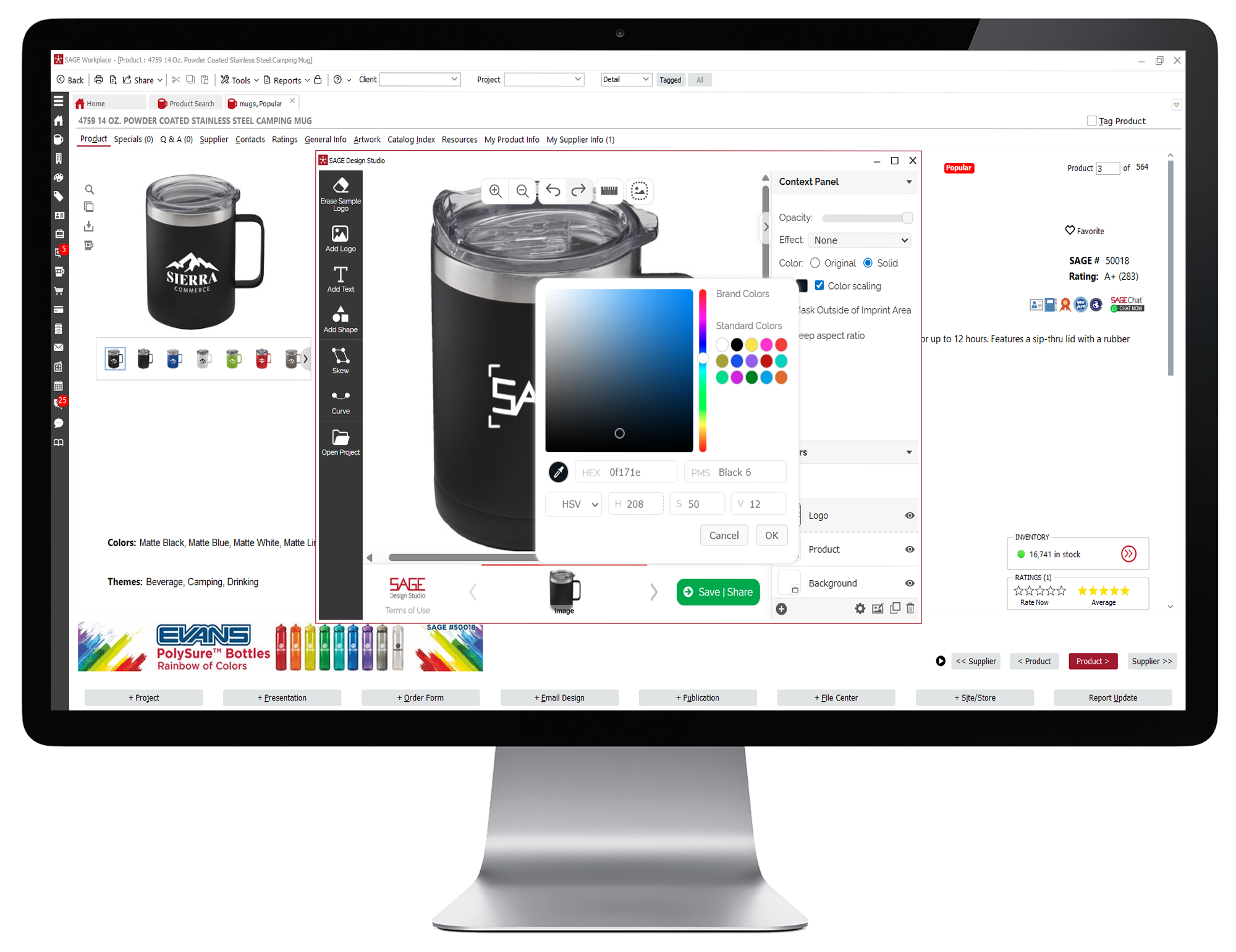
  • To change the color of your logo, select “Solid” in the Context Panel where you’re given the option to choose the color. Next, click the solid-colored box to open the Color Picker. This will open a pop up where you can select a different color for your logo. All the brand colors that appear in the logo will be listed at the top or you can select from the standard color options. Use the eyedropper or color scale or enter the HEX, PMS, HSV, or RBG values that you want. Once you have selected the color of your choice, click OK.
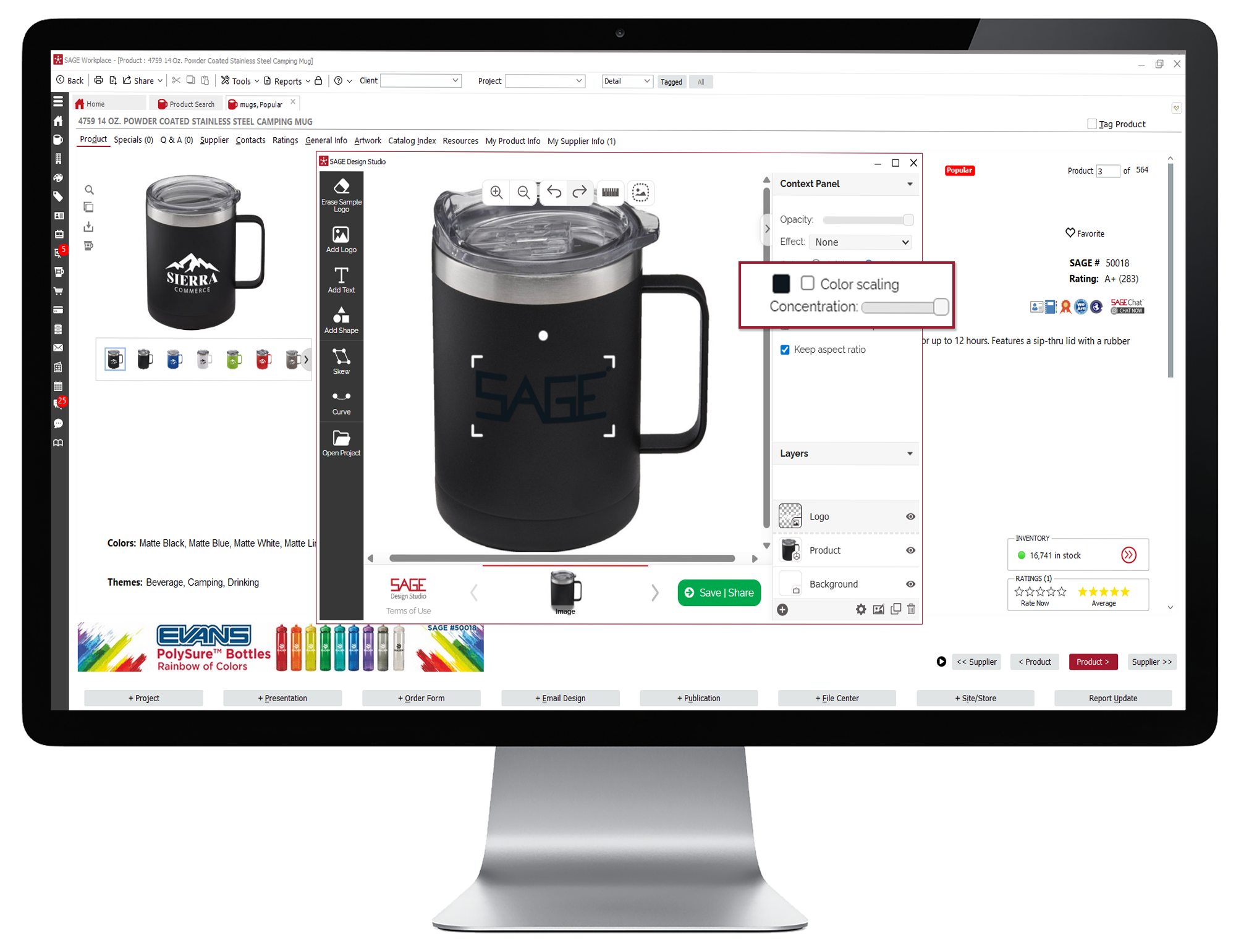
  • The Color Scaling option determines how concentrated you want the new color in your logo to appear and will be selected by default. If you would like to make the color appear less concentrated, uncheck Color Scaling, and use the Concentration slider to change the intensity of the color you have selected.
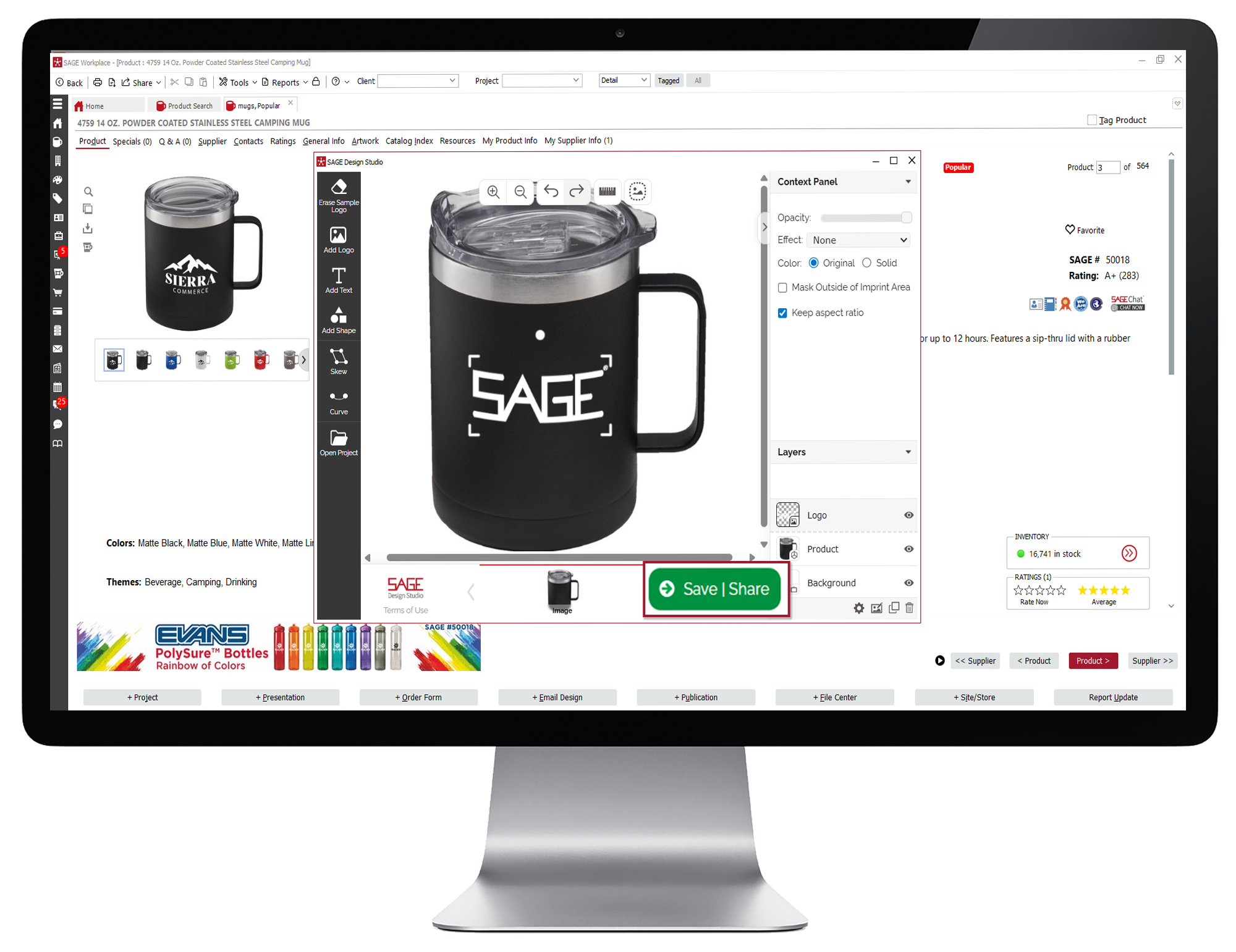
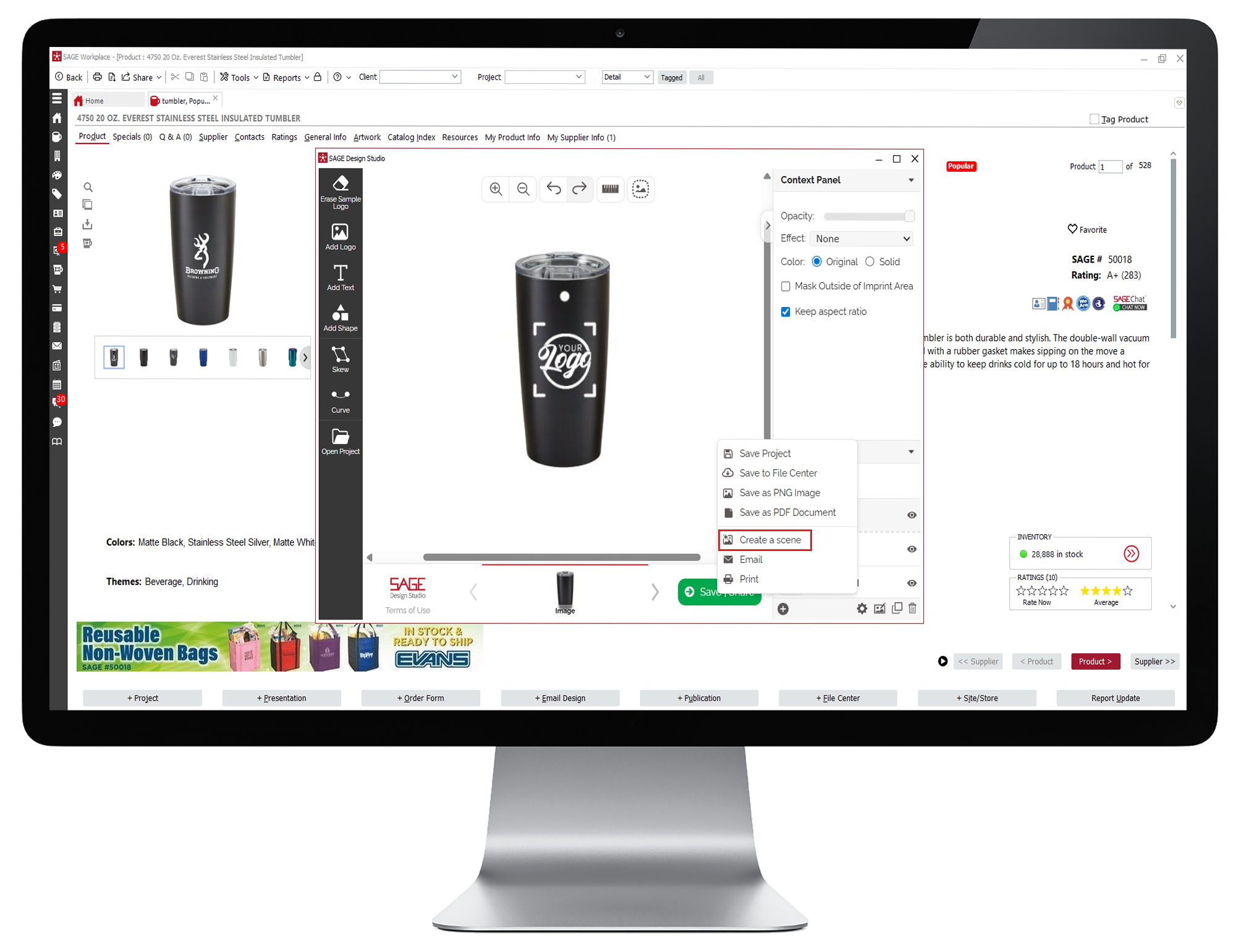
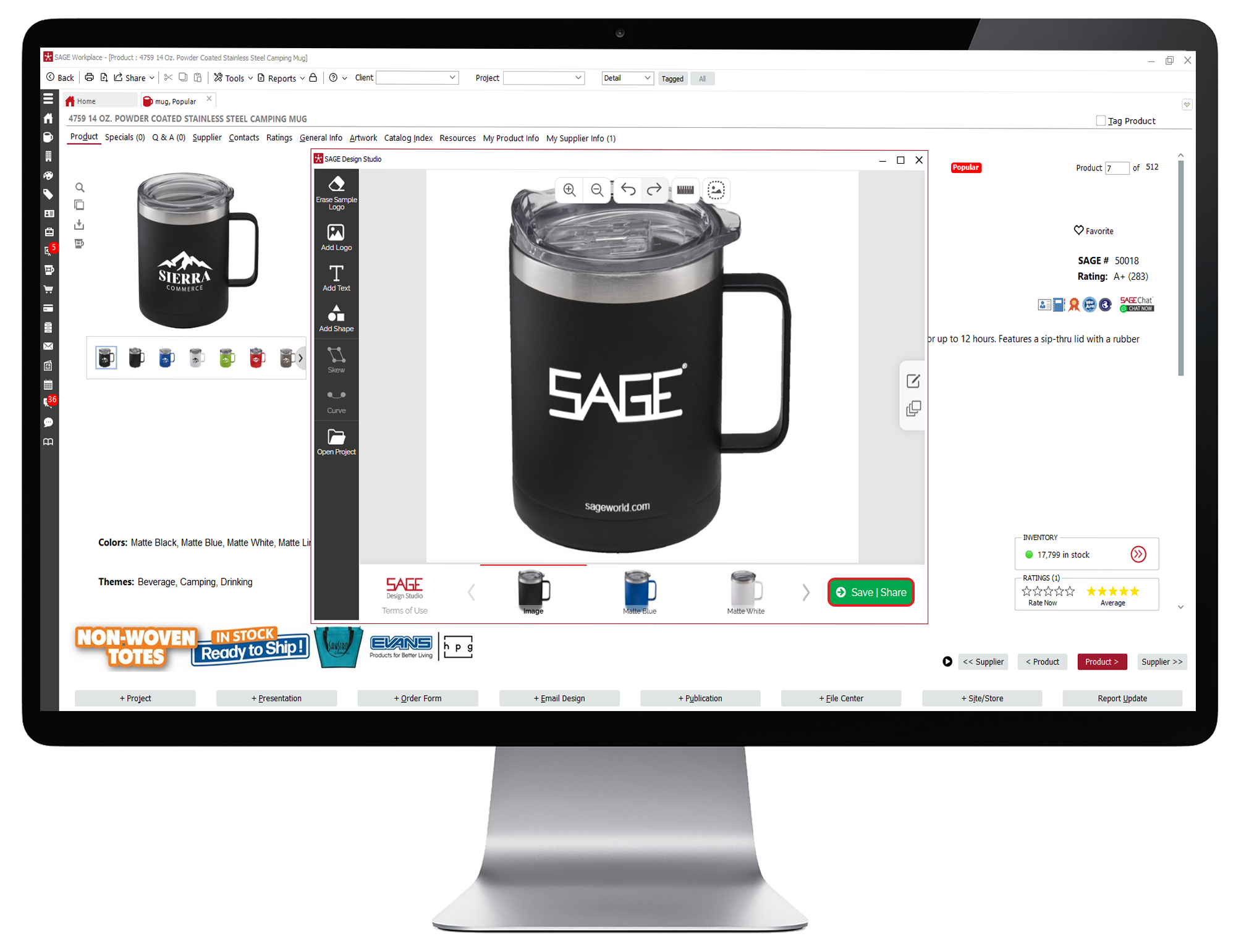
  • Once you’re satisfied with your virtual sample, click on Save/Share. You can send the sample as an email, print it from your device, or save it as a PNG, PDF, save to the File Center or Projects area in SAGE Workplace, or create a scene.
  • Log into SAGE Workplace.
  • How To Add a Logo to a Product
  • Click on the Product Search in the left menu. Perform a product search and locate the product of your choice.
  • How To Add a Logo to a Product
  • Once you've located a product, double-click the product to open the product detail page.
  • How To Add a Logo to a Product
  • Click on the mug icon to open the SAGE Design Studio.
  • How To Add a Logo to a Product
  • From here, if your sample image includes a logo or decoration, you can remove it by clicking the Erase Sample Logo option at the top of the menu on the left side of the screen. The fastest way to delete a logo is to simply click “Apply”. This activates the Smart Eraser and removes the logo automatically. You can opt to use the Highlight or Freeform method, before clicking “Apply” if you’d prefer.
  • How To Add a Logo to a Product
  • To add your own logo, click Add Logo in the menu on the left. You can upload a new logo from your computer, access a logo saved in the File Center, upload directly from a web link, select one of the saved logos that appear at the bottom from your recently used logos, or click Generate Image to have SAGE AI create a logo.
  • How To Add a Logo to a Product
  • Use your mouse to move, resize, or rotate your logo as needed to fit the product. If you make a mistake, use the Undo option in the controls at the top.
  • How To Add a Logo to a Product
  • You can also skew or curve your logo using the controls on the left to better fit the product. For example, if you are adding a logo to a mug, you would want to use the Curve function to curve the logo around the mug. Changing the perspective of your logo to fit the shape of the product you are adding the logo to creates a more realistic looking mockup.
  • How To Add a Logo to a Product
  • To edit your logo, select the appropriate image in the Layers section of the panel on the right of the product image you’re working on. This will allow you to crop your logo, use the paint option to add to your logo, or the fill option to change the background color.
  • How To Add a Logo to a Product
  • If you have uploaded multiple images to imprint and need one image to appear in front of the other, select the image you want to appear in front or back. Then click the gear icon at the bottom of the panel on the right and choose Bring to Front or Move to Back.
  • How To Add a Logo to a Product
  • You can also use the settings in the Context Panel to adjust the opacity of your logo or pick the imprint effect. To pick the imprint effect, select your preferred imprint method from the drop down menu. You can select emboss, deboss, embroidery, laser engraving, or gold or silver foil stamping. This allows you to see a better representation of what your logo will look like with different imprinting methods.
  • How To Add a Logo to a Product
  • To change the color of your logo, select “Solid” in the Context Panel where you’re given the option to choose the color. Next, click the solid-colored box to open the Color Picker. This will open a pop up where you can select a different color for your logo. All the brand colors that appear in the logo will be listed at the top or you can select from the standard color options. Use the eyedropper or color scale or enter the HEX, PMS, HSV, or RBG values that you want. Once you have selected the color of your choice, click OK.
  • How To Add a Logo to a Product
  • The Color Scaling option determines how concentrated you want the new color in your logo to appear and will be selected by default. If you would like to make the color appear less concentrated, uncheck Color Scaling, and use the Concentration slider to change the intensity of the color you have selected.
  • How To Add a Logo to a Product
  • Once you’re satisfied with your virtual sample, click on Save/Share. You can send the sample as an email, print it from your device, or save it as a PNG, PDF, save to the File Center or Projects area in SAGE Workplace, or create a scene.
  • How To Add a Logo to a Product

How to Create a Lifestyle Image

  • Use Product Search to find the product you want, and then open the product detail page.
  • Click the icon labelled Create Virtual Sample. This will open a SAGE Design Studio pop-up window.
  • Erase/add a logo as instructed above and then click Save/Share. This will open a box with various options.
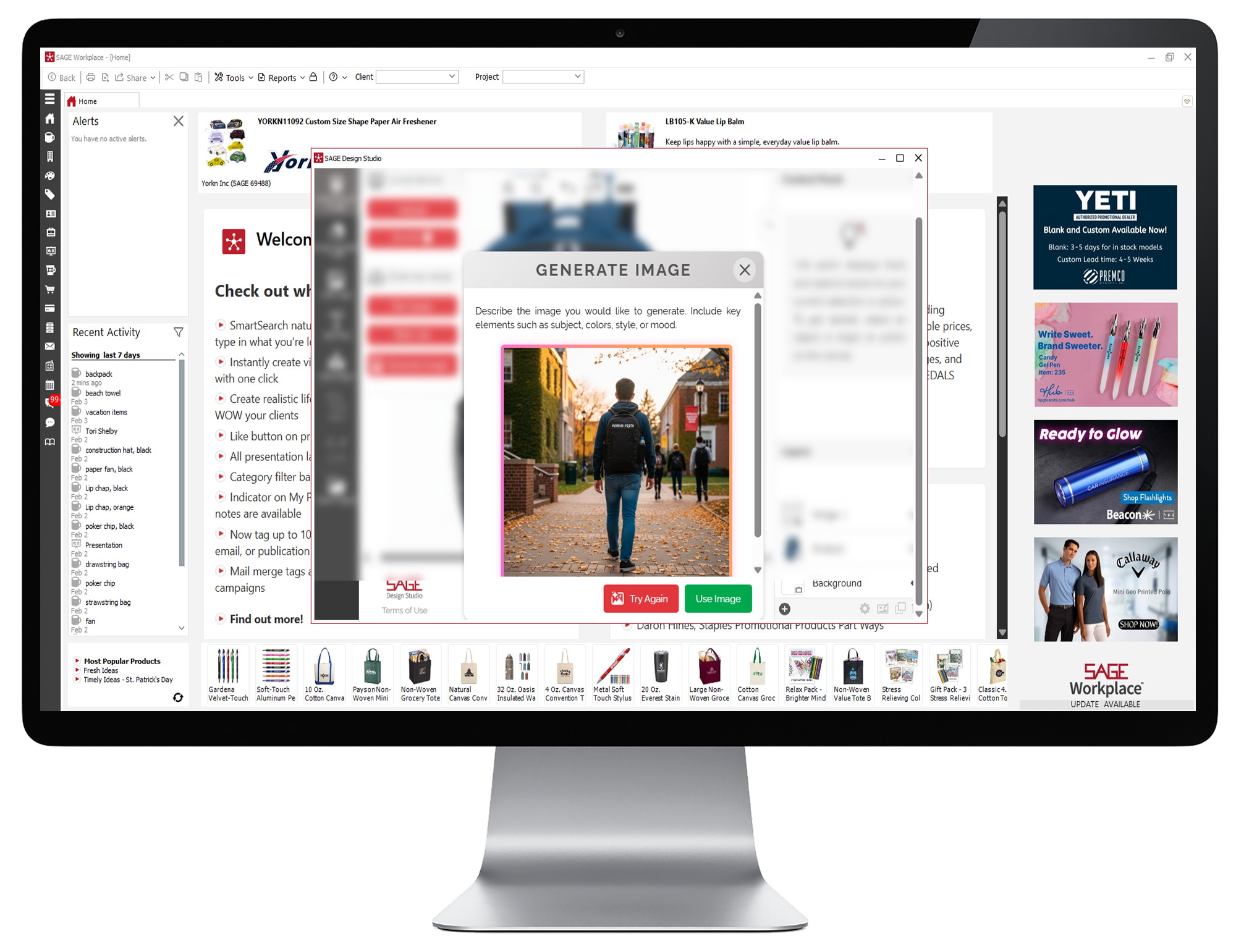
  • Choose Create a Scene from the list of options.
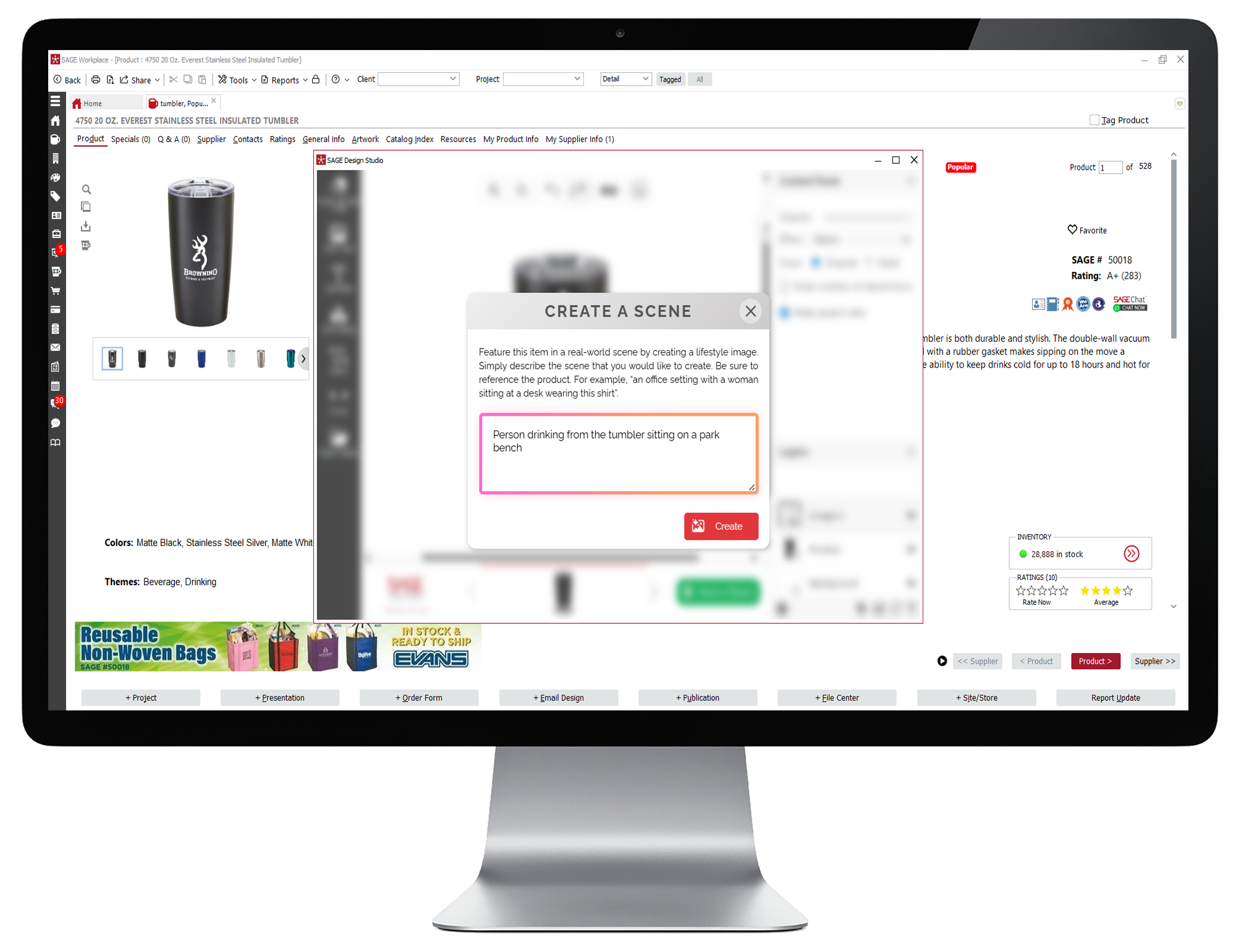
  • Type a prompt as instructed detailing what you want the scene to look like. Then click Create.
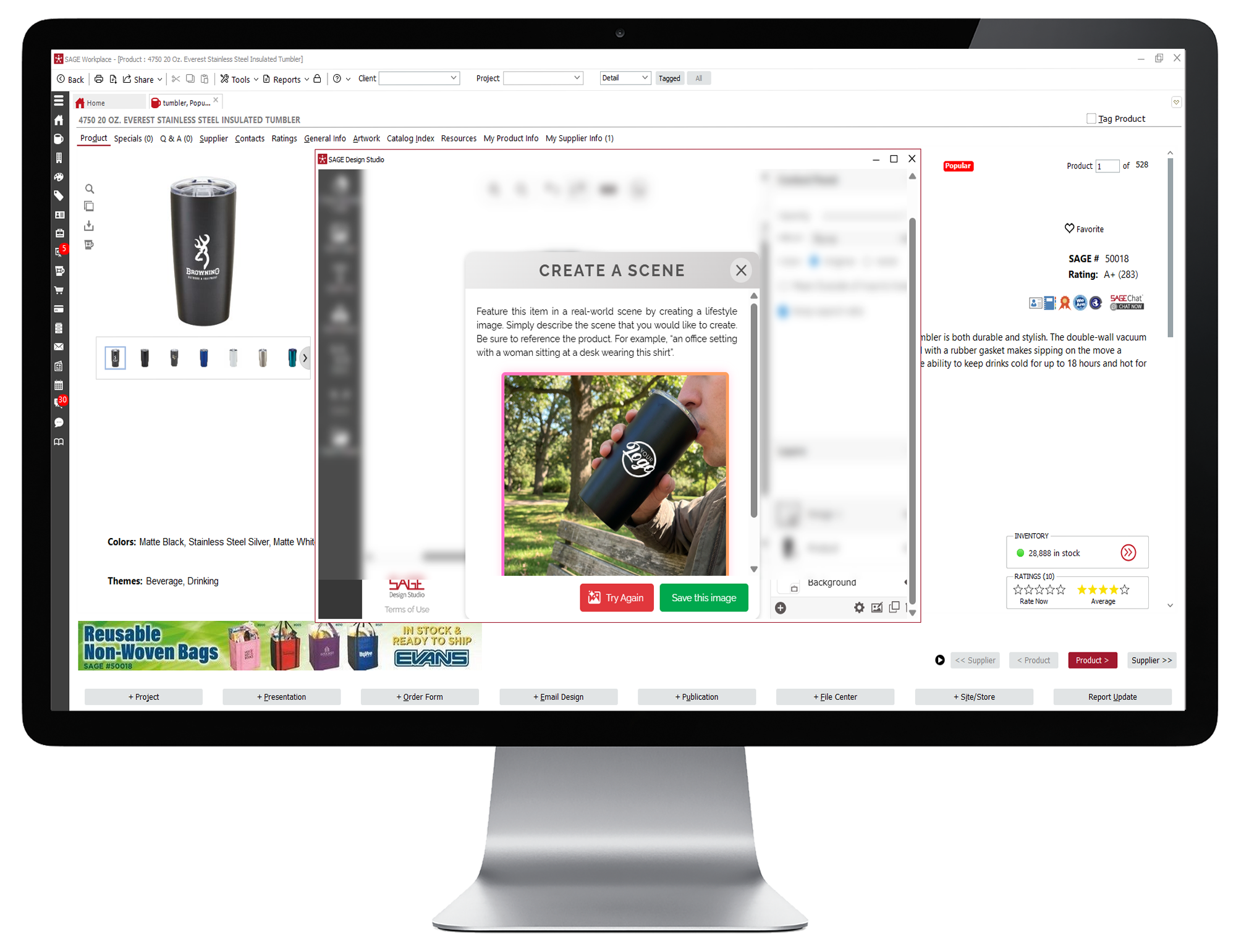
  • In a few seconds, it will provide an image. You can either save the image or click Try Again to adjust your prompt and create a different image.
  • Use Product Search to find the product you want, and then open the product detail page.
  • How To Add Text or Shapes to a Product
  • Click the icon labelled Create Virtual Sample. This will open a SAGE Design Studio pop-up window.
  • How To Add Text or Shapes to a Product
  • Erase/add a logo as instructed above and then click Save/Share. This will open a box with various options.
  • How To Add Text or Shapes to a Product
  • Choose Create a Scene from the list of options.
  • How To Add Text or Shapes to a Product
  • Type a prompt as instructed detailing what you want the scene to look like. Then click Create.
  • How To Add Text or Shapes to a Product
  • In a few seconds, it will provide an image. You can either save the image or click Try Again to adjust your prompt and create a different image.
  • How To Add Text or Shapes to a Product

How To Add Text or Shapes to a Product

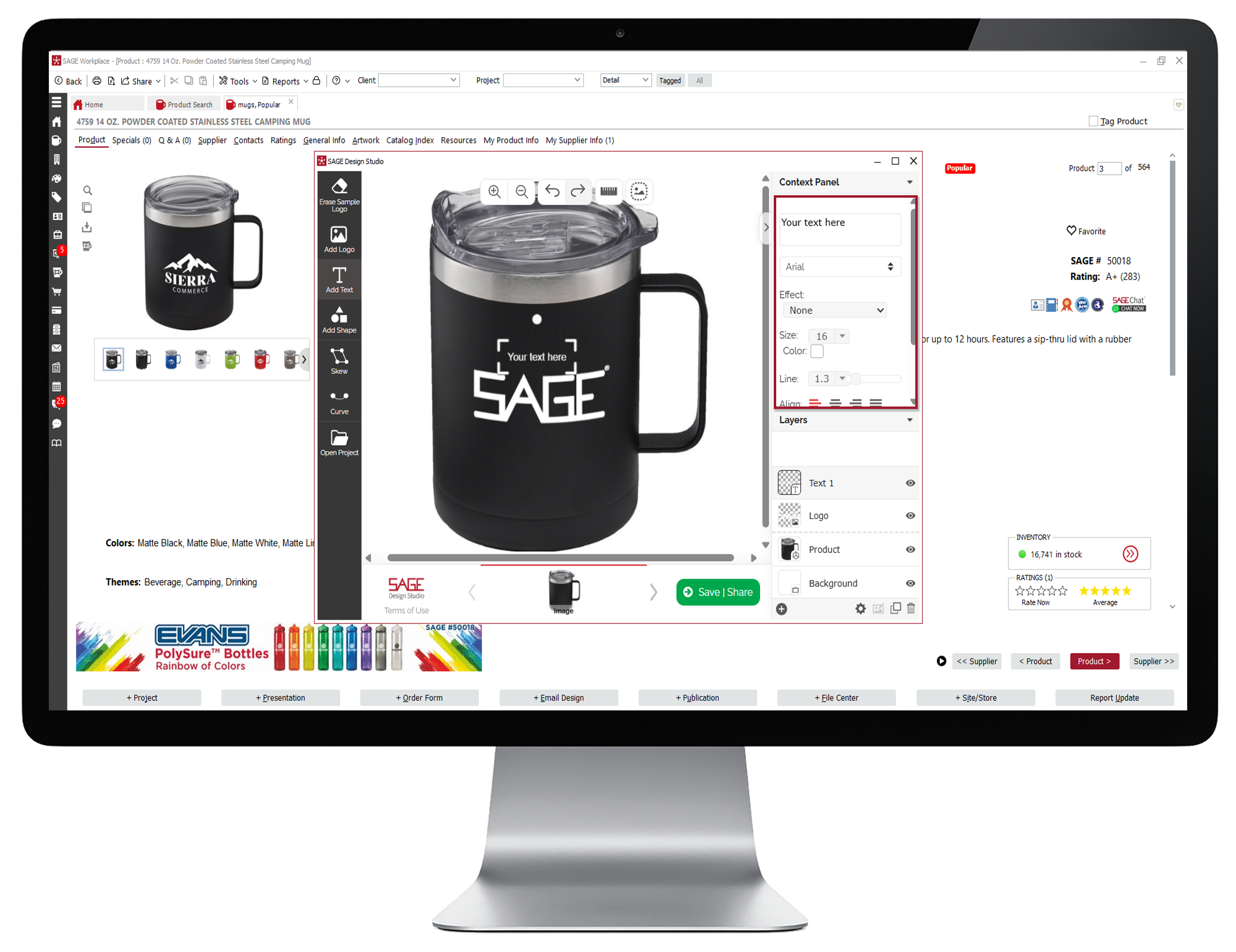
  • You can also add custom text to your virtual sample. To add straight text, click on Add Text to open the Context Panel. Once you have added the text, you can change the font, the text effect such as emboss or embroidery just like you did for the logo, and the font size, color, alignment, or style. Use your mouse and the controls at the top to move your text where you want it.
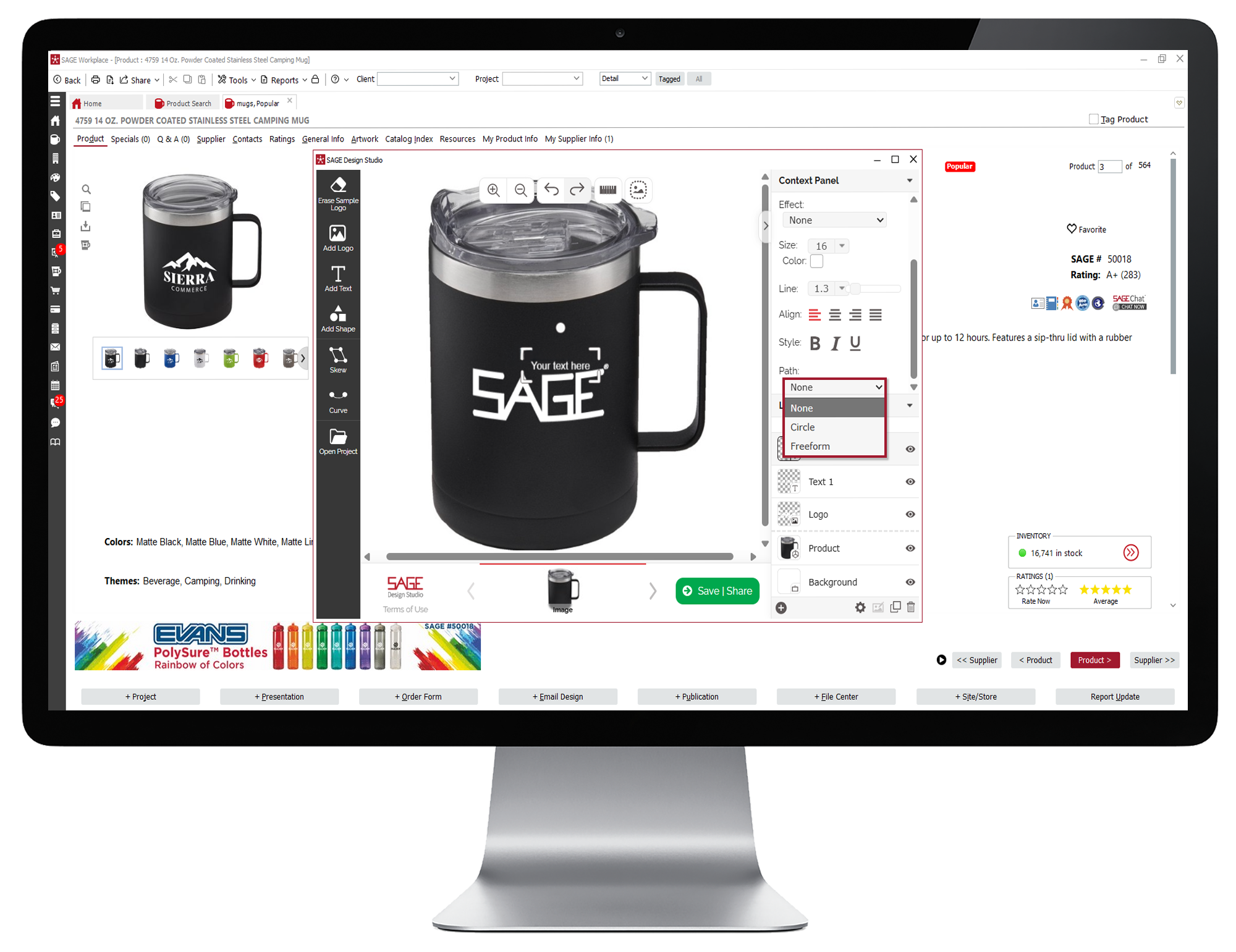
  • To add curved text up to a circle or freeform text, select Path at the bottom of the text panel. This will give you the option to create circular text or add text along a freeform path.
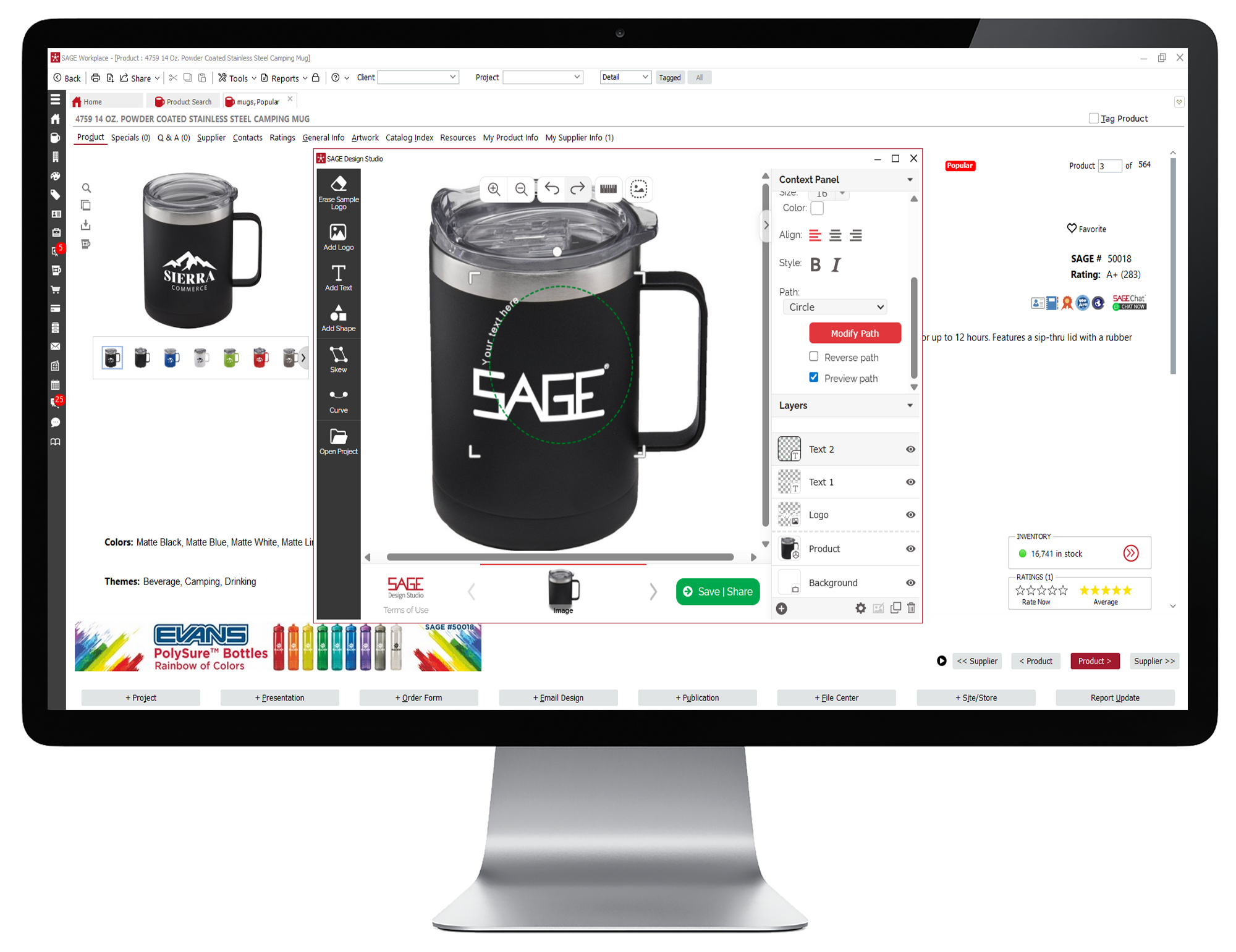
  • For curved text, select Circle. You will then see a circular guide on your image. Simply type your text in the text box to see it appear along the curve of the guide. Use your mouse and the controls at the top to resize or rotate your curved text.
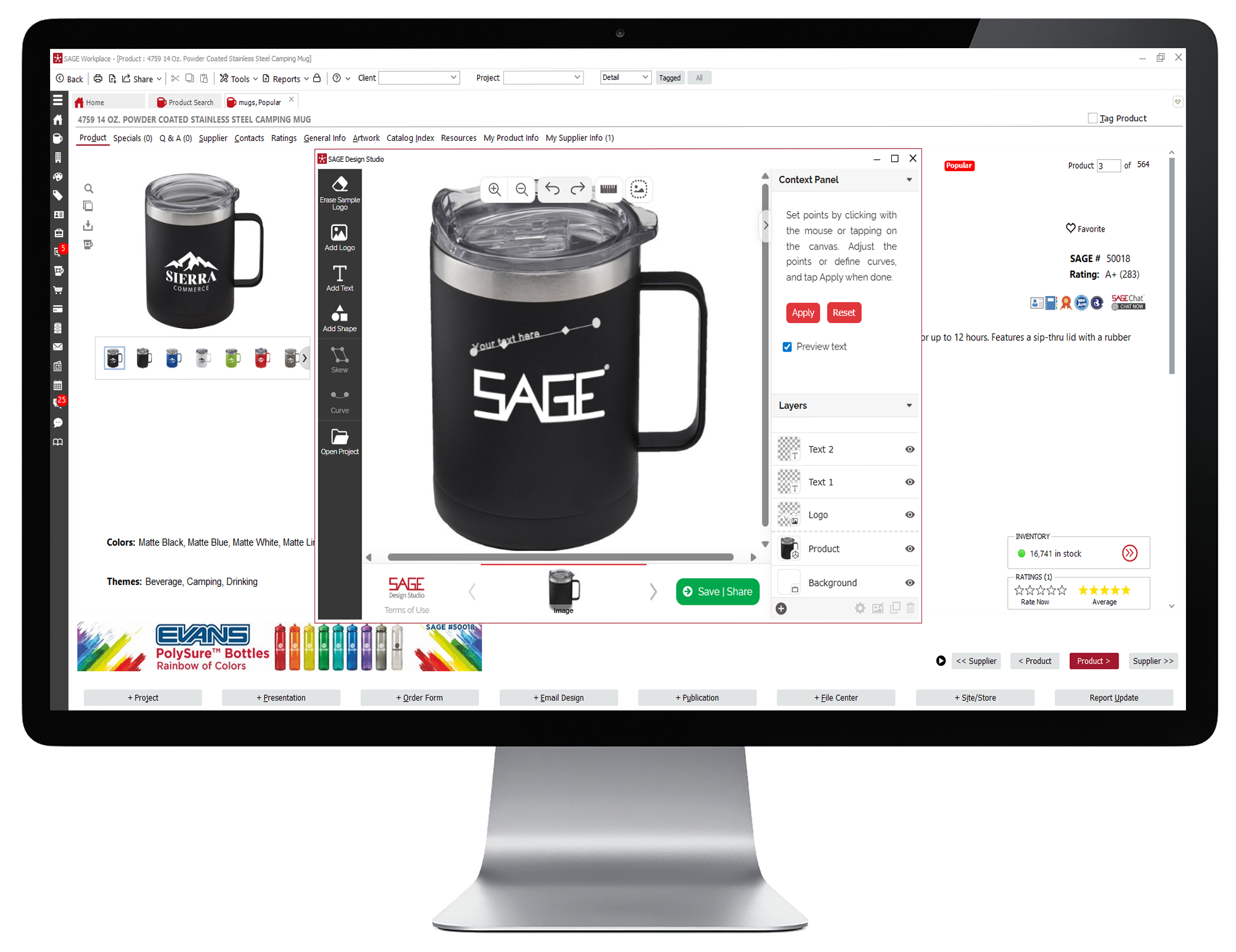
  • For freeform text, select Freeform in the Path drop down. Next you will need to set points by clicking with your mouse. After you are done, select Continue to adjust the points or define curves. Then select Apply. You can also modify, reverse, or remove the path under the Text Path settings.
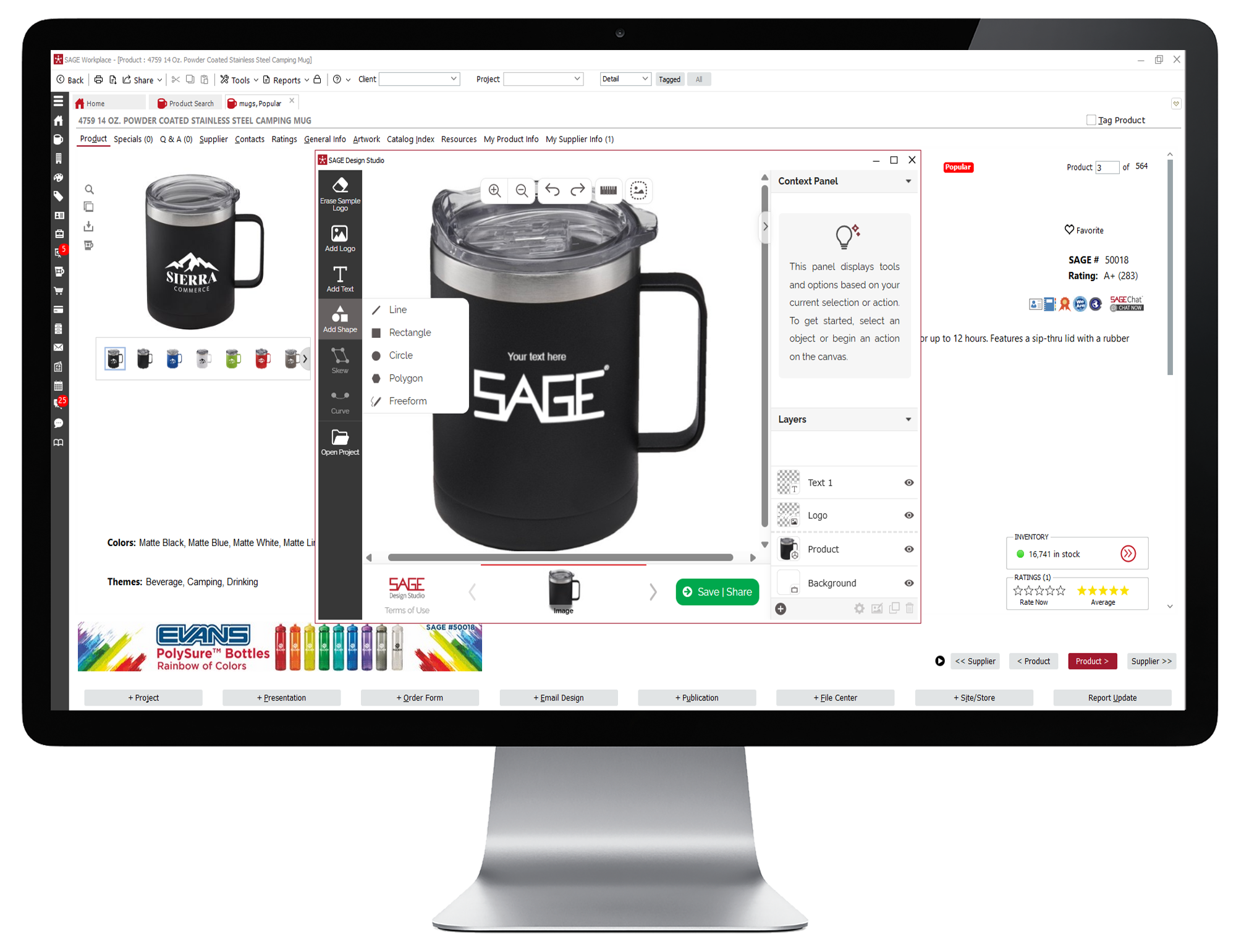
  • To add a shape such as a line, rectangle, circle, polygon, or a freeform shape, click on Add Shape and then select your shape.
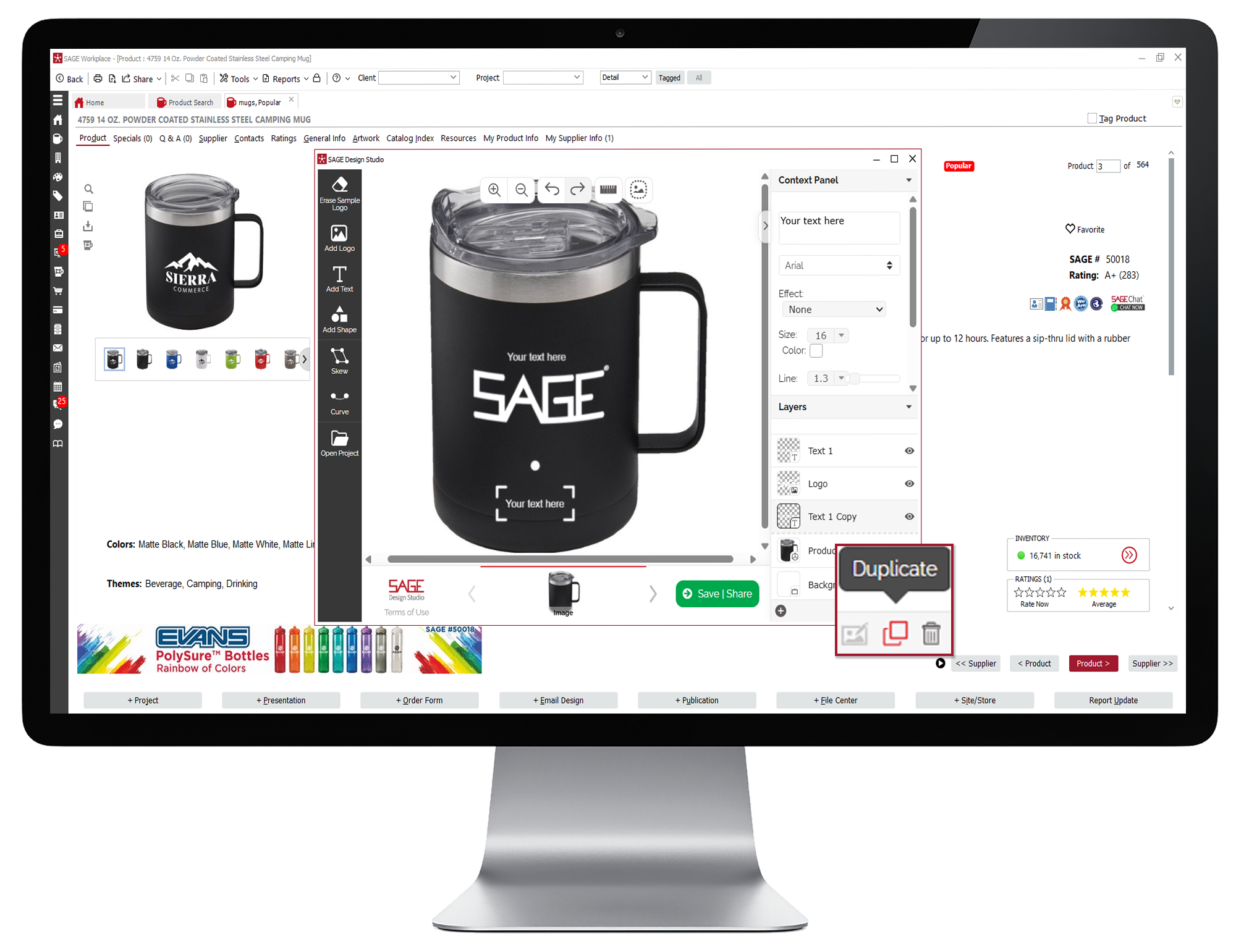
  • From here, you can use your mouse and the controls at the left to move, resize, skew, curve or rotate your shape. You can also duplicate the shape using the Duplicate function in the bottom-right corner if you have more than one imprint location. If you added a logo or other image that you need to appear in front of your shape, select the image you want to appear in front or back, go to the Layers section of the context panel and click the gear icon at the bottom to choose Bring to Front or Move to Back.
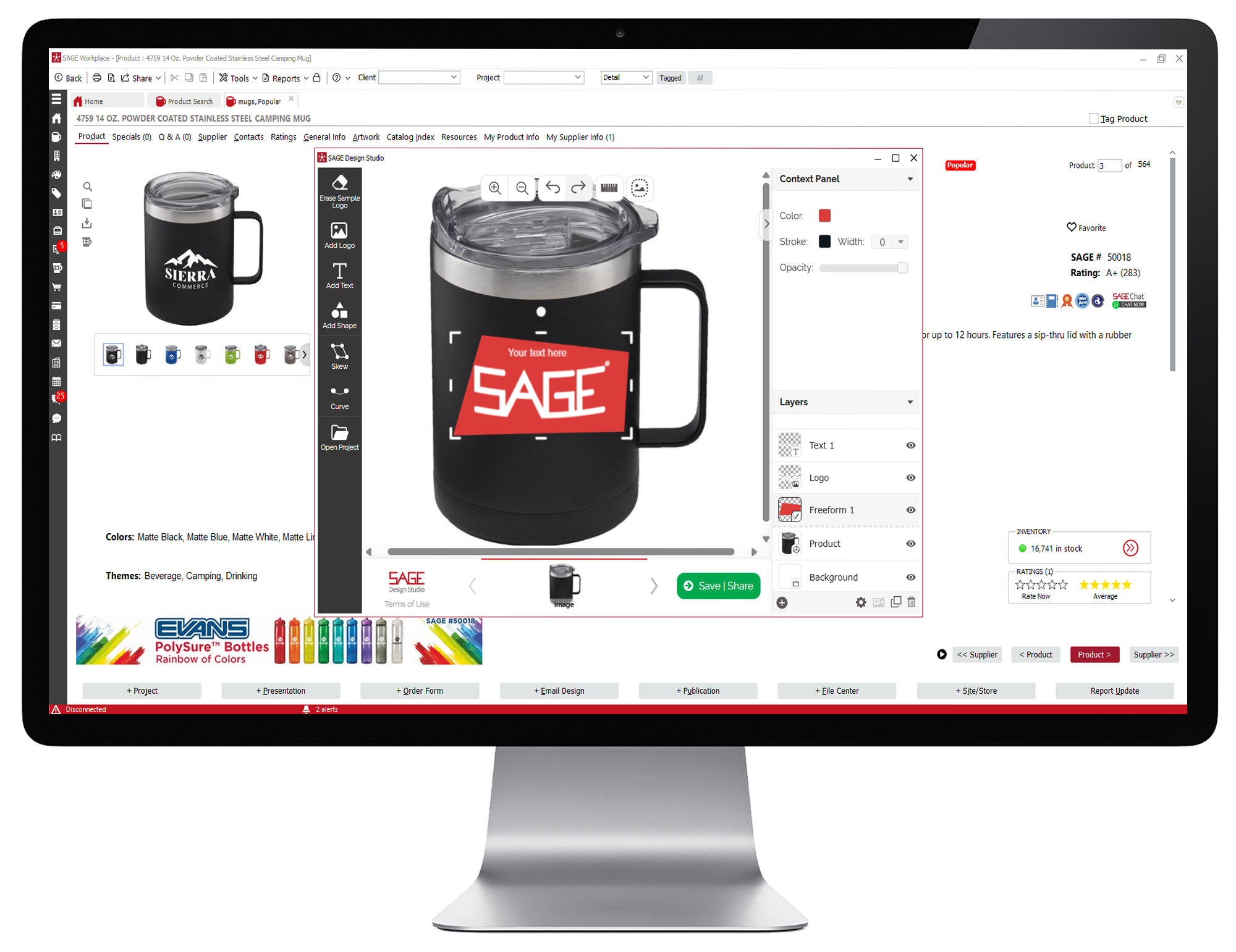
  • For freeform shapes, select Freeform and then set points on your image by clicking with your mouse. After you are done, select Continue to adjust the points or define curves. Then select Apply.
  • Once you're satisfied with your virtual sample, click on Save/Share.
  • You can also add custom text to your virtual sample. To add straight text, click on Add Text to open the Context Panel. Once you have added the text, you can change the font, the text effect such as emboss or embroidery just like you did for the logo, and the font size, color, alignment, or style. Use your mouse and the controls at the top to move your text where you want it.
  • How To Create a Virtual Sample From Scratch
  • To add curved text up to a circle or freeform text, select Path at the bottom of the text panel. This will give you the option to create circular text or add text along a freeform path.
  • How To Create a Virtual Sample From Scratch
  • For curved text, select Circle. You will then see a circular guide on your image. Simply type your text in the text box to see it appear along the curve of the guide. Use your mouse and the controls at the top to resize or rotate your curved text.
  • How To Create a Virtual Sample From Scratch
  • For freeform text, select Freeform in the Path drop down. Next you will need to set points by clicking with your mouse. After you are done, select Continue to adjust the points or define curves. Then select Apply. You can also modify, reverse, or remove the path under the Text Path settings.
  • How To Create a Virtual Sample From Scratch
  • To add a shape such as a line, rectangle, circle, polygon, or a freeform shape, click on Add Shape and then select your shape.
  • How To Create a Virtual Sample From Scratch
  • From here, you can use your mouse and the controls at the left to move, resize, skew, curve or rotate your shape. You can also duplicate the shape using the Duplicate function in the bottom-right corner if you have more than one imprint location. If you added a logo or other image that you need to appear in front of your shape, select the image you want to appear in front or back, go to the Layers section of the context panel and click the gear icon at the bottom to choose Bring to Front or Move to Back.
  • How To Create a Virtual Sample From Scratch
  • For freeform shapes, select Freeform and then set points on your image by clicking with your mouse. After you are done, select Continue to adjust the points or define curves. Then select Apply.
  • How To Create a Virtual Sample From Scratch
  • Once you're satisfied with your virtual sample, click on Save/Share.
  • How To Create a Virtual Sample From Scratch

How To Create a Virtual Sample From Scratch

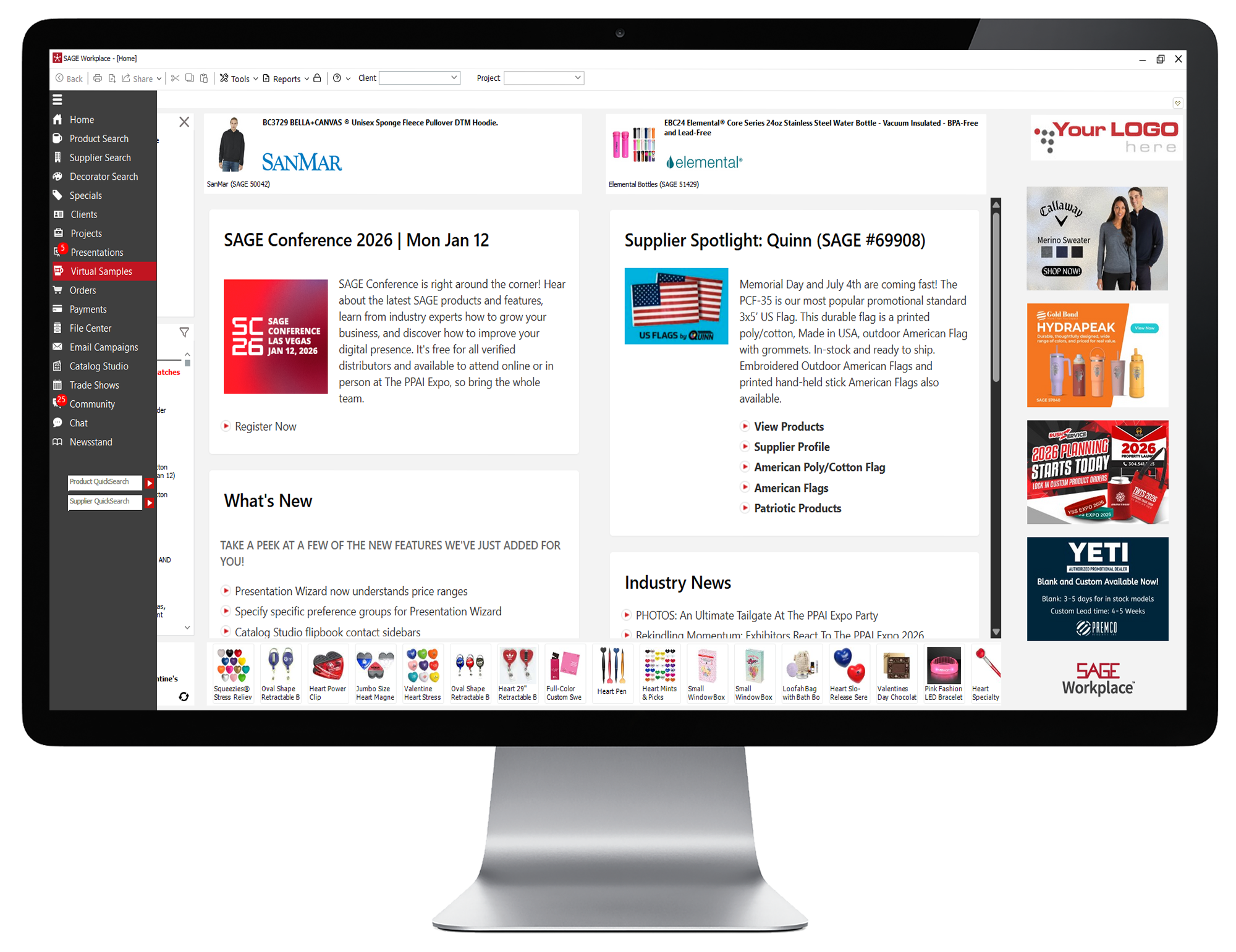
  • In SAGE Workplace, click on Virtual Samples in the left menu.
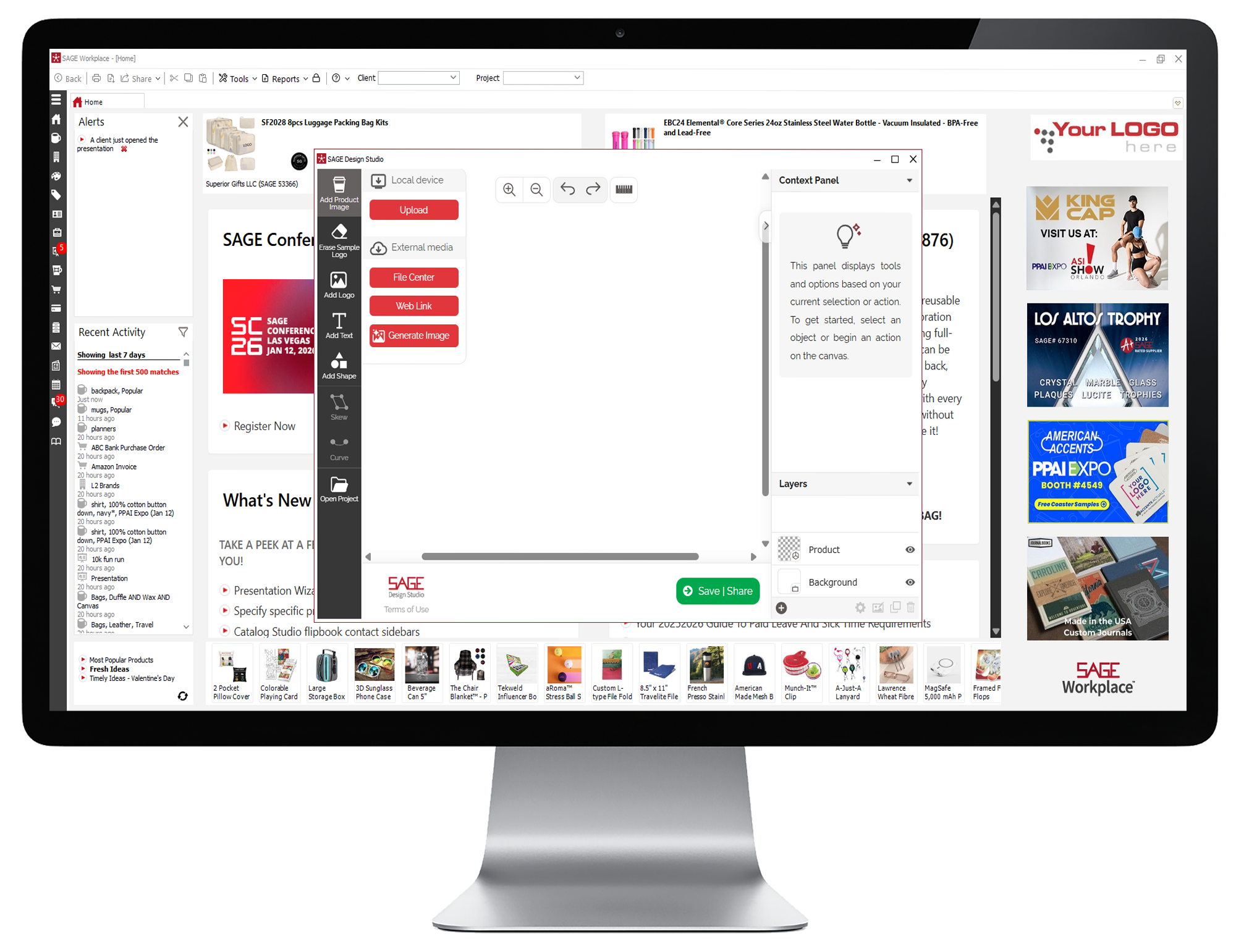
  • This will open a new window for the SAGE Design Studio. Add your own product image by clicking Add Product Image. Select a product image from your device by clicking Upload. Or import a product from the File Center or from a Web Link.
  • From here if your sample image already includes a logo or decoration, you can remove it instantly by clicking Erase Sample Logo.
  • You can then add your logo, text, or shapes to finish the virtual sample. Once you’re satisfied, click on Save/Share. You can send the sample as an email, print it from your device, save it as a PNG, PDF, or save to the File Center.
  • You can also generate a lifestyle image by clicking Generate Image under Add Product Image. Enter in product details and what scene you want the image to appear in, and click Generate.
  • In SAGE Workplace, click on Virtual Samples in the left menu.
  • How To Create a Virtual Sample From Scratch
  • This will open a new window for the SAGE Design Studio. Add your own product image by clicking Add Product Image. Select a product image from your device by clicking Upload. Or import a product from the File Center or from a Web Link.
  • How To Create a Virtual Sample From Scratch
  • From here if your sample image already includes a logo or decoration, you can remove it instantly by clicking Erase Sample Logo.
  • How To Create a Virtual Sample From Scratch
  • You can then add your logo, text, or shapes to finish the virtual sample. Once you’re satisfied, click on Save/Share. You can send the sample as an email, print it from your device, save it as a PNG, PDF, or save to the File Center.
  • How To Create a Virtual Sample From Scratch
  • You can also generate a lifestyle image by clicking Generate Image under Add Product Image. Enter in product details and what scene you want the image to appear in, and click Generate.
  • How To Create a Virtual Sample From Scratch
things to know

Things to Know:

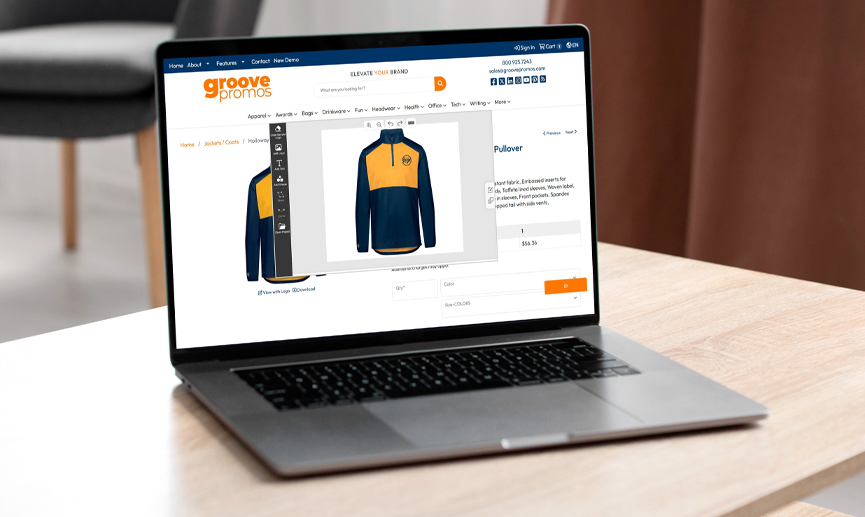
If you have a SAGE Website subscription, your clients can create their own virtual samples on your website! Enable the SAGE Design Studio on your website to allow your clients to easily see what their branded merchandise will look like.

When it comes to creating virtual samples, there’s no easier solution than the SAGE Design Studio. From adding and editing logos to products to adding virtual samples to projects, presentations, and more – the SAGE Design Studio does it all! For a more in-depth tutorial, sign up for a free, live demo.

GET A LIVE DEMO
Back to Top