

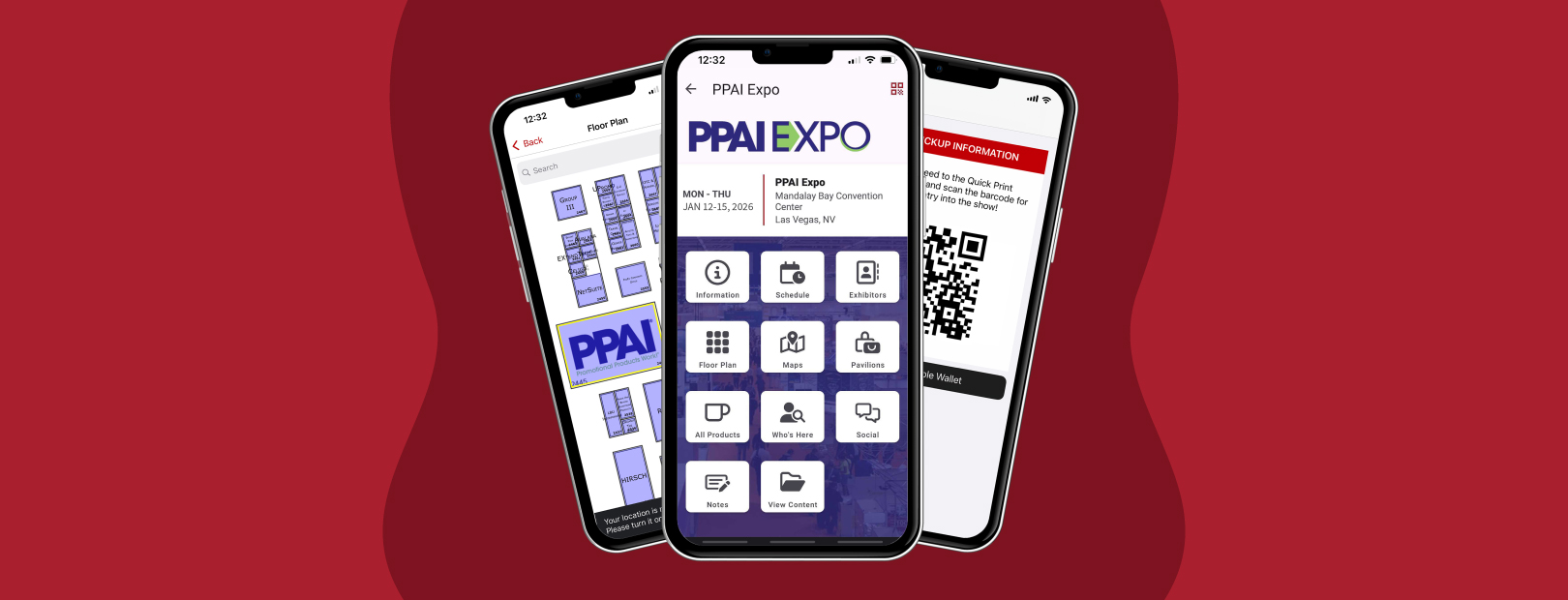
Within the SAGE Workplace ecosphere is a module designed especially for use at trade shows. Those who choose to use the module find their trade show experiences more organized, more efficient, and more enjoyable overall. The following are ways to utilize the Trade Shows module to make the most of your time at The PPAI Expo.
Planning Ahead
The PPAI Expo hosts almost 1,000 exhibitors. It’s not possible for any one person to visit them all during the show. That means one of two things: either you prioritize the exhibitor booths you want to visit, or you and your team must divide and conquer. Either way, you need a plan before you get to the show floor.
Tip #1: Create a Walk List
Within the Trade Shows module of SAGE Workplace, you can search for The PPAI Expo. From there, you can see the full list of exhibitors. Create a walk list by hand picking the exhibitors you want to see or by using your supplier preference groups already created in SAGE Workplace. You can then share one walk list with your team or create multiple walk lists to work together to gather the information you need.
Tip #2: Schedule Education & Networking
Within the module, you can also add education sessions and networking events to your calendar. Filter the sessions by topics you want to learn more about, star the sessions you want to attend, and add them to your calendar to help you plan your days in Vegas.
Navigating the Show for Maximum Efficiency
Tip #3: Use Offline Mode
Planning ahead does more than help you fit everything into your schedule. It also allows you to use offline mode in the Trade Show module while you’re on the show floor. The app saves everything for offline use and will automatically upload your additions once you’re back online.
Tip #4: Avoid Registration Lines
Get your badge expediently by scanning the badge barcode found in the module at a Quick Print station rather than waiting in long registration lines. You’re already ahead of the game and you just got there.
Tip #5: Track Booths You’ve Visited
Use the interactive floor plan within the app to see your walk list in real time or tap a booth for more details about that exhibitor. Scanning the QR code at the exhibitor’s booth will check them off on your walk list to help you keep track of booths you’ve visited and those you haven’t. Take notes (including photos and videos) at booths to help you remember what made an impression on you there.
Tip #5: Take Notes
You can also take notes at education sessions to have on hand later. Those notes can also include photos and videos.
Tip #6: Browse Products
If you’re unfamiliar with a particular exhibitor, you can explore their product offerings in the app. Discover featured products in the product pavilion within the app.
Tip #7: Stay Connected
Get social by connecting with others at the show in the social portion of the module. Add a post to share with attendees or view posts from others to stay in the know while you’re at the show.
After You Get Home
Tip #8: Review the Notes
There’s a lot of information to take in at The PPAI Expo. Thanks to the Trade Show module in the SAGE Workplace app on your phone, you can export, email, or view all the media and notes you took while you were there. Because the notes are saved within the session or exhibitor booth in the app, you have context for where the information came from.
Tough tasks required the right tools. Having the SAGE Workplace app on your phone and accessing the Trade Show module is the tool you need to tackle The PPAI Expo.
0 Comments